
Approval Overview
This training will equip you with the skills to efficiently manage timesheets, leave requests, and expense approvals within Office1solution.
Go to app.office1solution.com
1. Introduction
You will learn how to navigate the system to review, approve, and reject entries accurately.
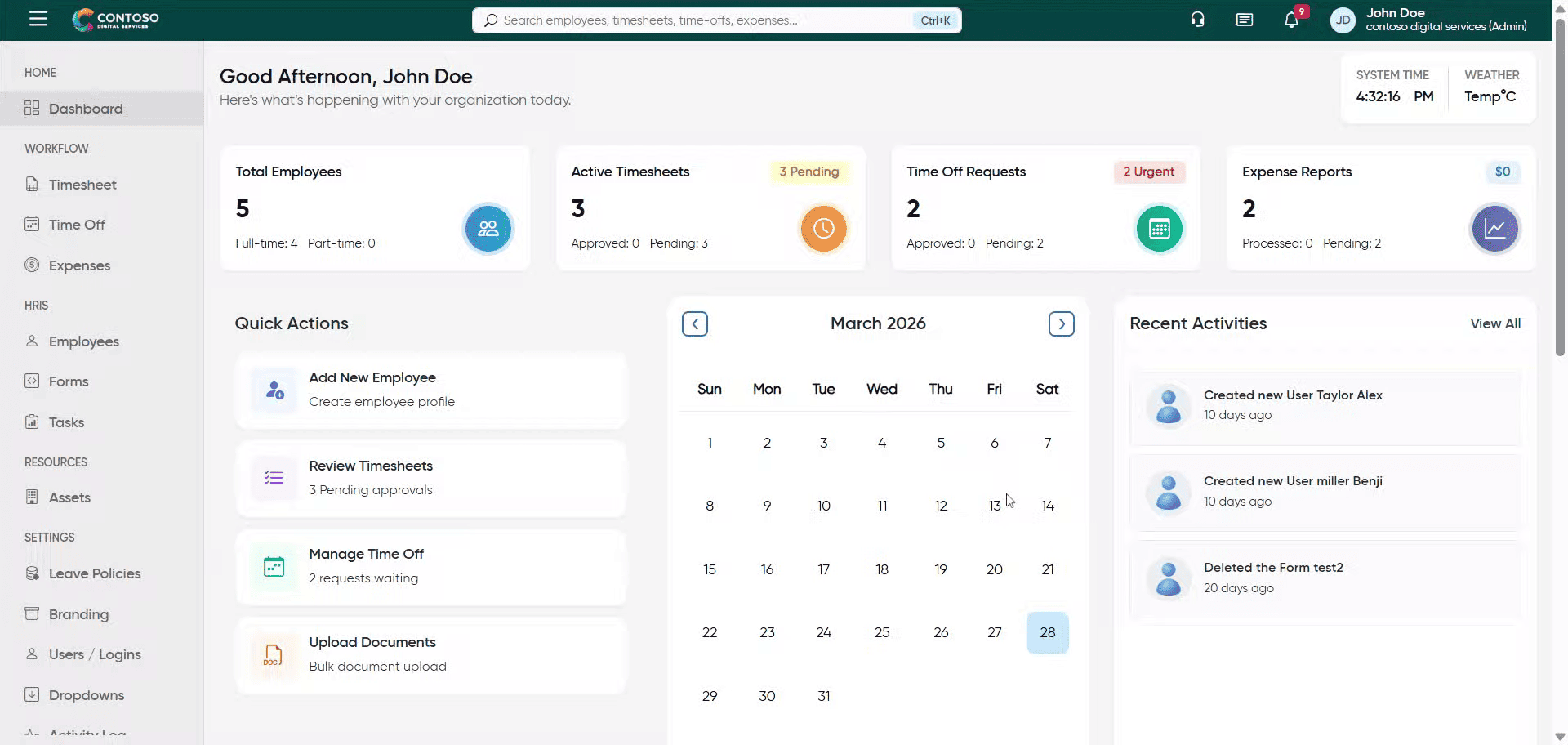
2. Access Timesheet Section
Click the Timesheet tab to open the timesheet management area.
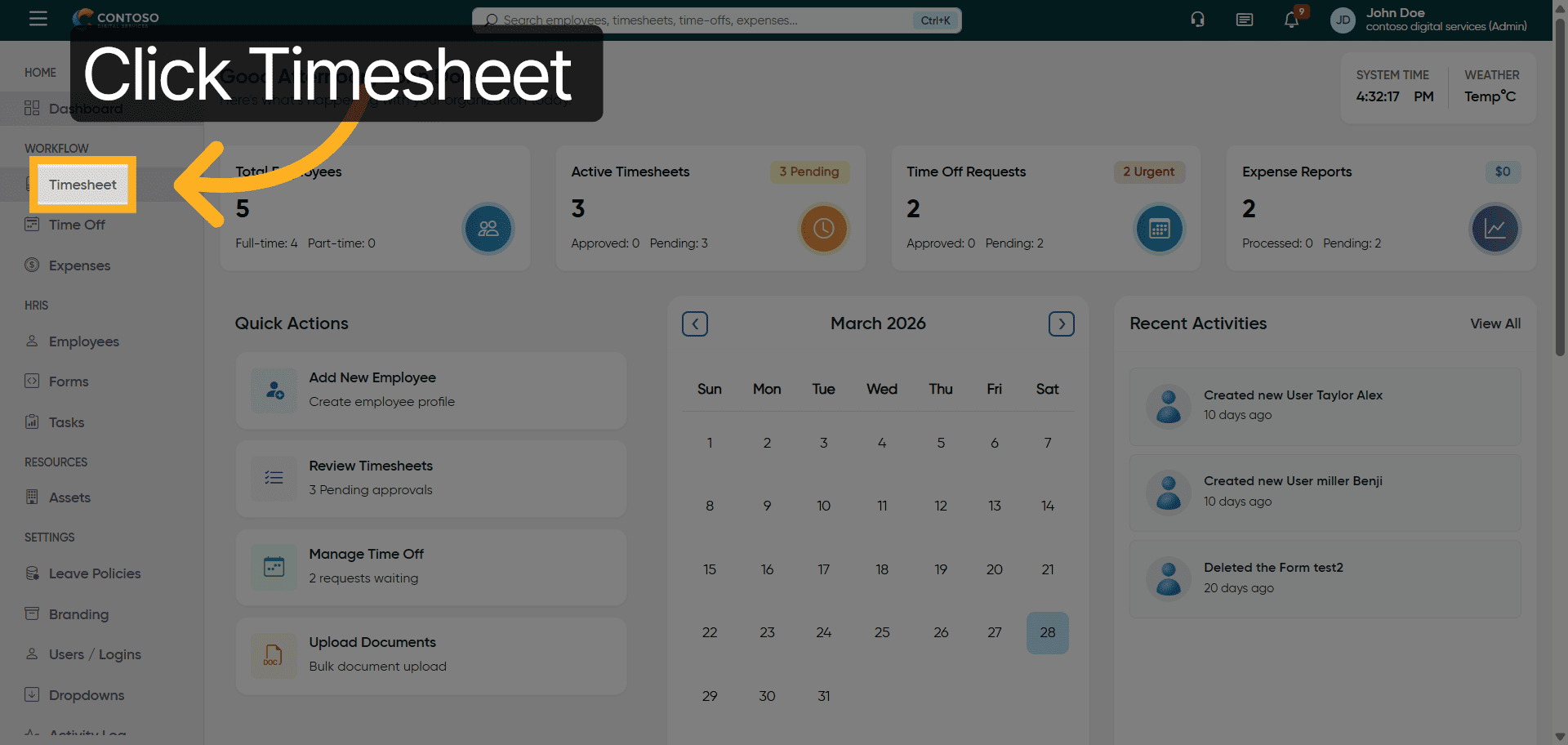
3. Enter Privilege Details
Fill in the Privilege field with the appropriate access level or role.
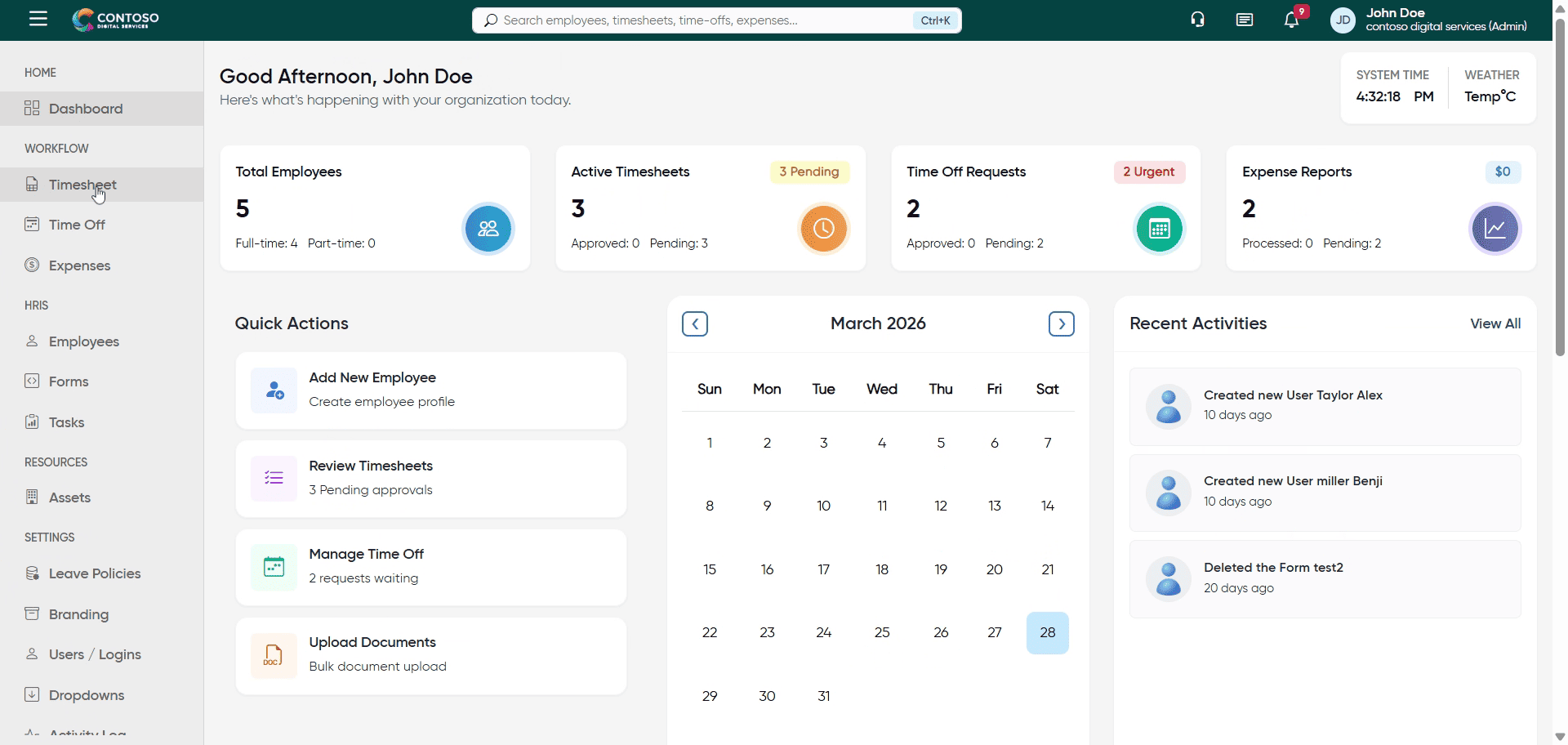
4. Open Timesheet Options
Click here to access additional timesheet options and actions.
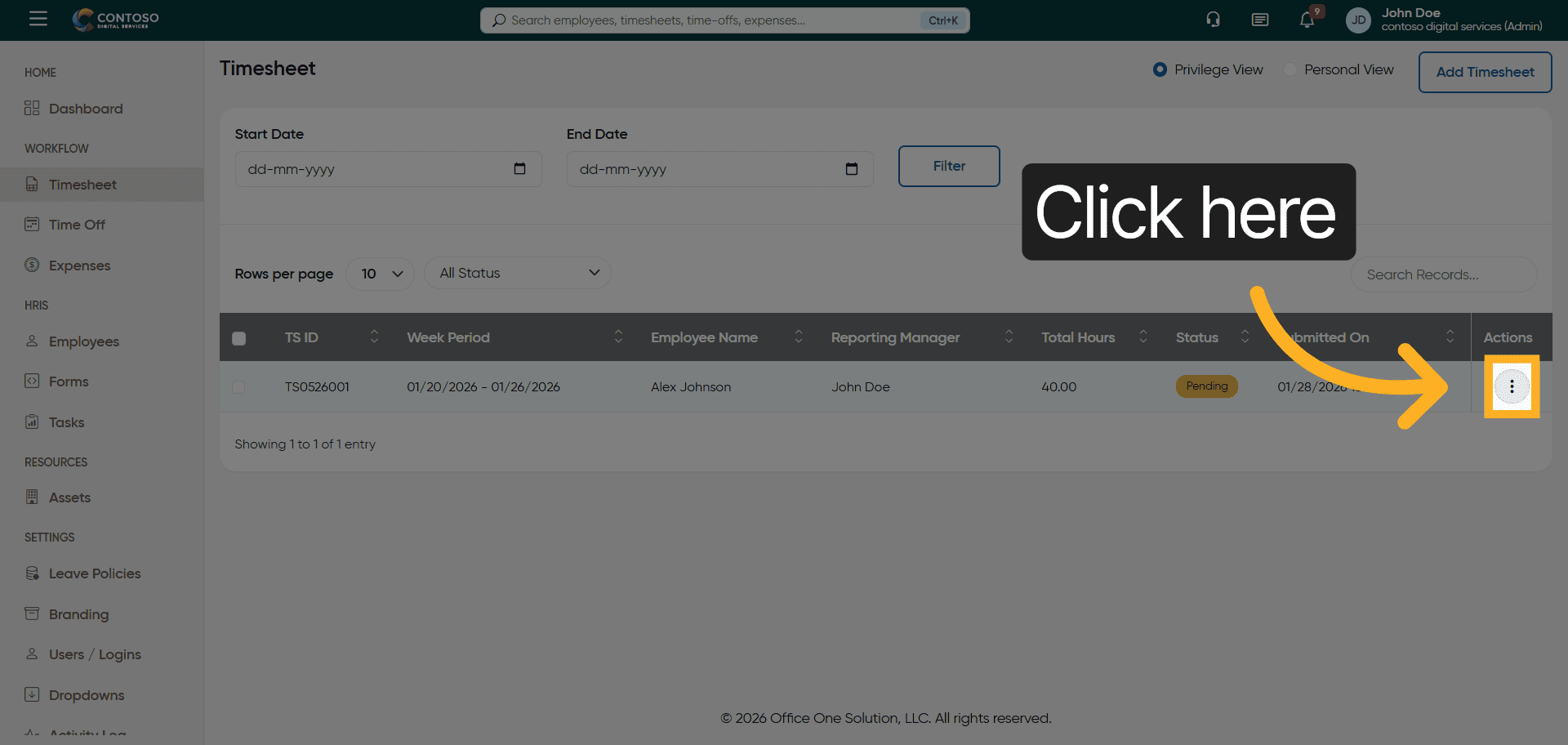
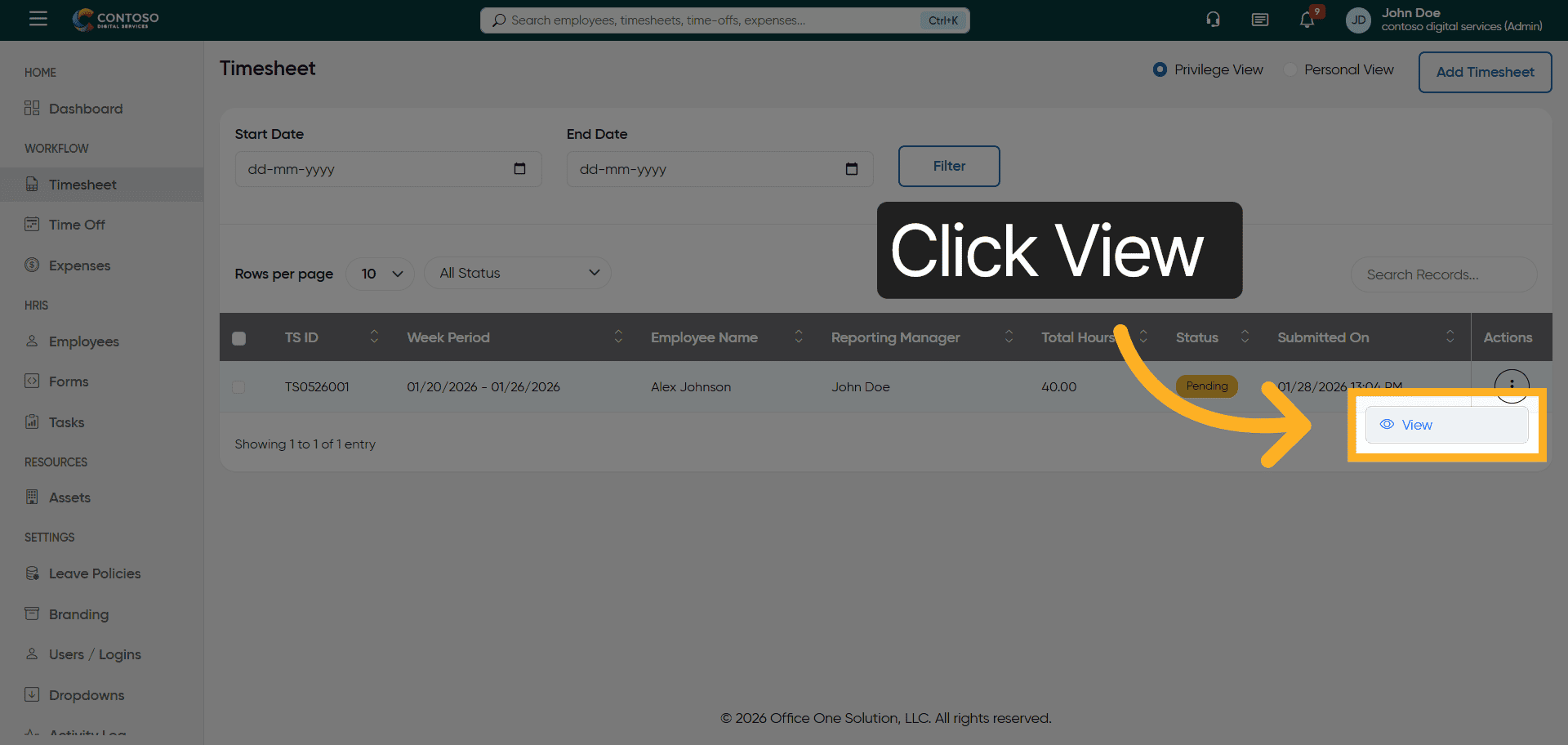
5. View Timesheet Details
Click the View button to see detailed information about the selected timesheet.
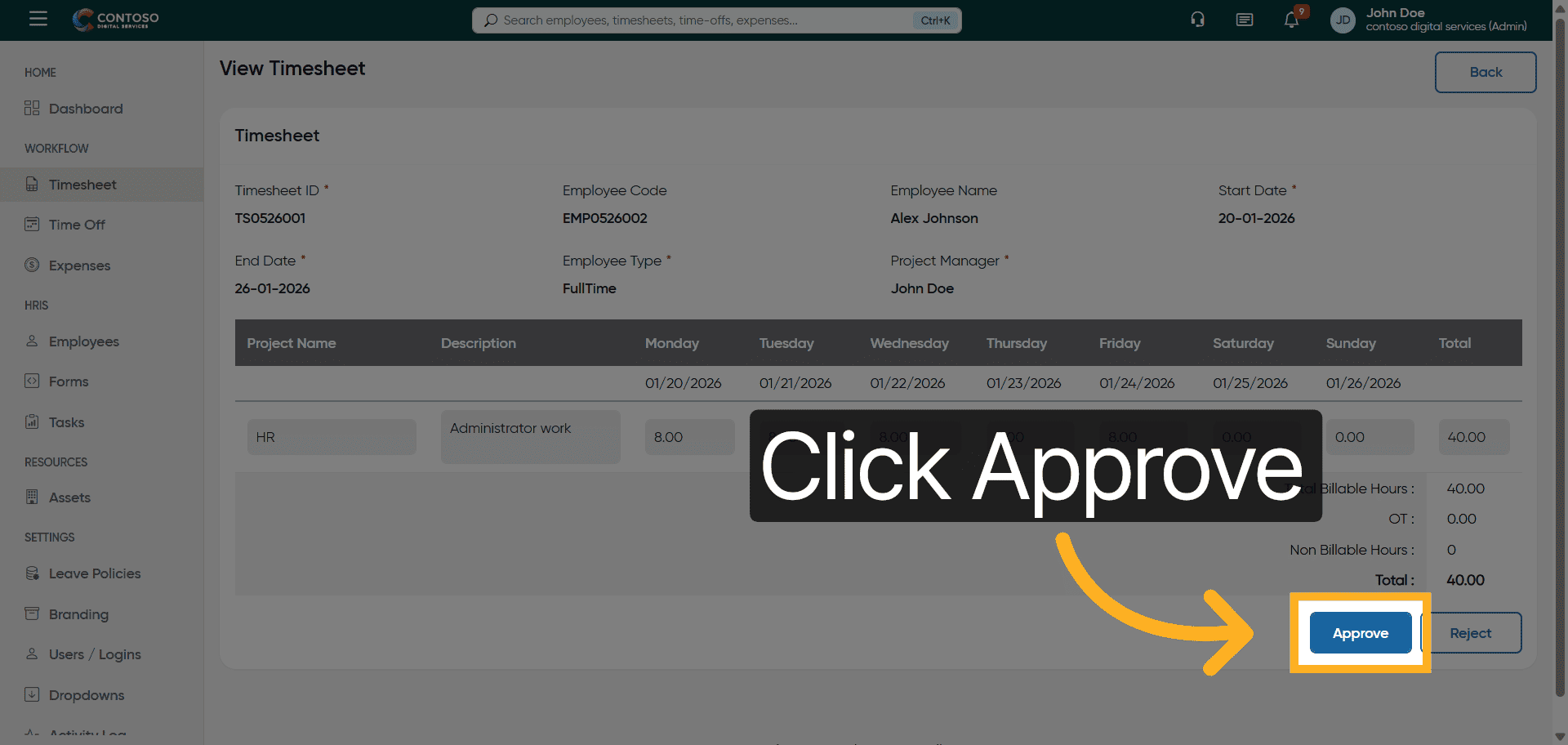
6. Approve Timesheet Entry
Click the Approve button to authorize the timesheet entry for processing.
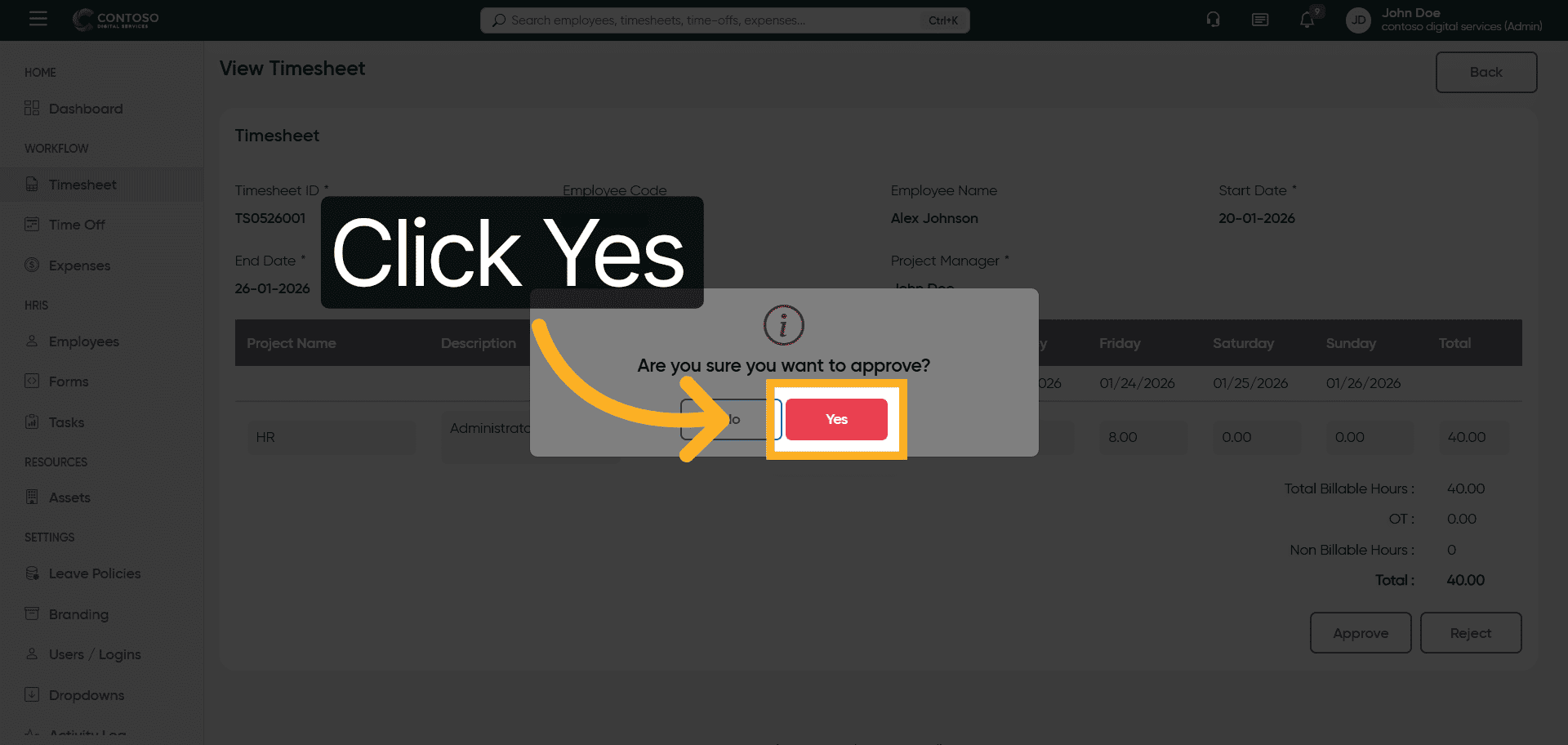
7. Confirm Approval
Click Yes to confirm the approval of the timesheet entry.
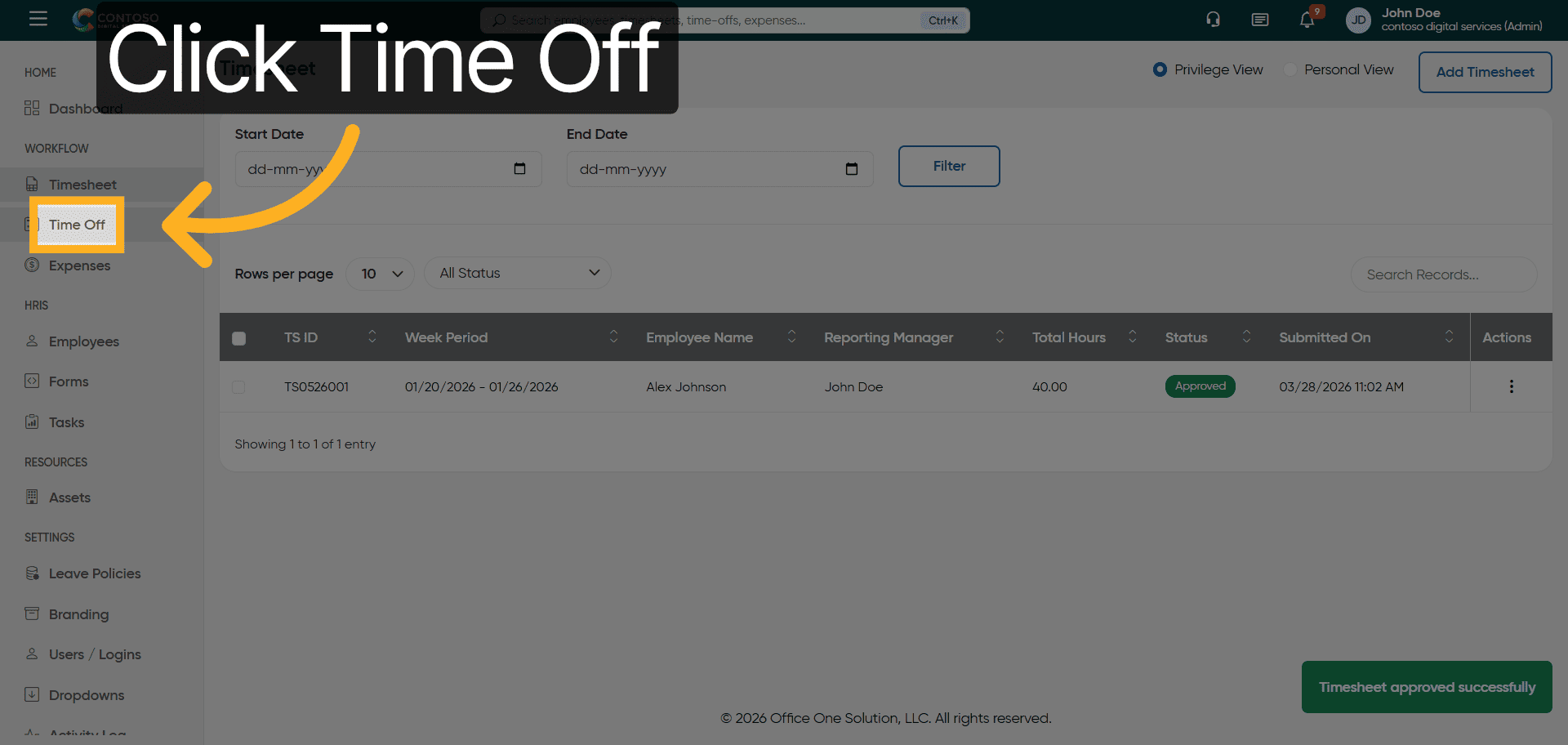
8. Navigate to Time Off Section
Click the Time Off tab to manage leave requests and related information.
9. Input Privilege Information
Fill the Privilege field with the relevant access or role information for leave management.
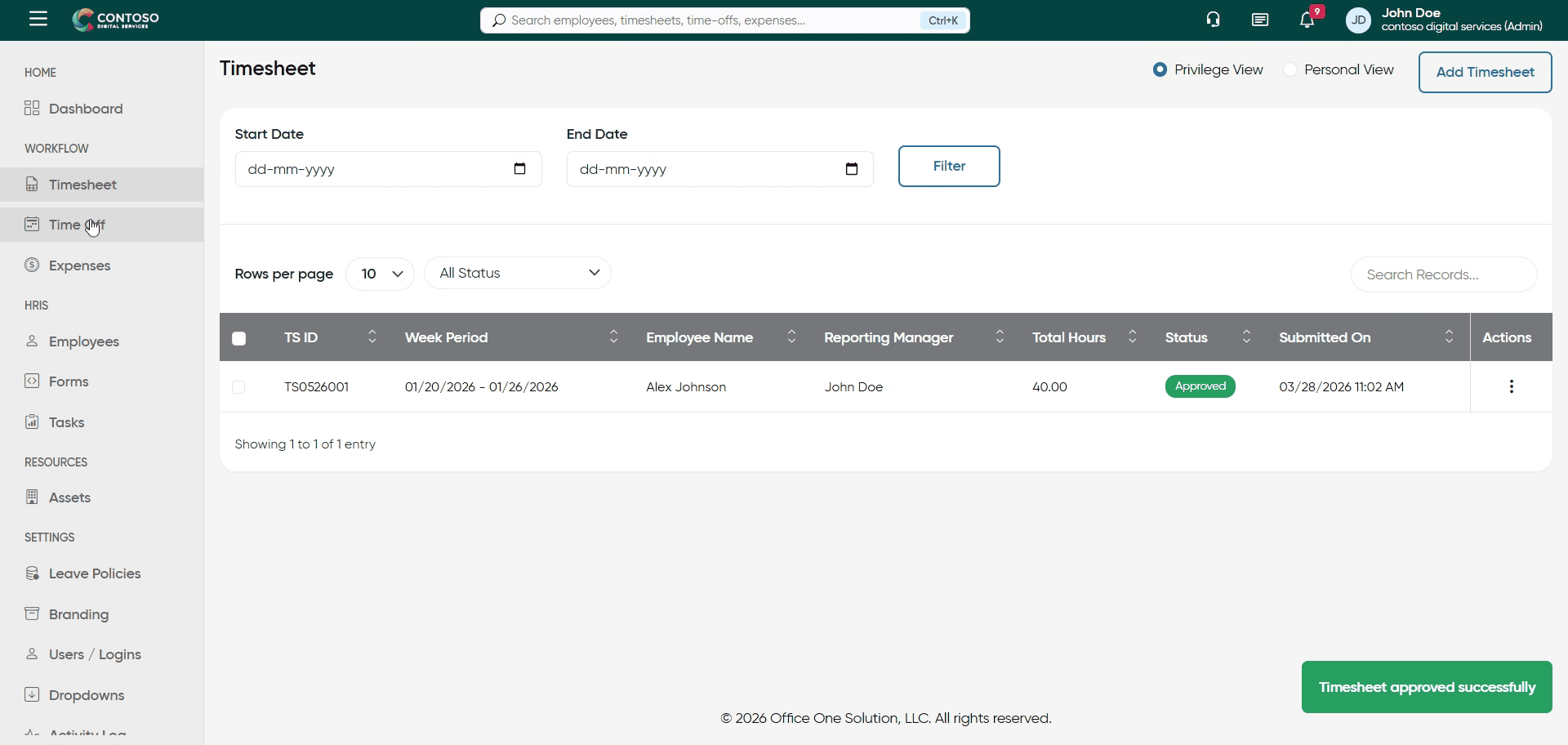
10. Filter Leave Status
Click the All Status dropdown to filter leave requests by their current status.
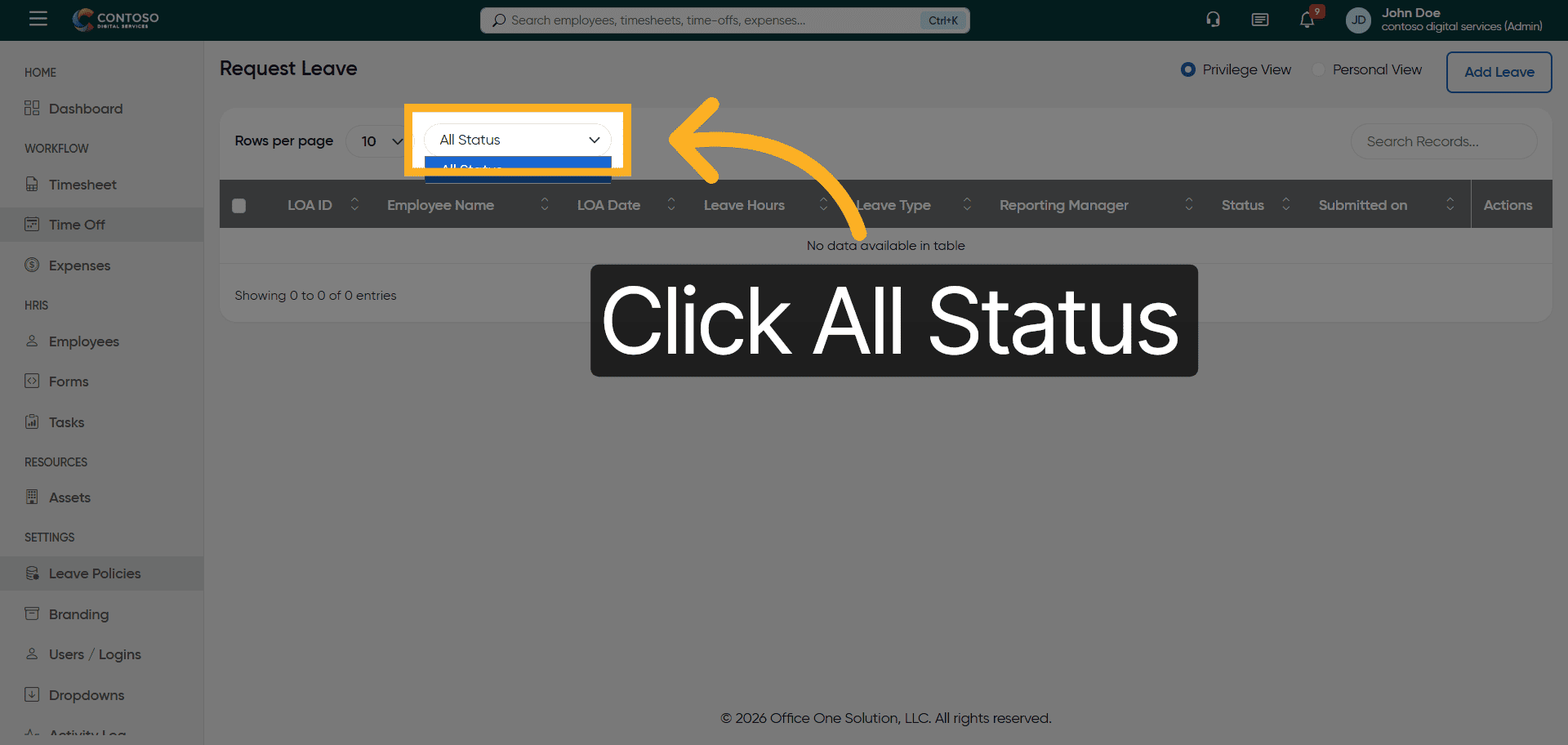
11. Review Leave Entries
Click the Showing 0 to 0 of 0 entries area to view the list of leave requests available.
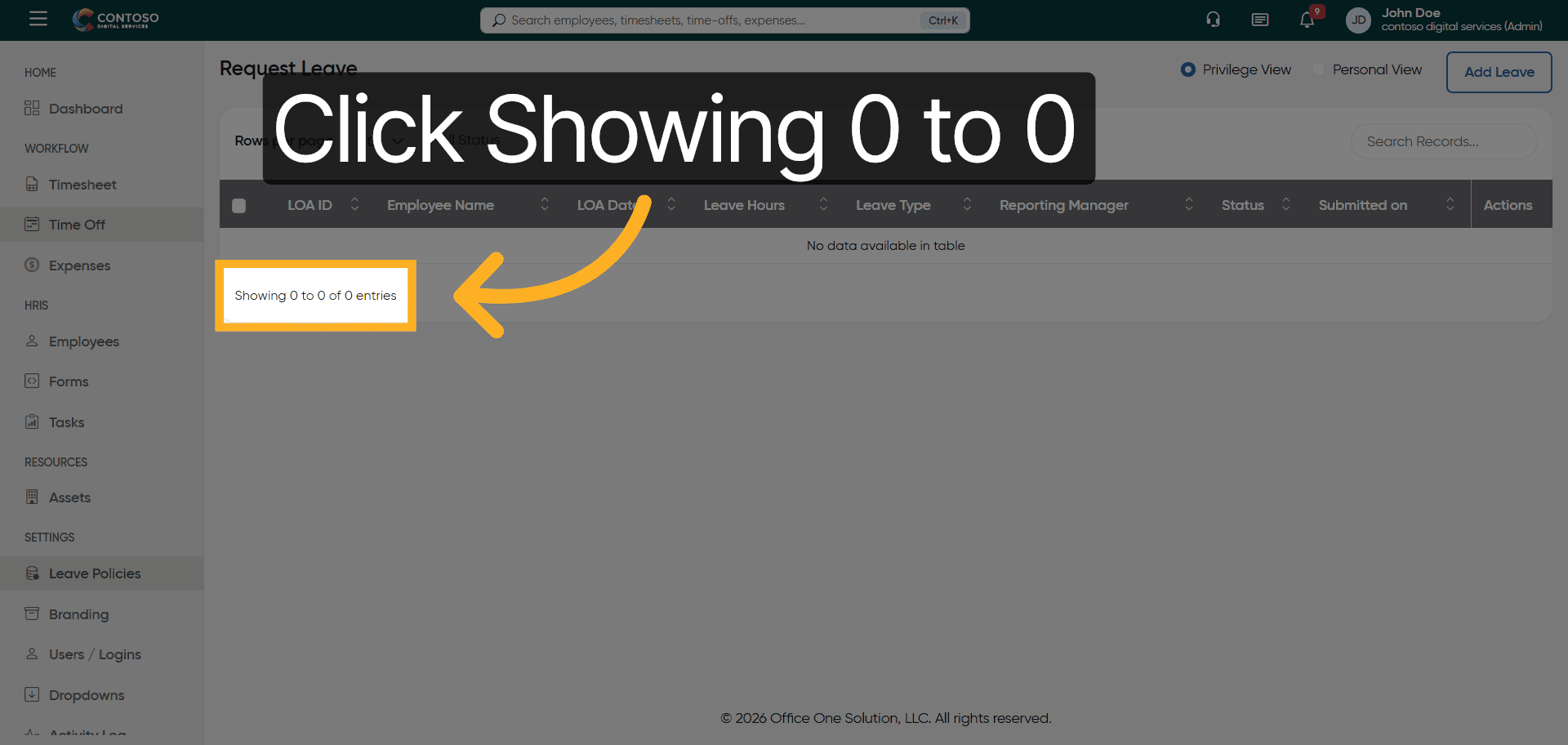
12. Access Expenses Section
Click the Expenses tab to manage and review expense reports submitted by employees.
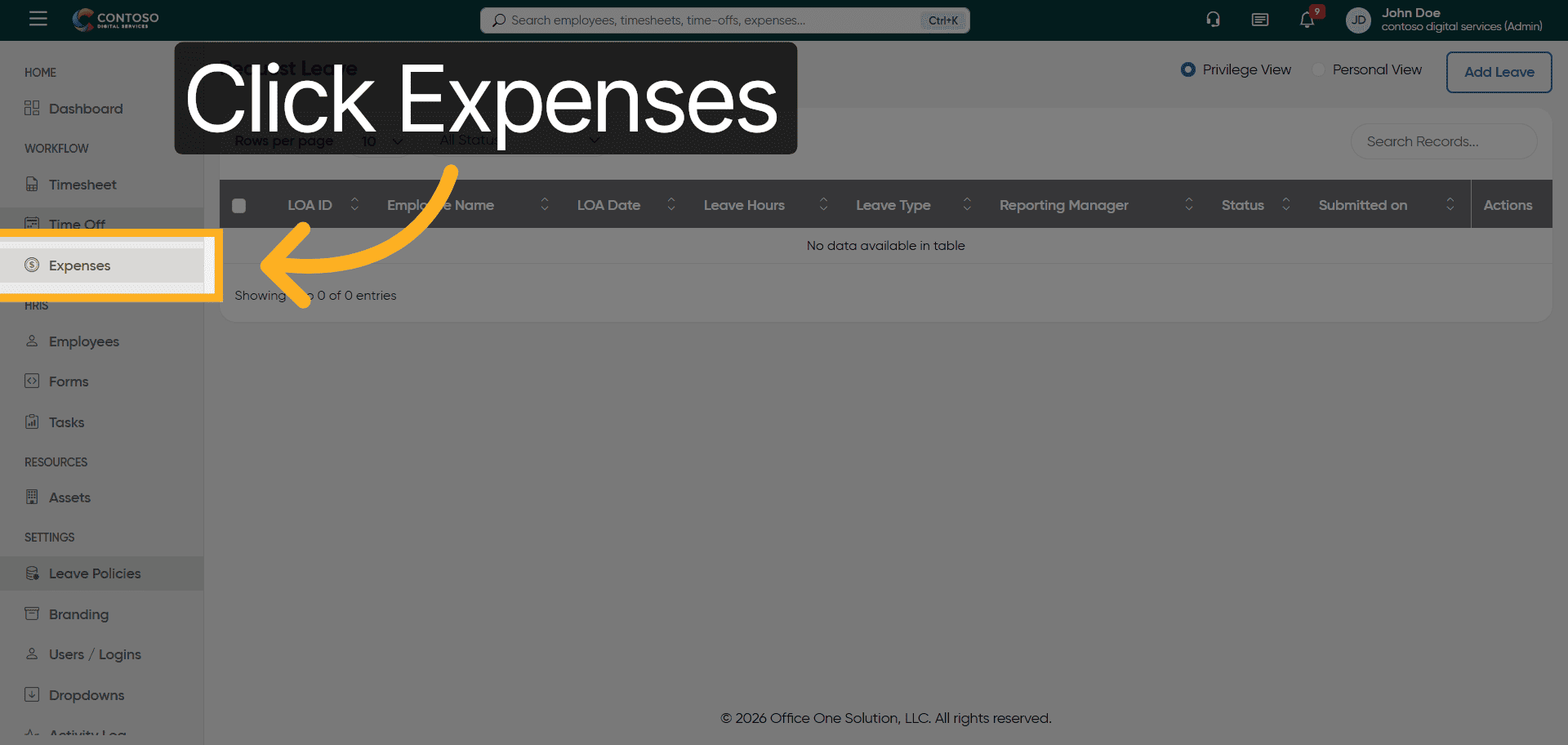
13. Enter Expense Privilege
Fill in the Privilege field with the appropriate access level for expense management.
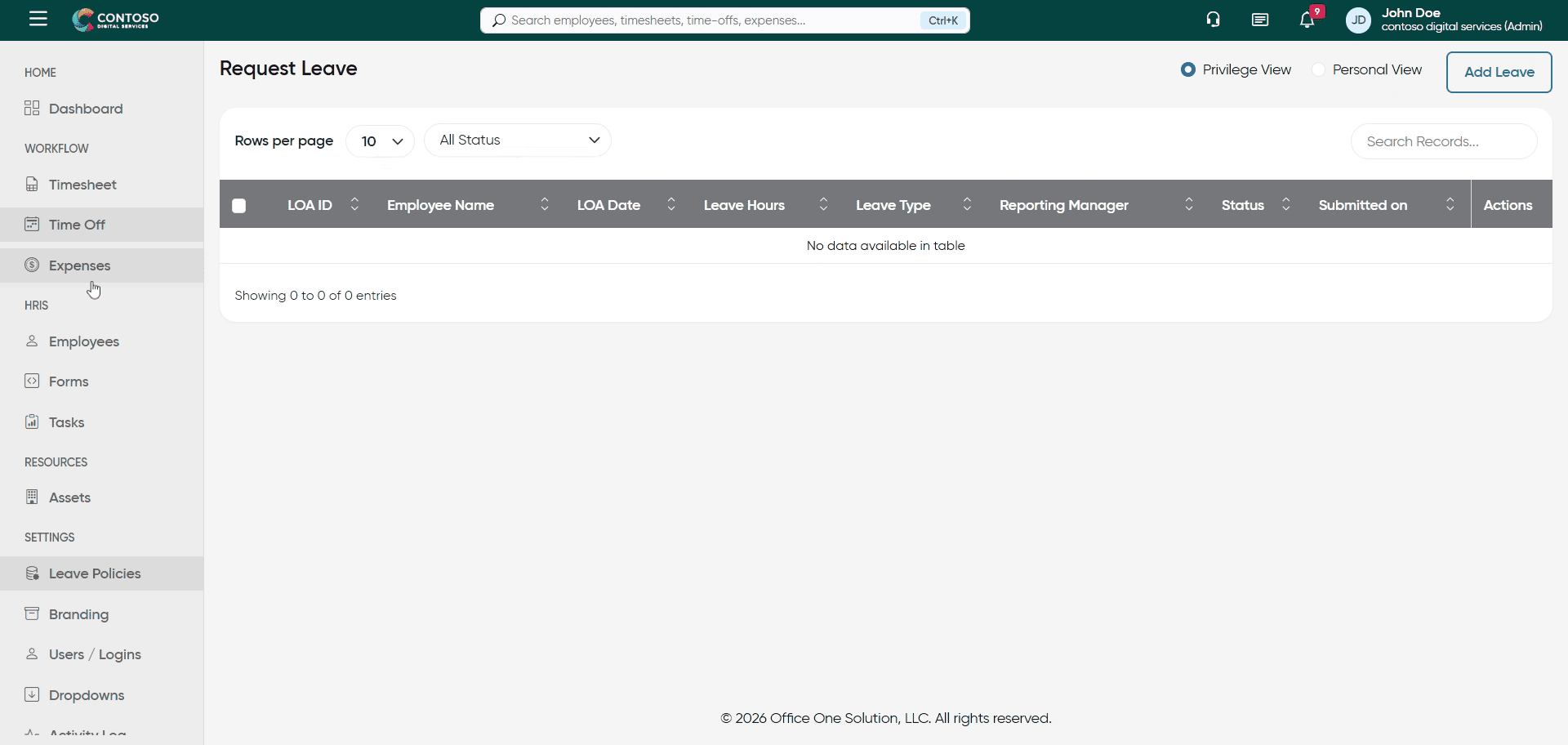
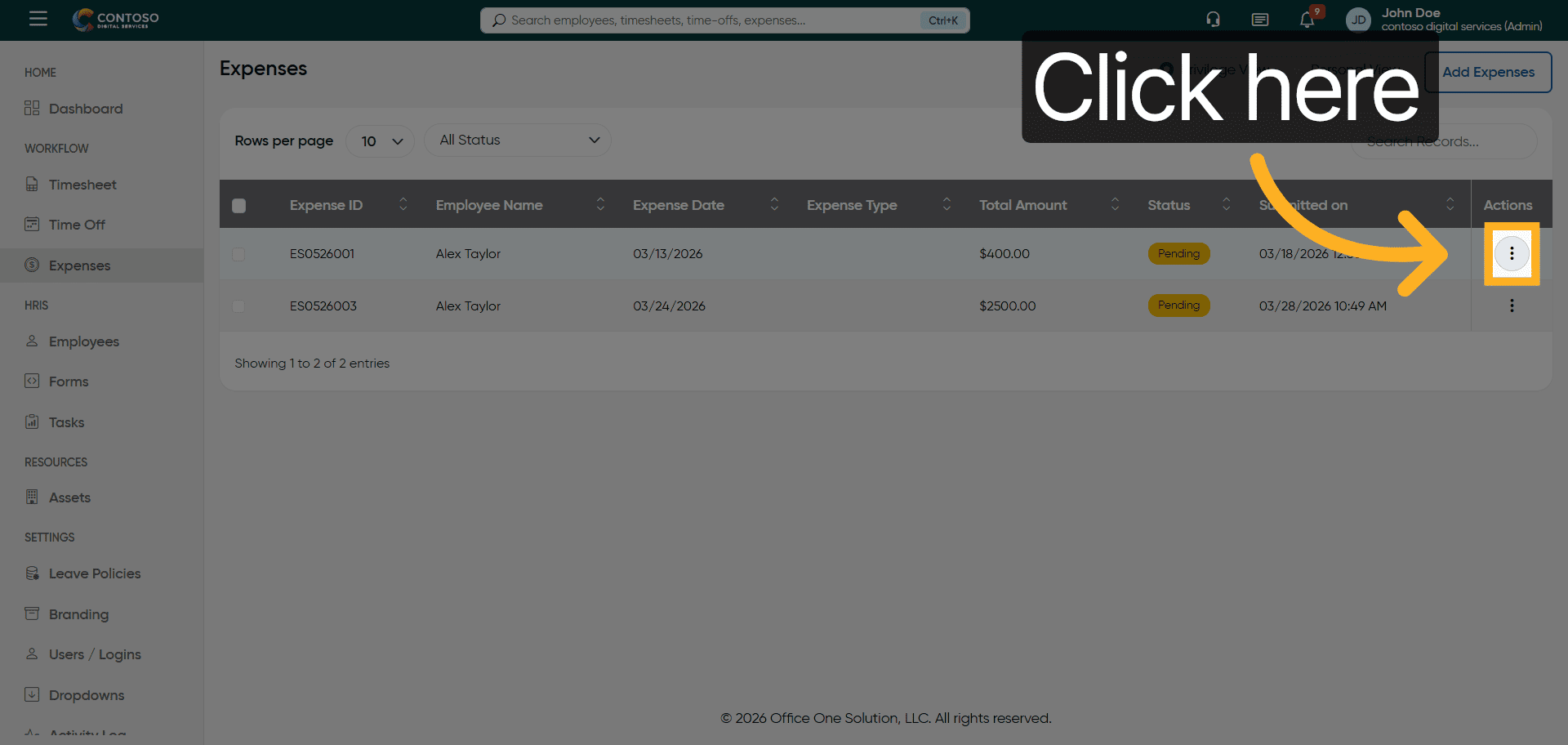
14. Open Expense Options
Click here to reveal additional options related to expense entries.
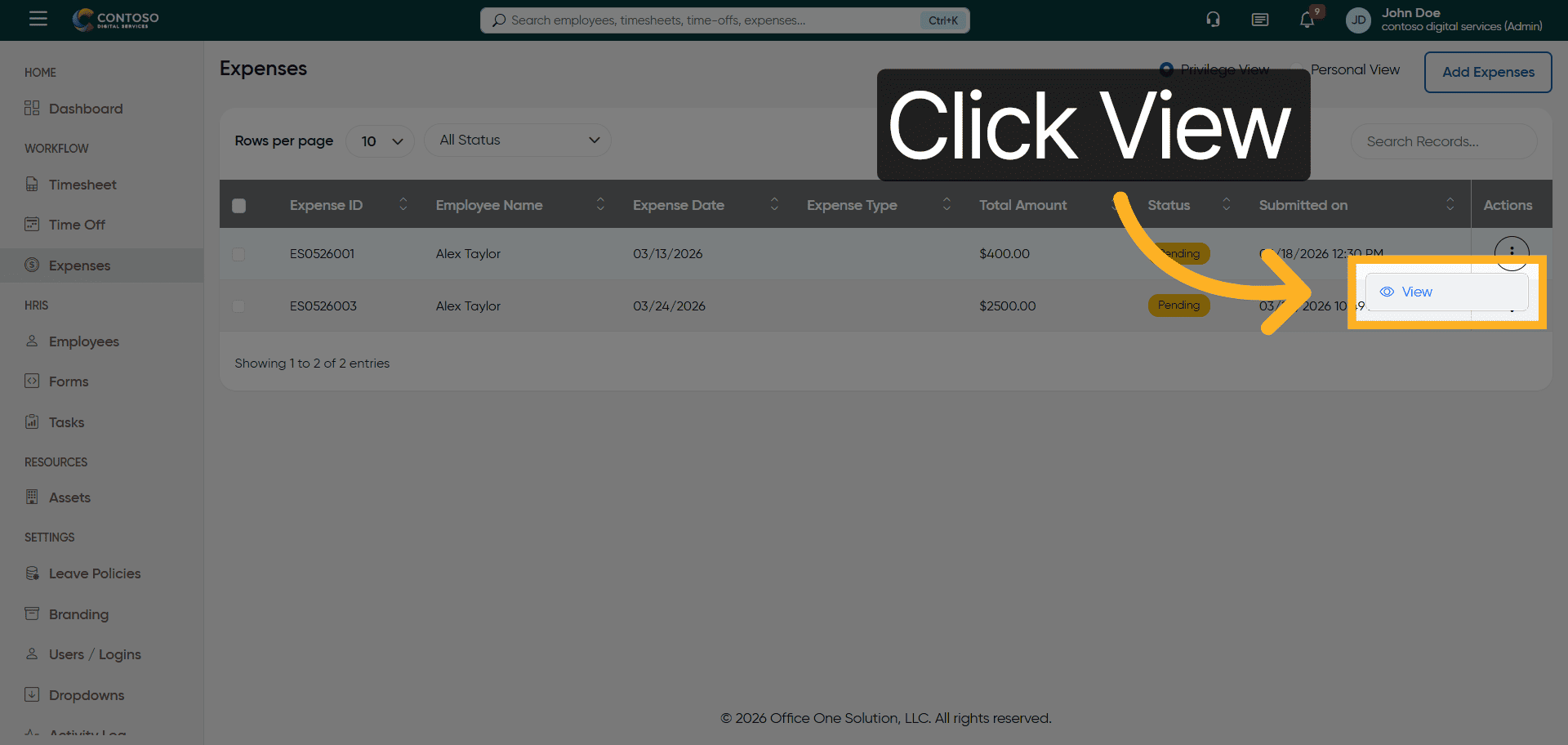
15. View Expense Details
Click the View button to examine detailed information about a specific expense report.
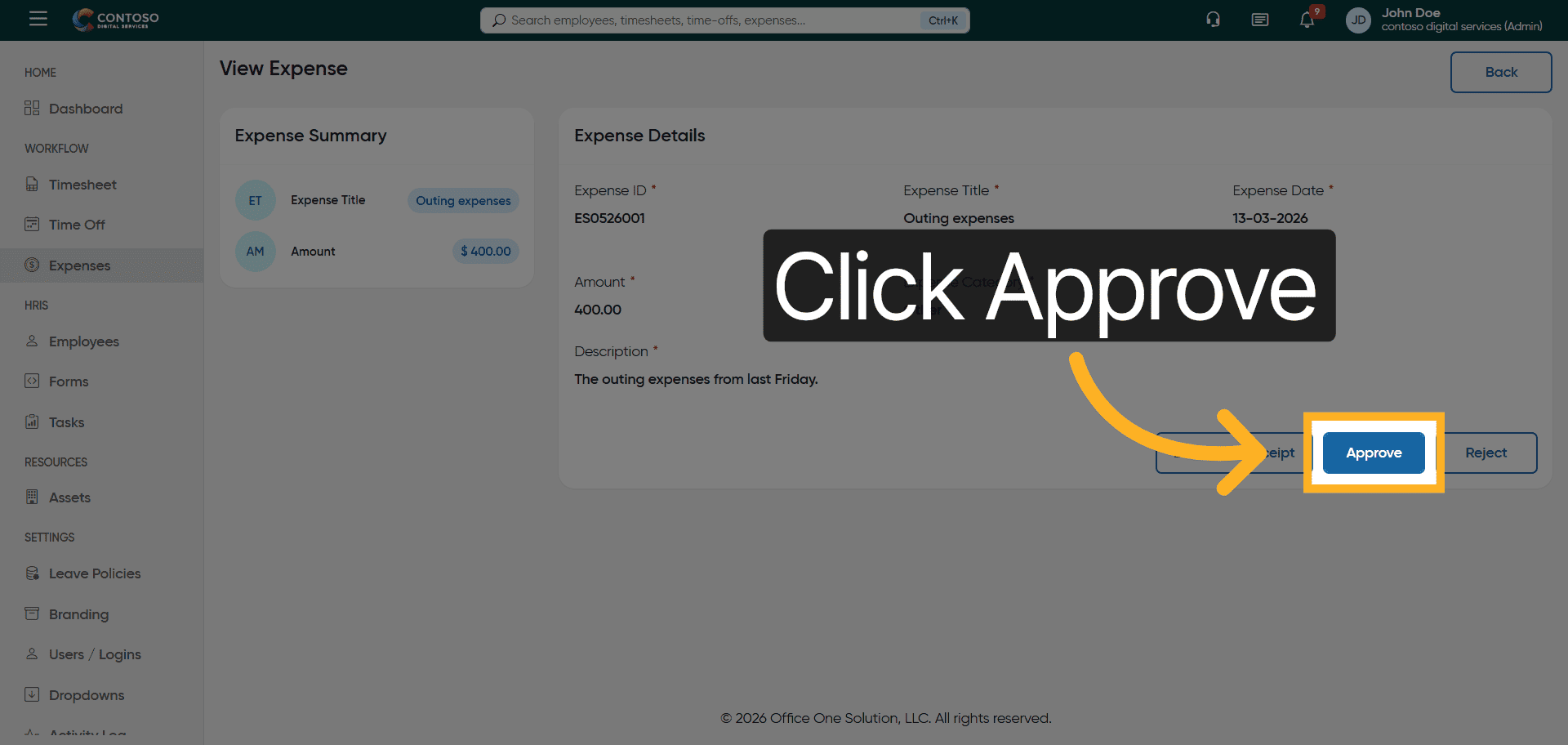
16. Approve Expense Report
Click the Approve button to authorize the selected expense report for reimbursement.
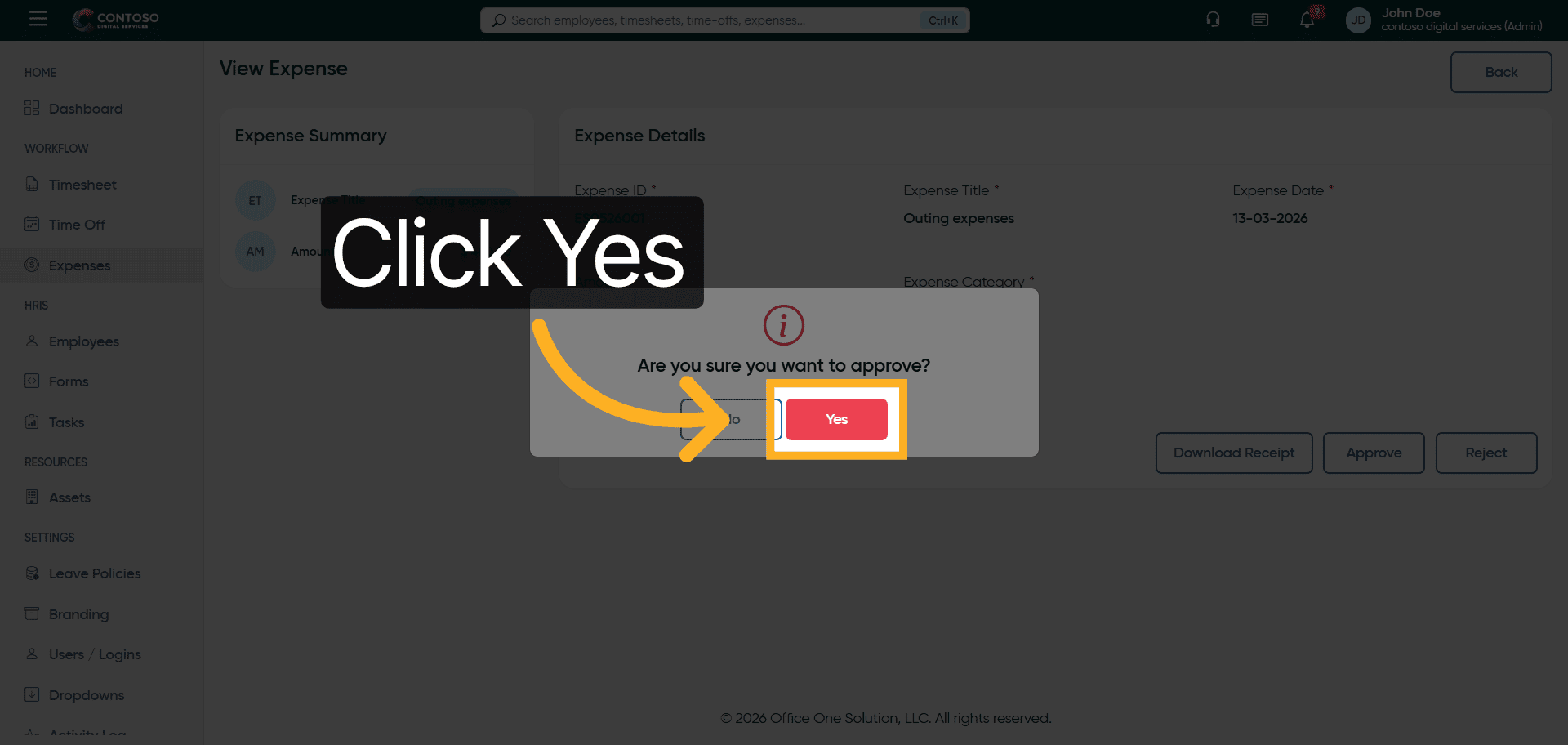
17. Confirm Expense Approval
Click Yes to confirm the approval of the expense report.
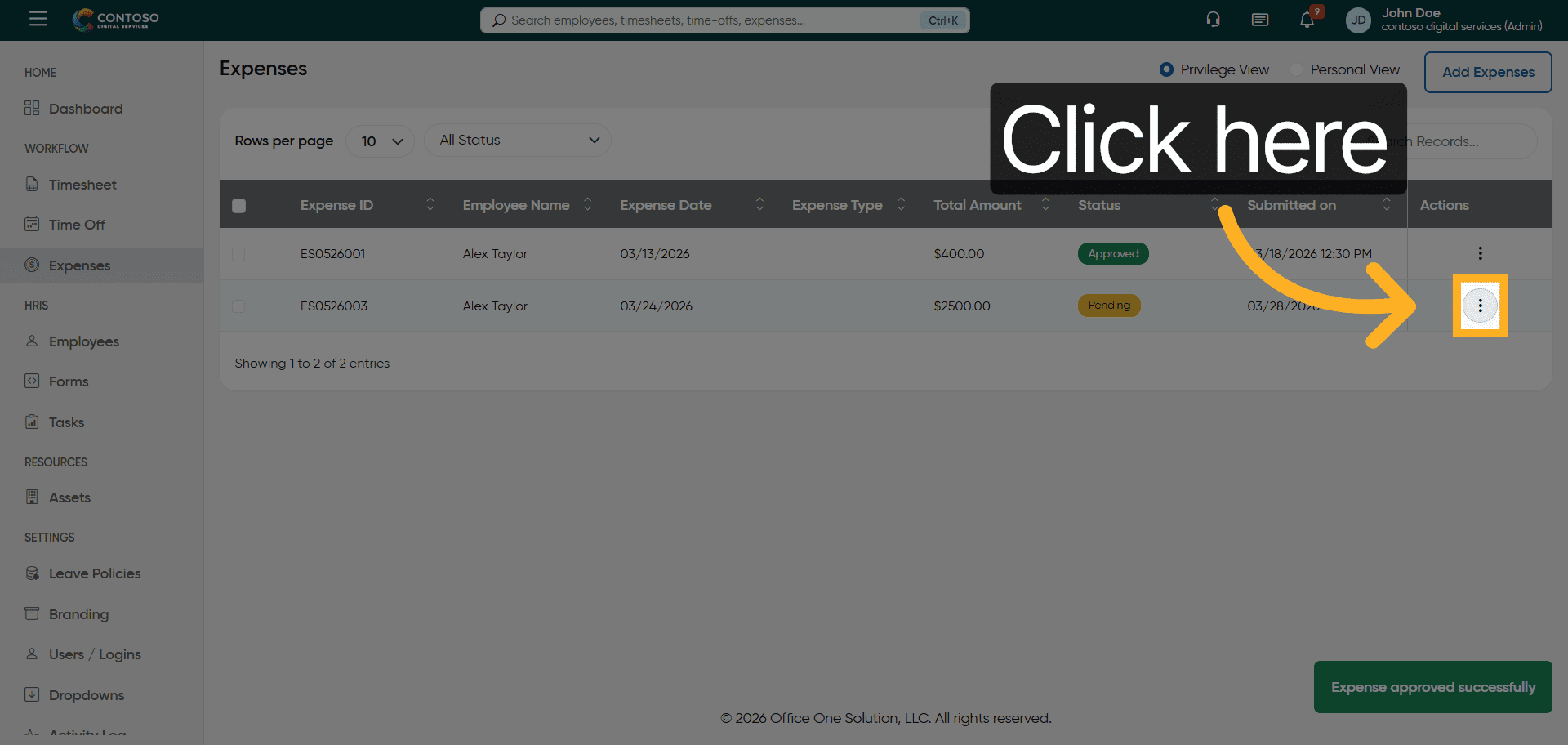
18. Access Additional Expense Options
Click here to access further options for managing expense entries.
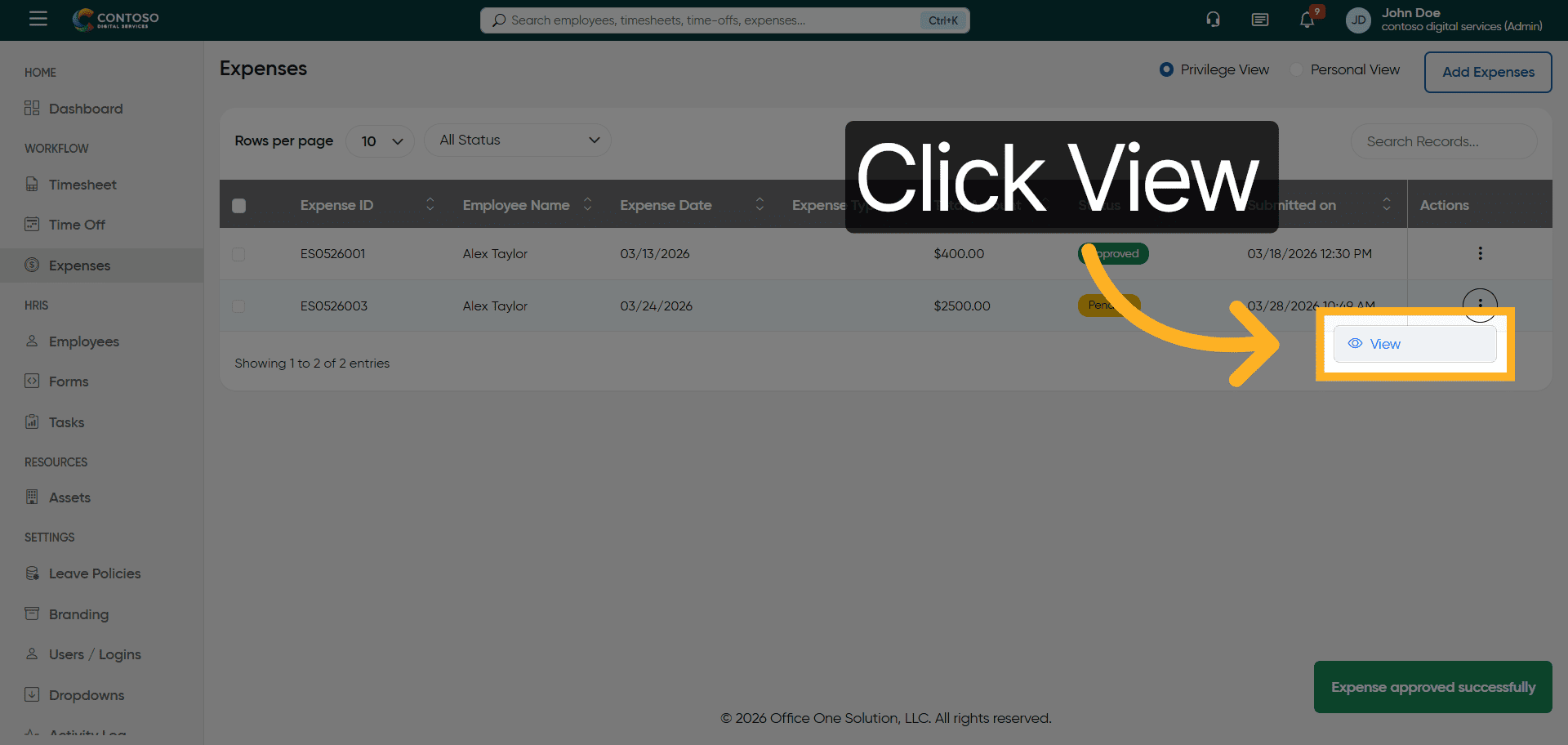
19. View Expense Entry
Click the View button to open the details of the selected expense entry.
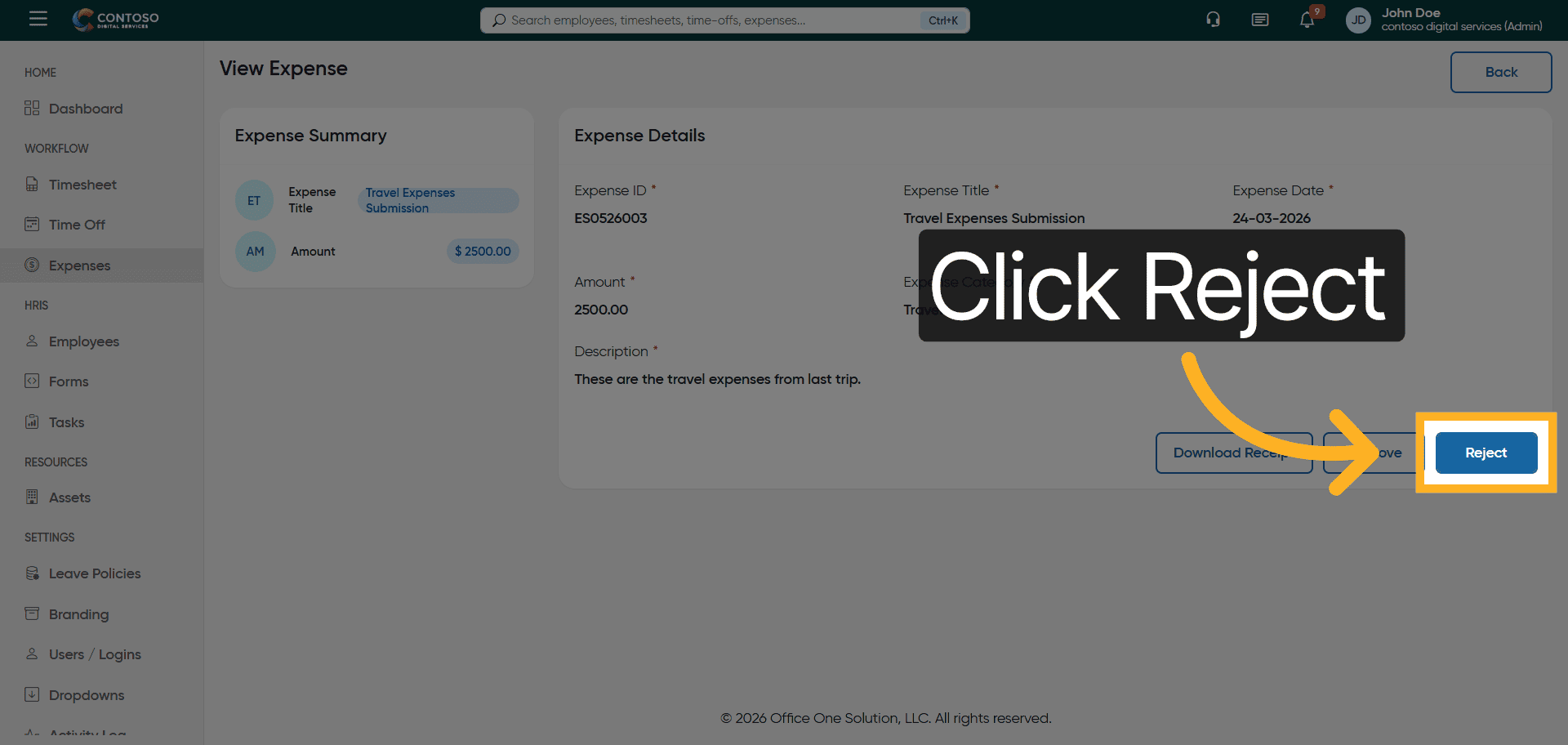
20. Reject Expense Report
Click the Reject button to decline the selected expense report.
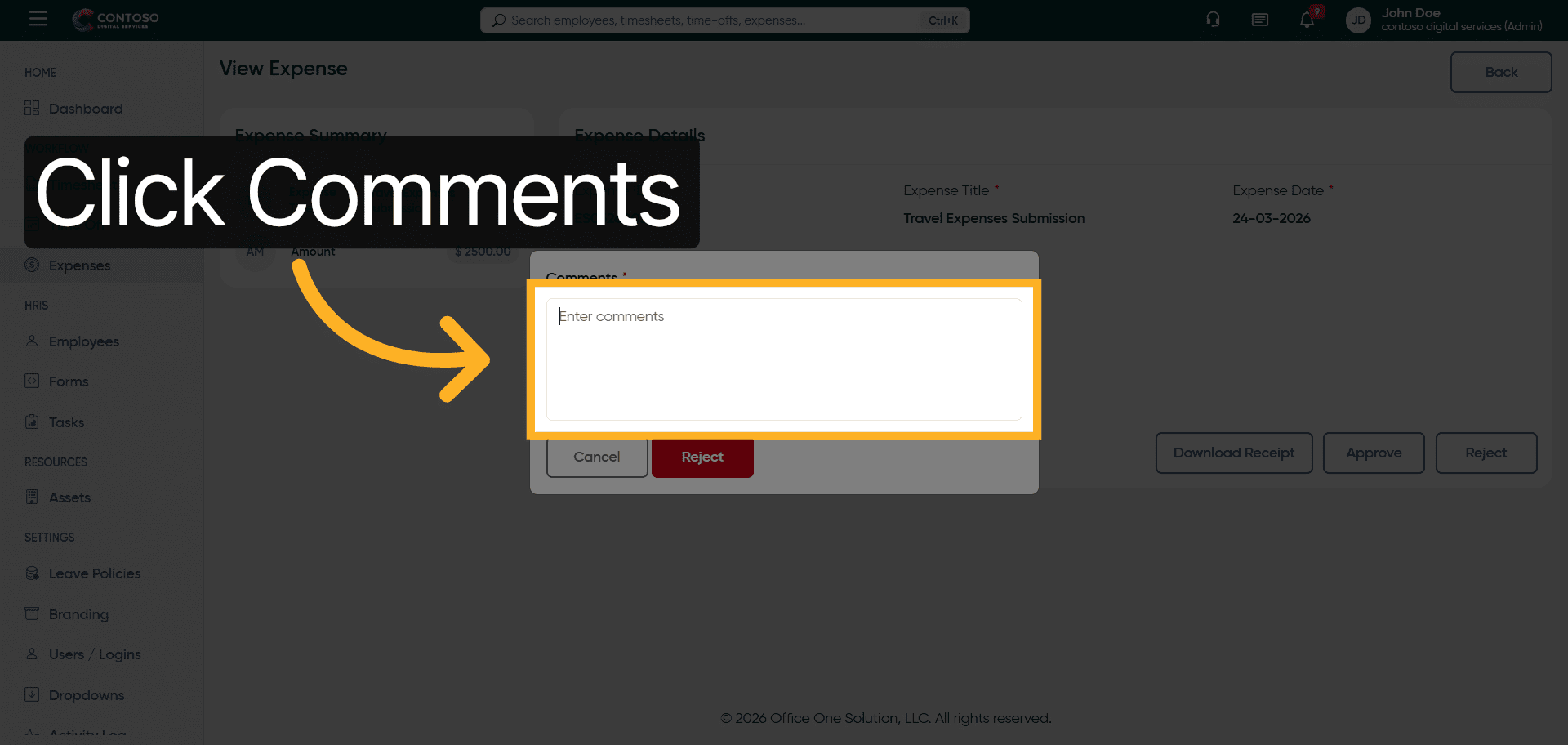
21. Add Rejection Comments
Click the Comments section to provide feedback or reasons for rejecting the expense report.
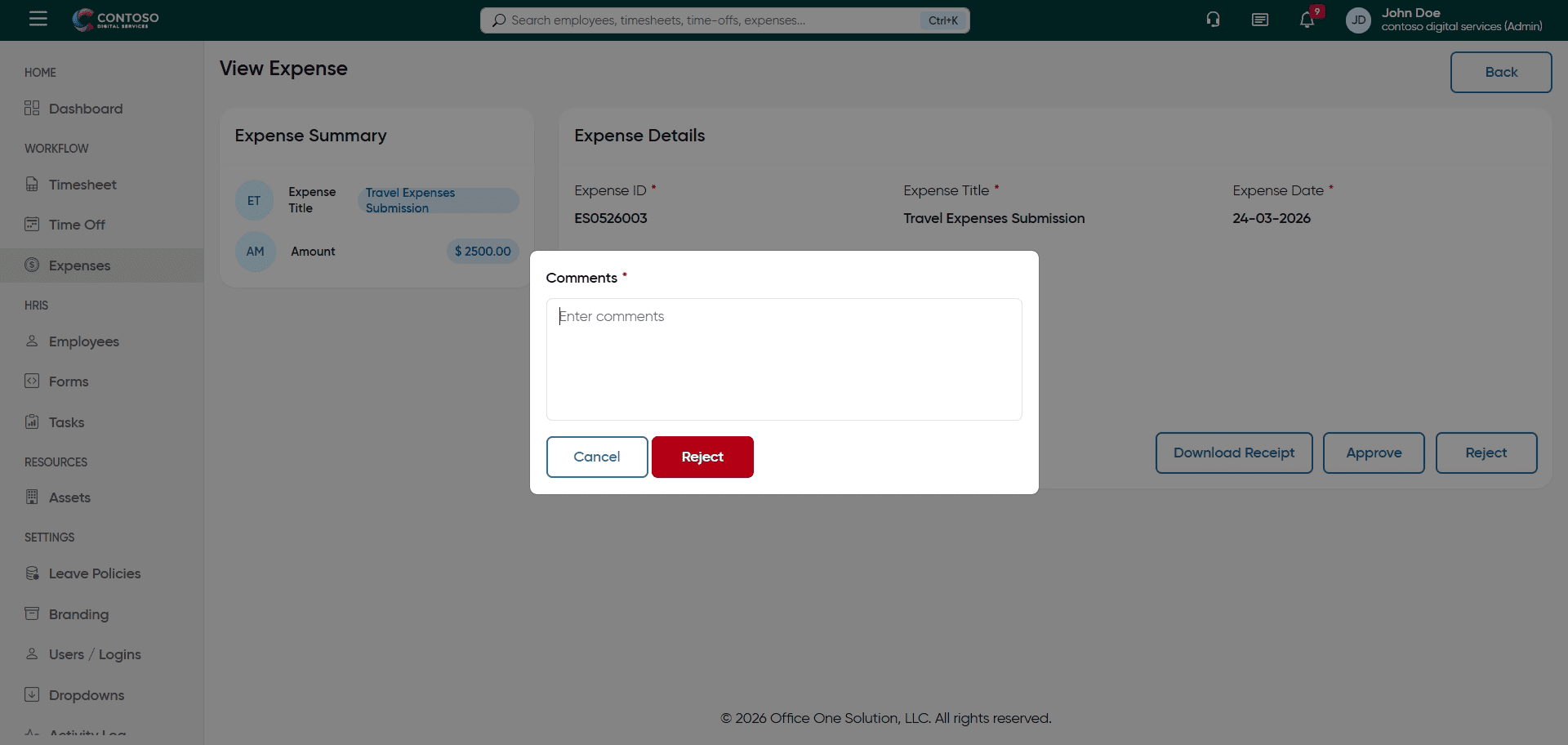
22. Enter Rejection Reason
Fill in the comments field with “Need more information” to request additional details from the submitter.
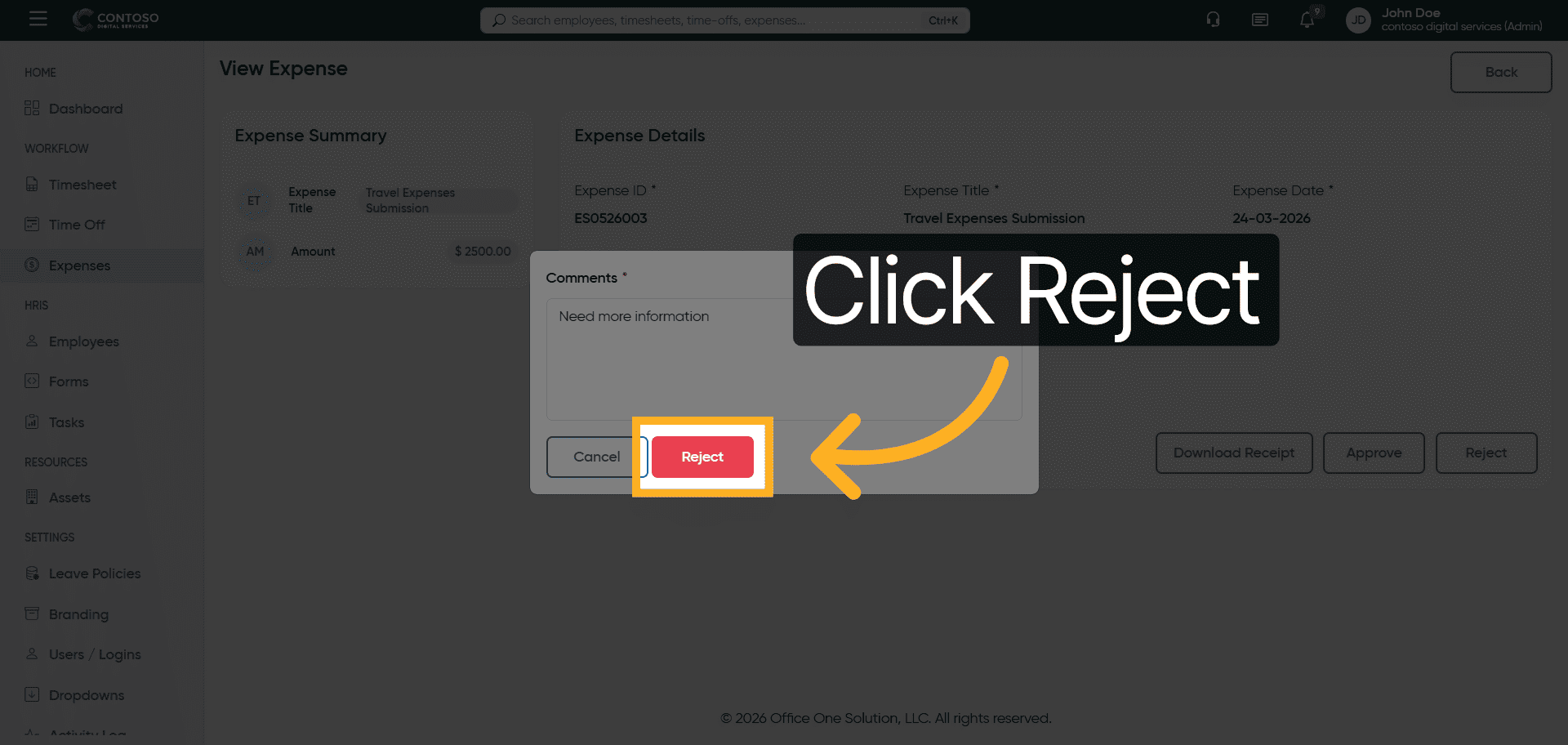
23. Confirm Expense Rejection
Click the Reject button again to finalize the rejection of the expense report.
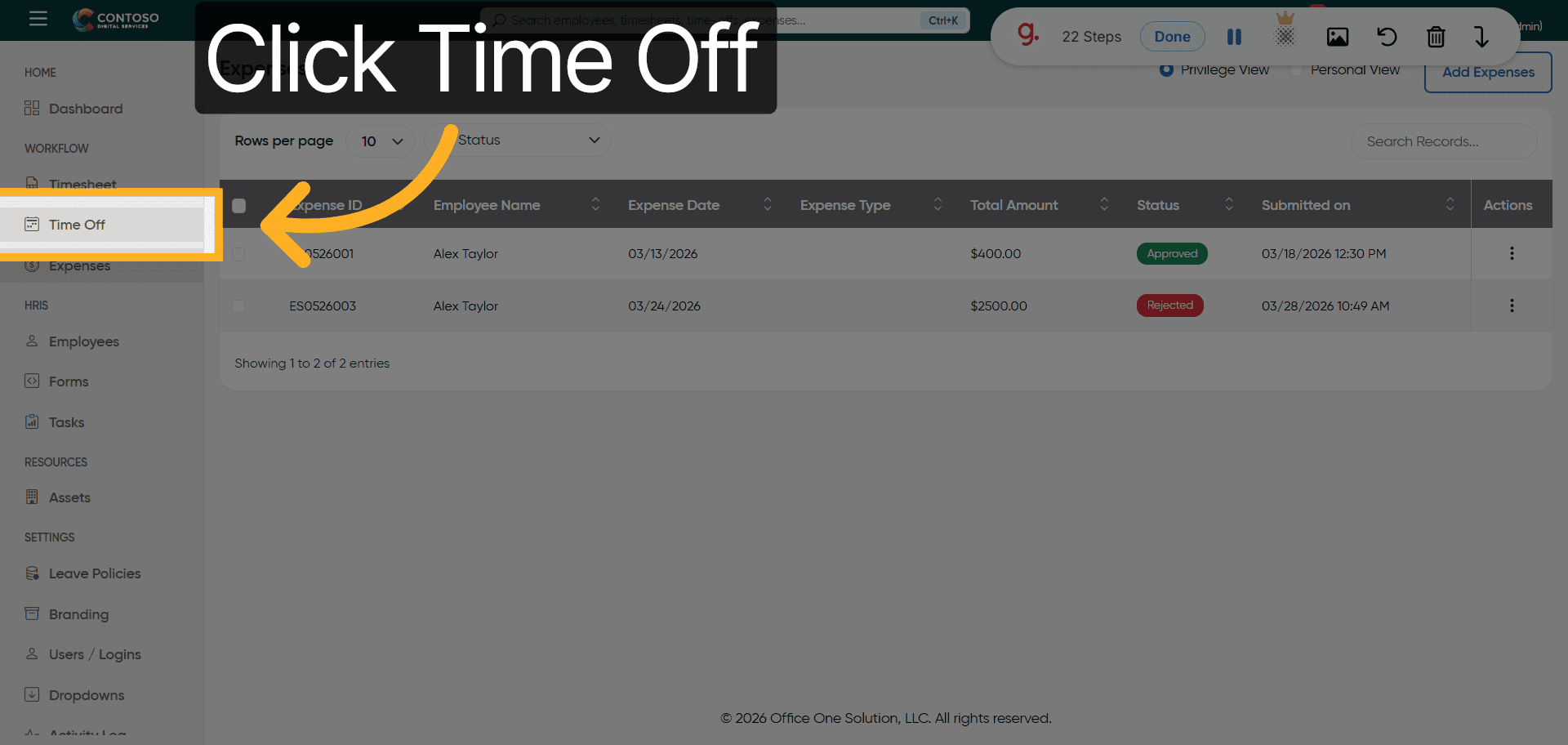
24. Return to Time Off Section
Click the Time Off tab to resume managing leave requests.
25. Fill Leave Privilege
Fill the Privilege field with the necessary access information for leave management.
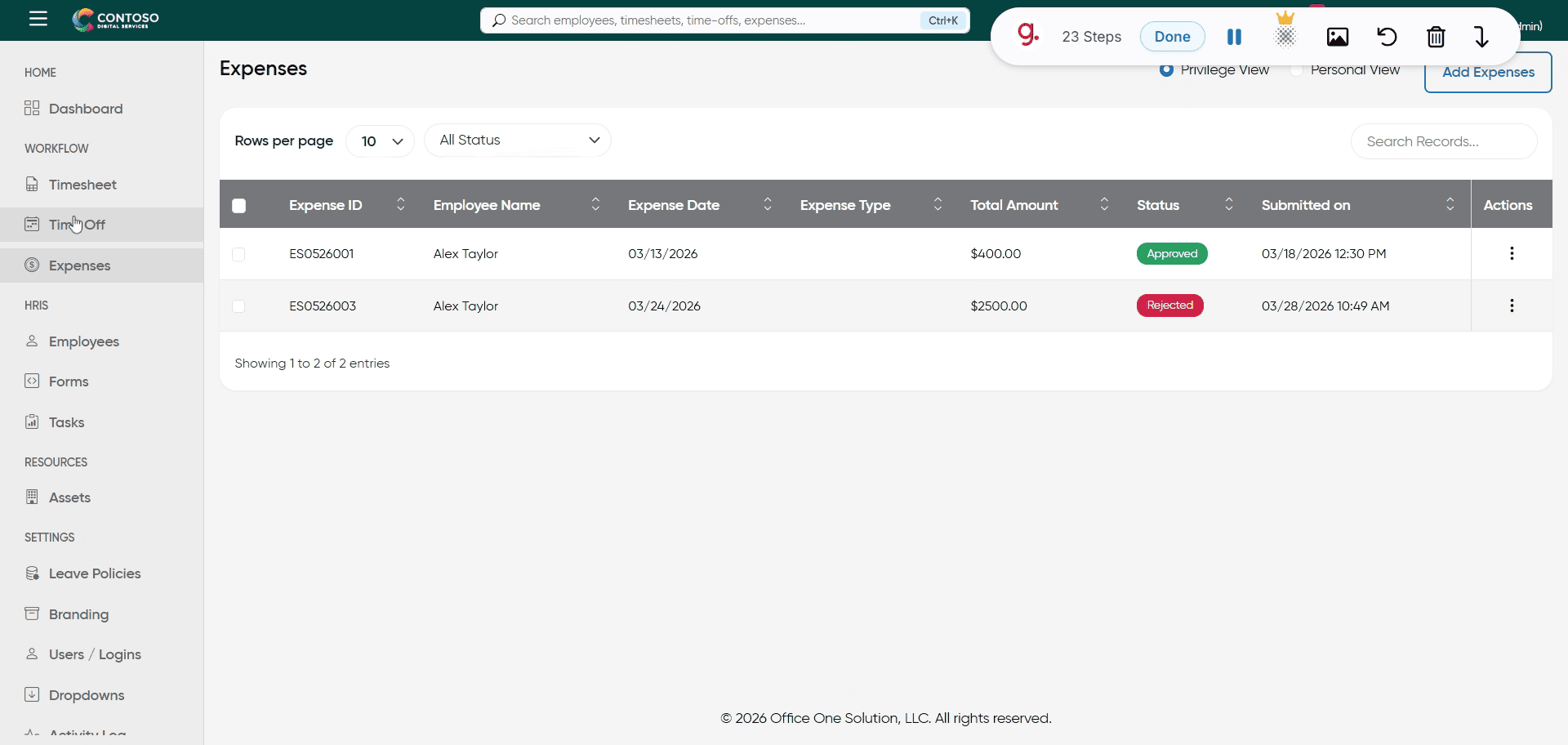
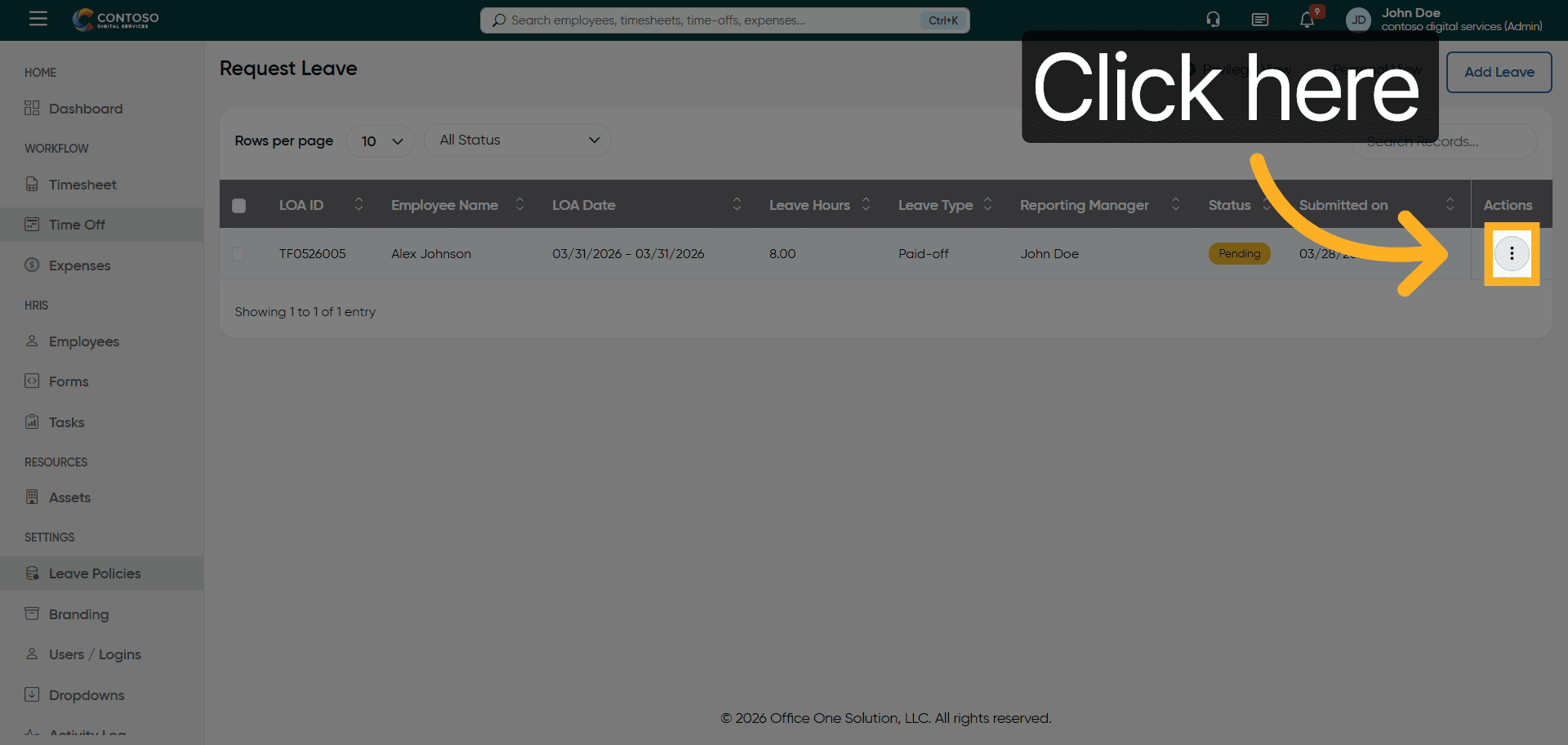
26. Open Leave Options
Click here to access additional leave request options and actions.
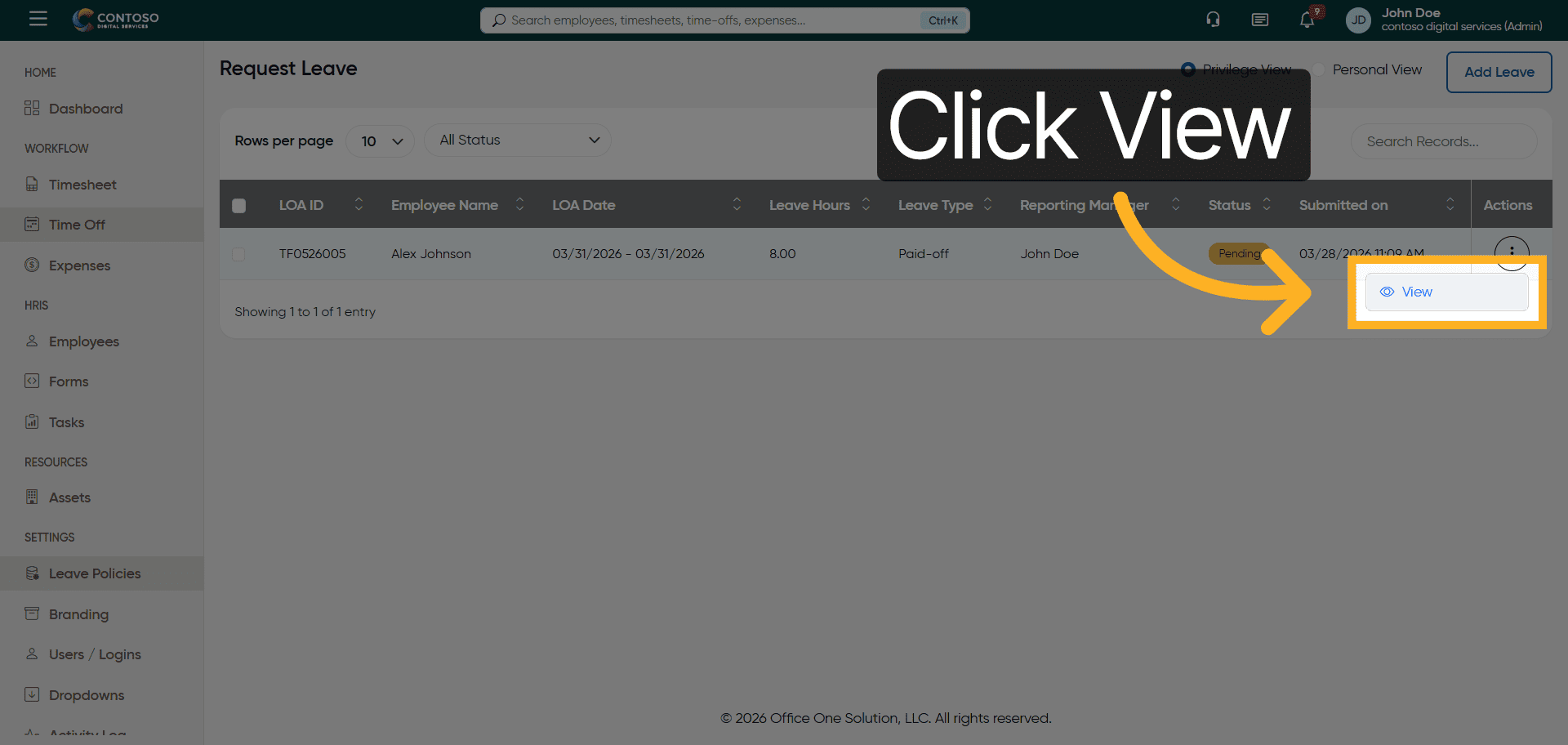
27. View Leave Details
Click the View button to see detailed information about a specific leave request.
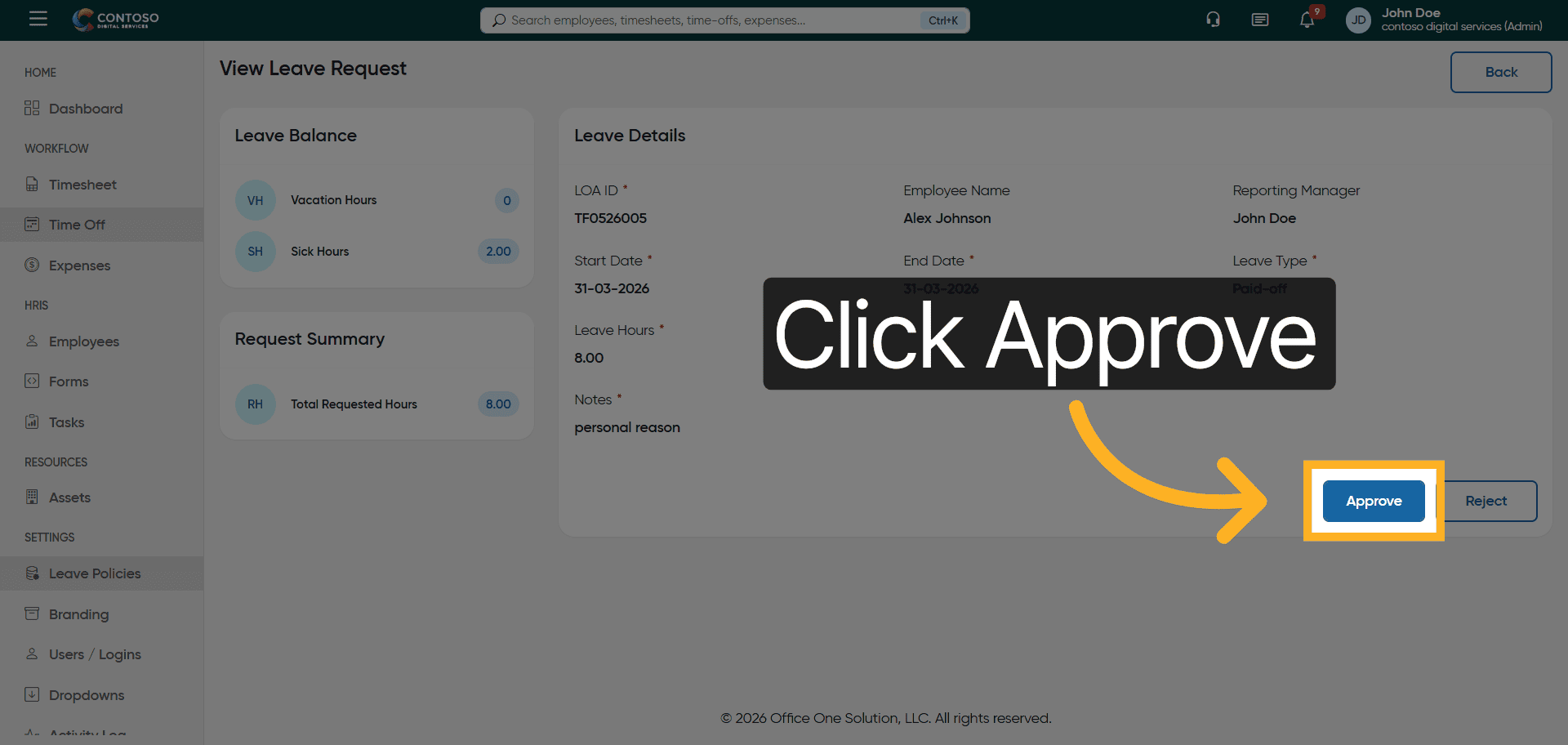
28. Approve Leave Request
Click the Approve button to authorize the selected leave request.
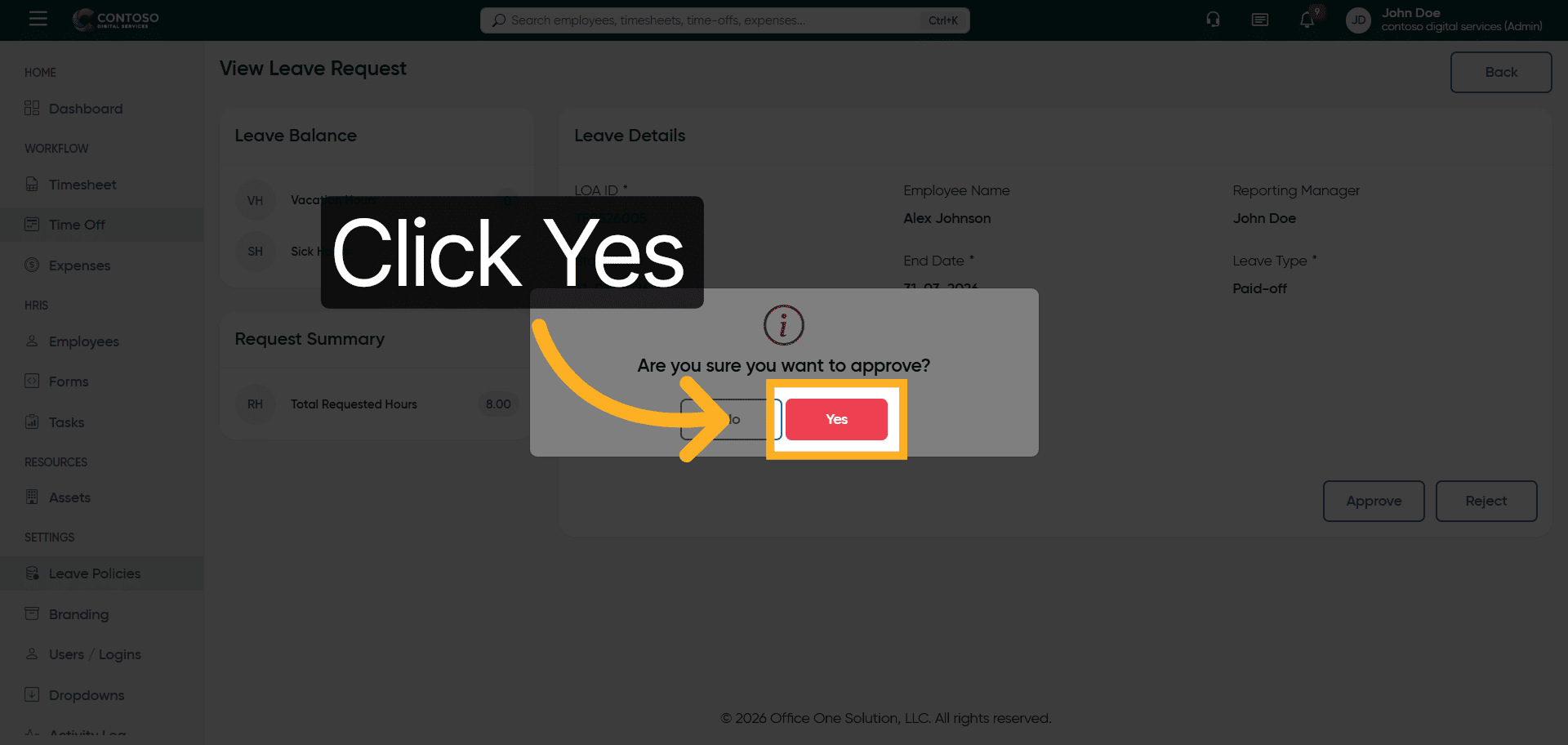
29. Confirm Leave Approval
Click Yes to confirm the approval of the leave request.
After completing this training, you will be able to efficiently manage timesheets, leave requests, and expense approvals within Office1solution. Practice these steps regularly to ensure accurate processing and compliance with company policies.