
Approve Timesheets
This tutorial guides you through managing timesheet approvals in OfficeOne.
Go to app.office1solution.com
1. Introduction
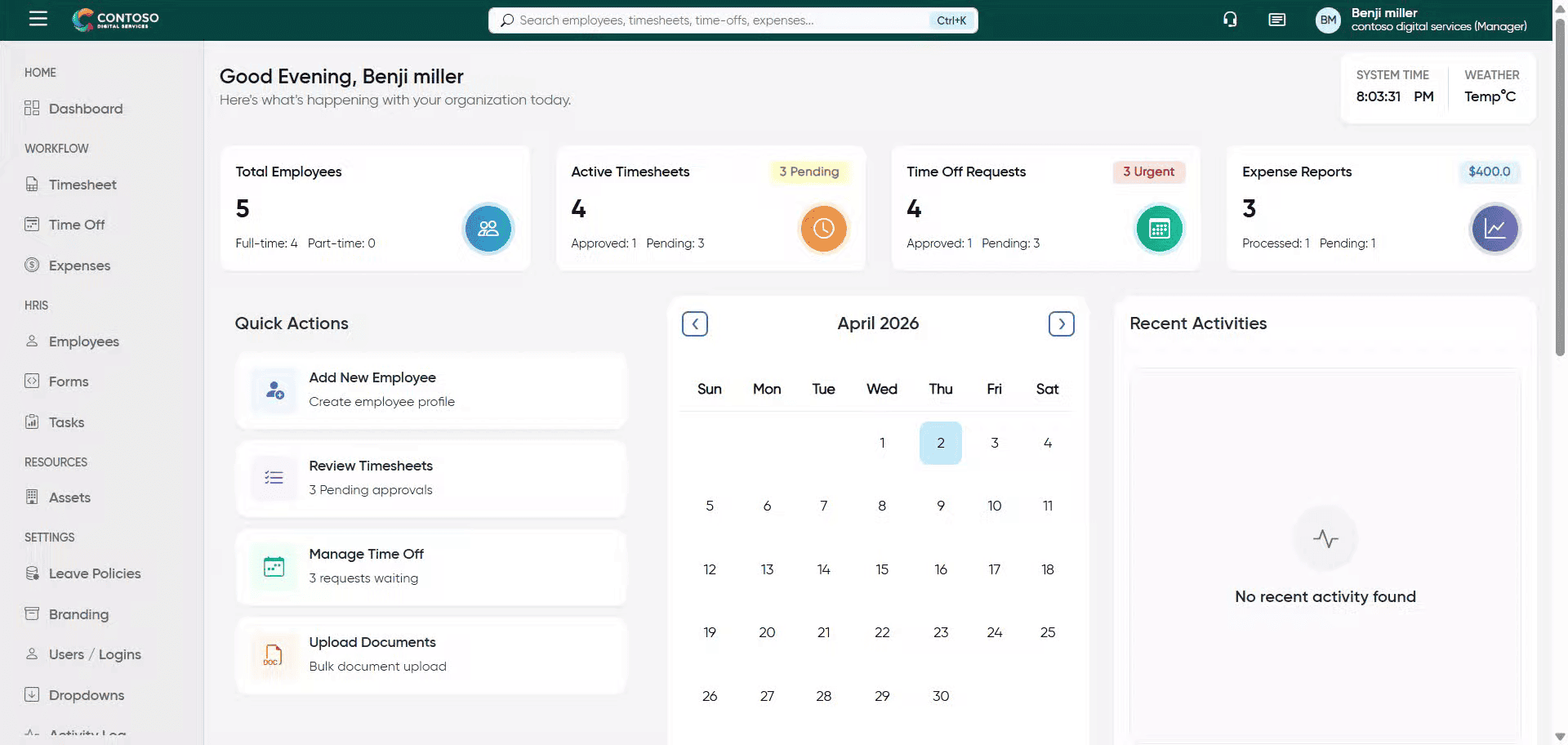
2. Access Timesheet Section
Click the Timesheet tab to open the timesheet management area.
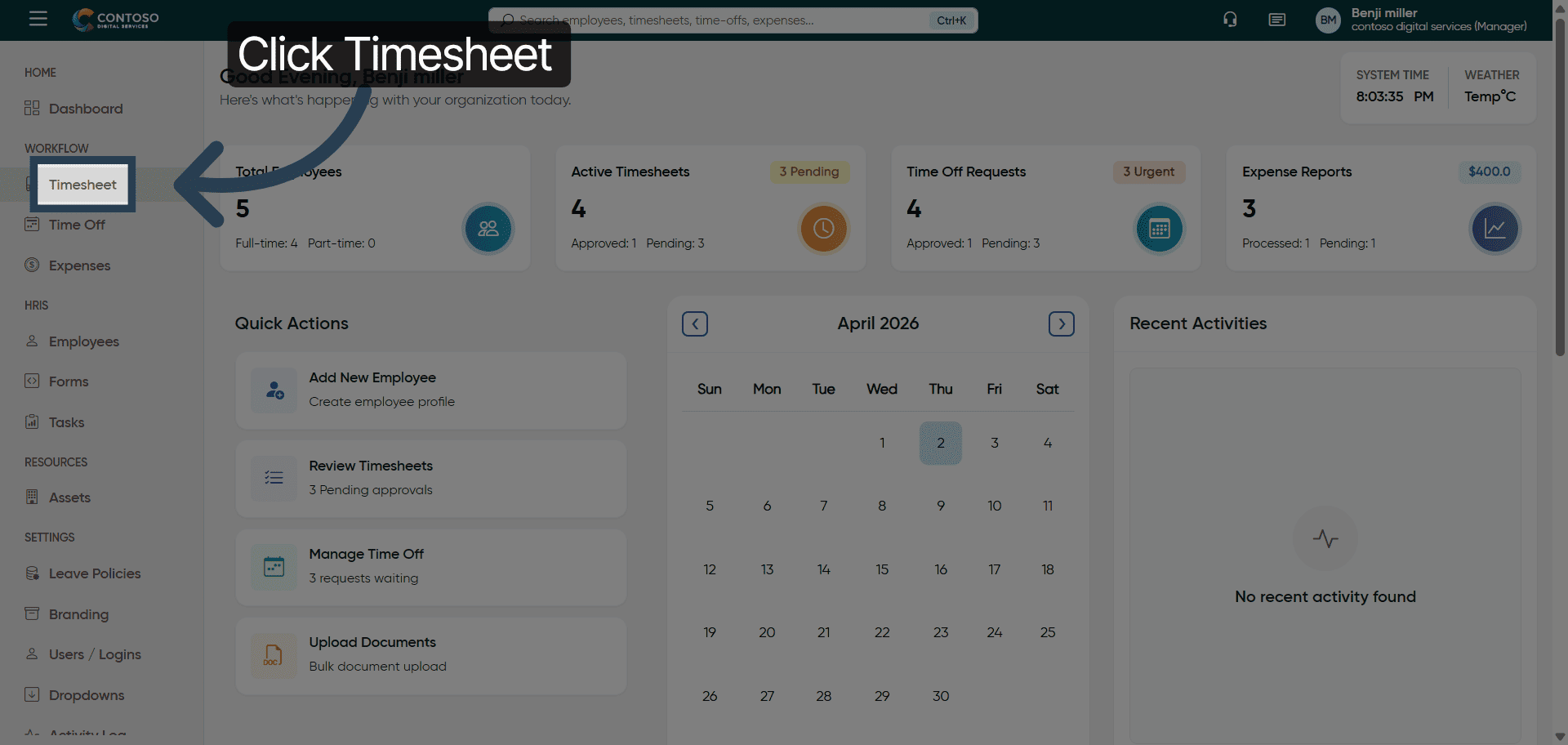
3. Enter Privilege Information
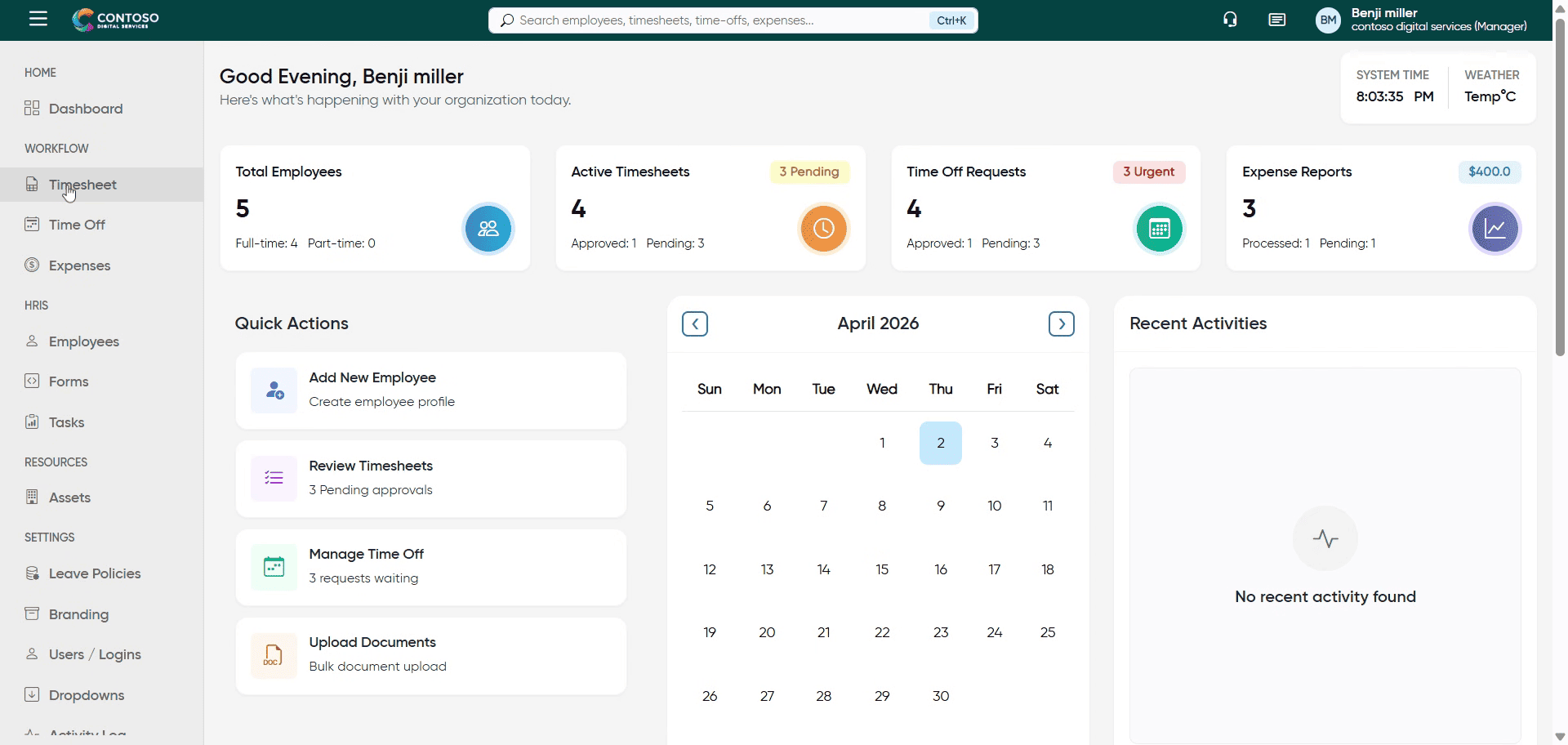
4. Open Timesheet Options
Click here to access additional timesheet options and actions.
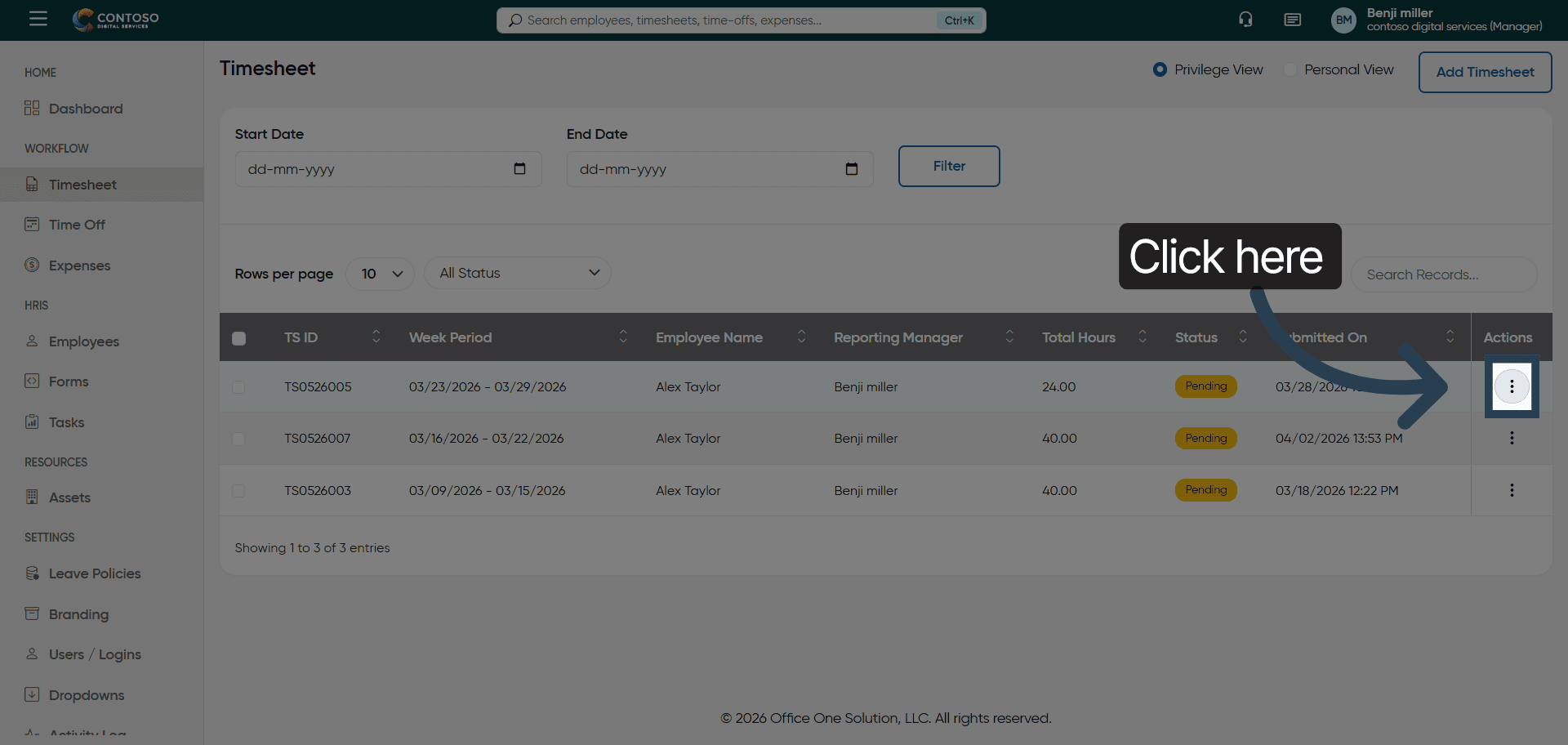
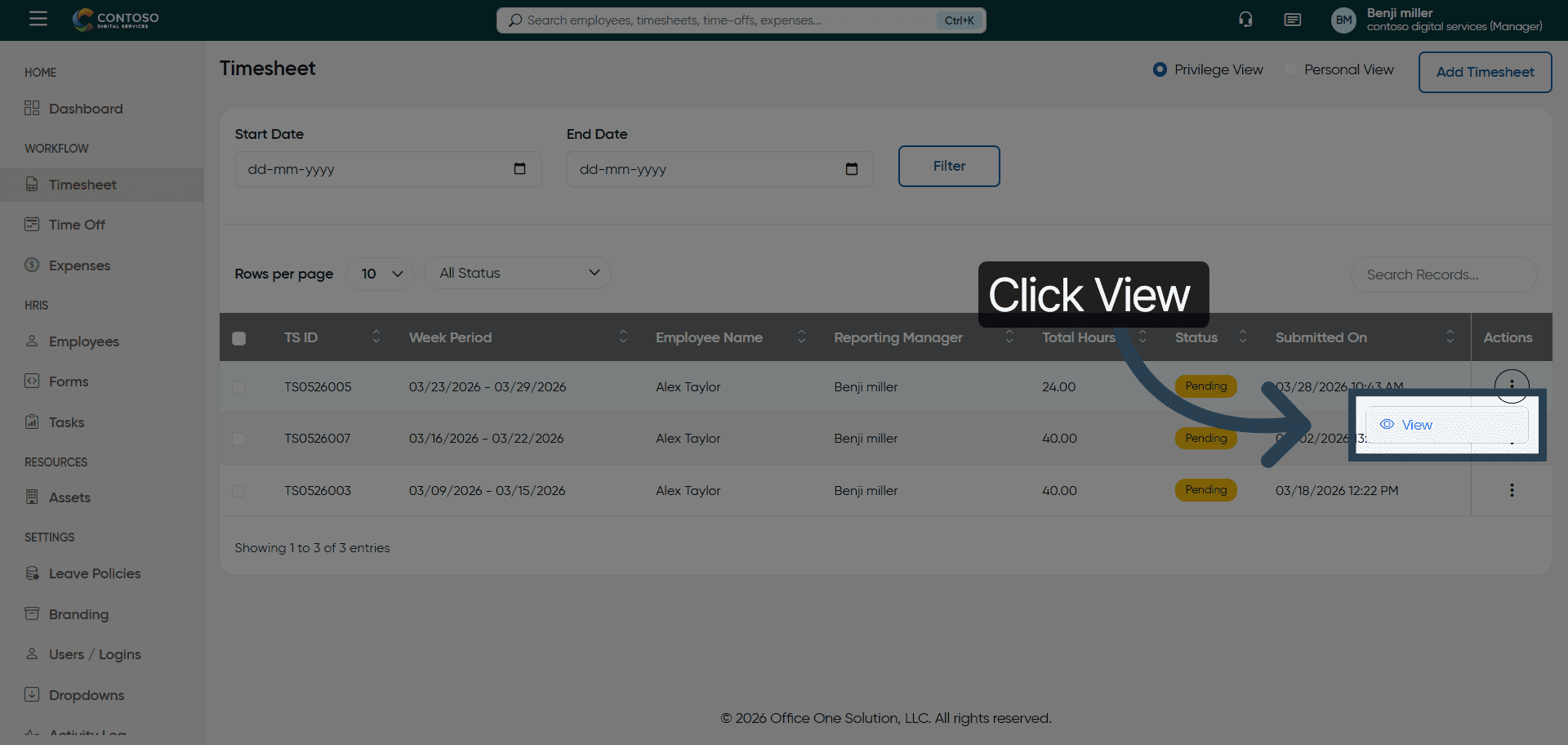
5. View Timesheet Details
Click the View button to see detailed information about the selected timesheet.
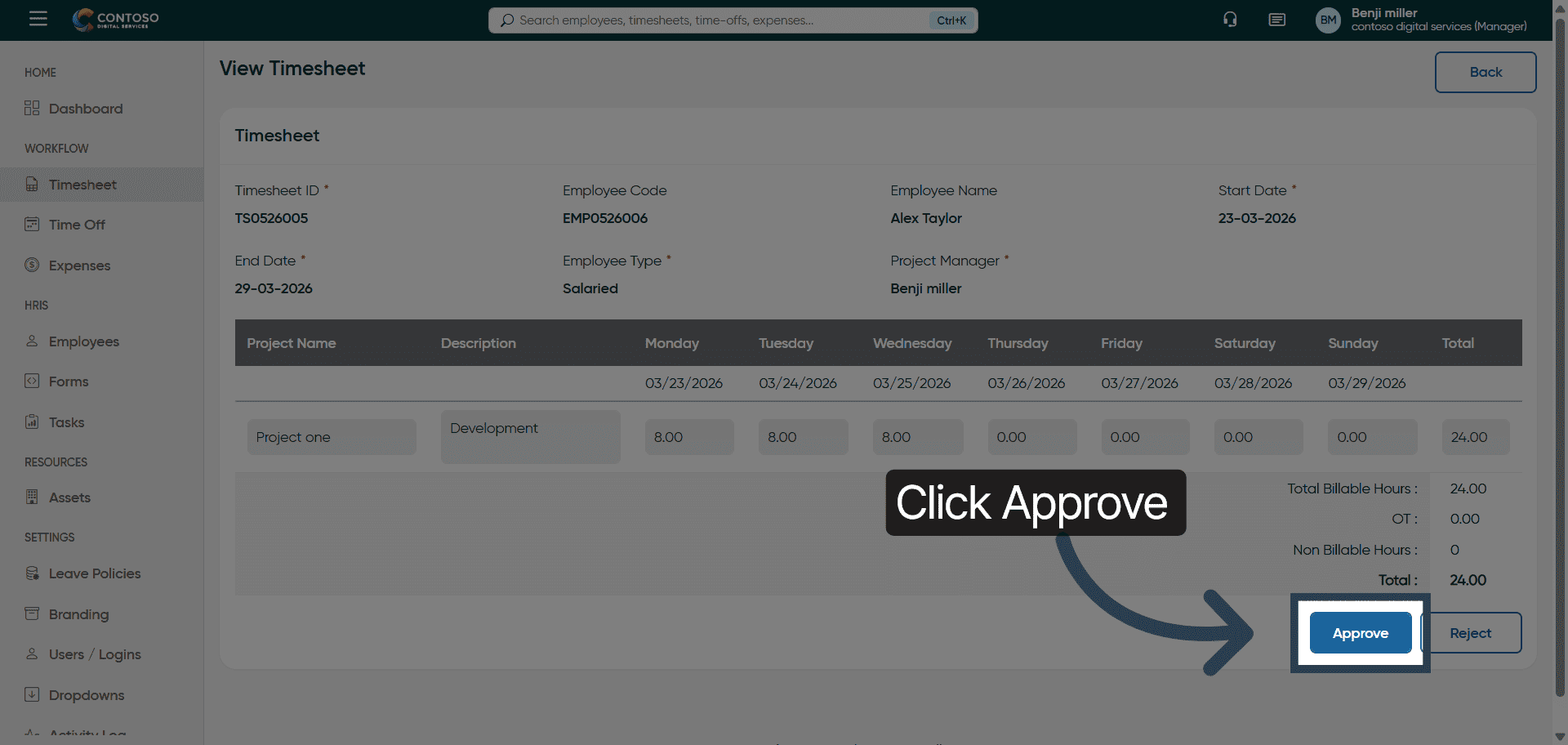
6. Approve Selected Timesheet
Click the Approve button to approve the timesheet for processing.
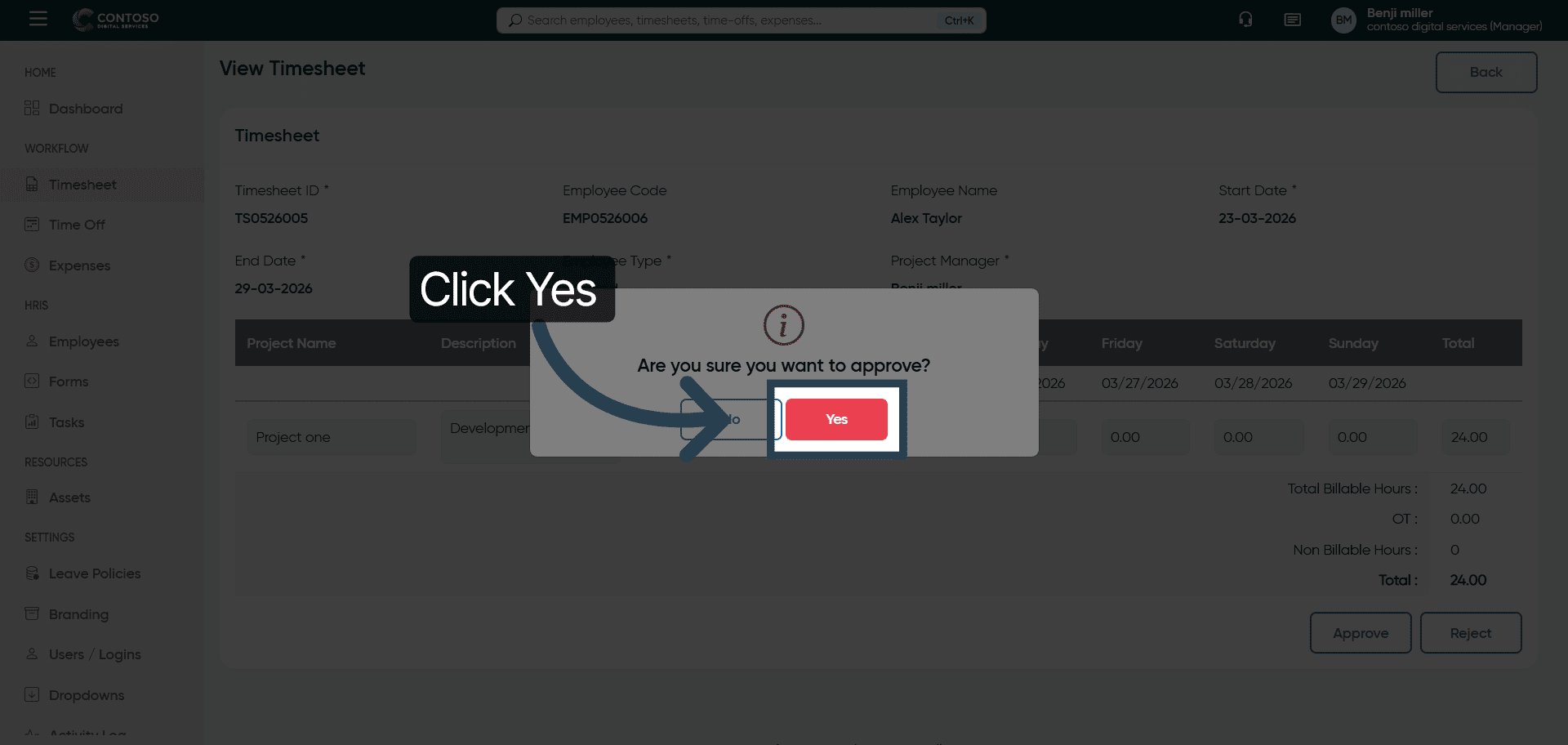
7. Confirm Approval Action
Click Yes to confirm the approval of the timesheet.
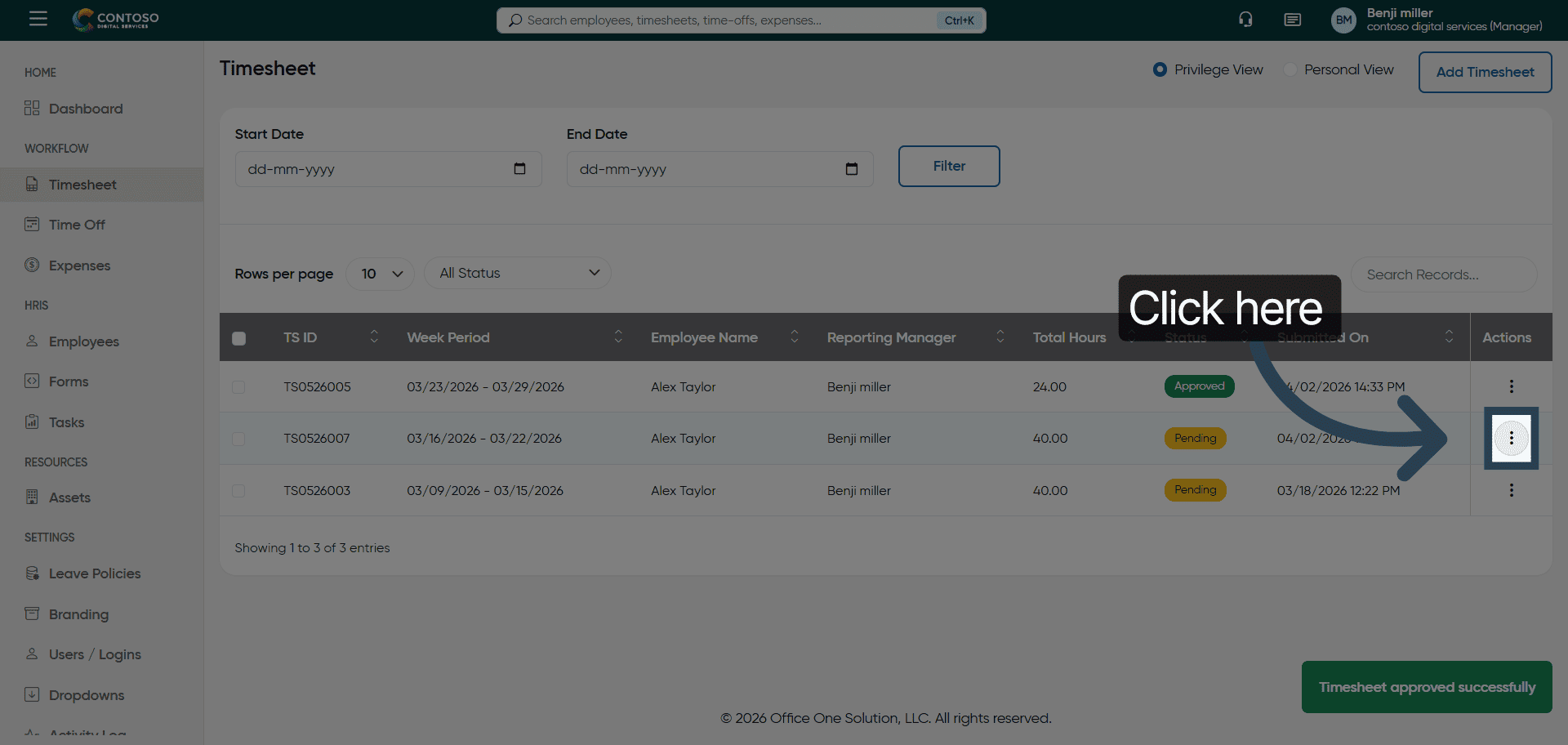
8. Access Timesheet Options Again
Click here to open the timesheet options for further actions.
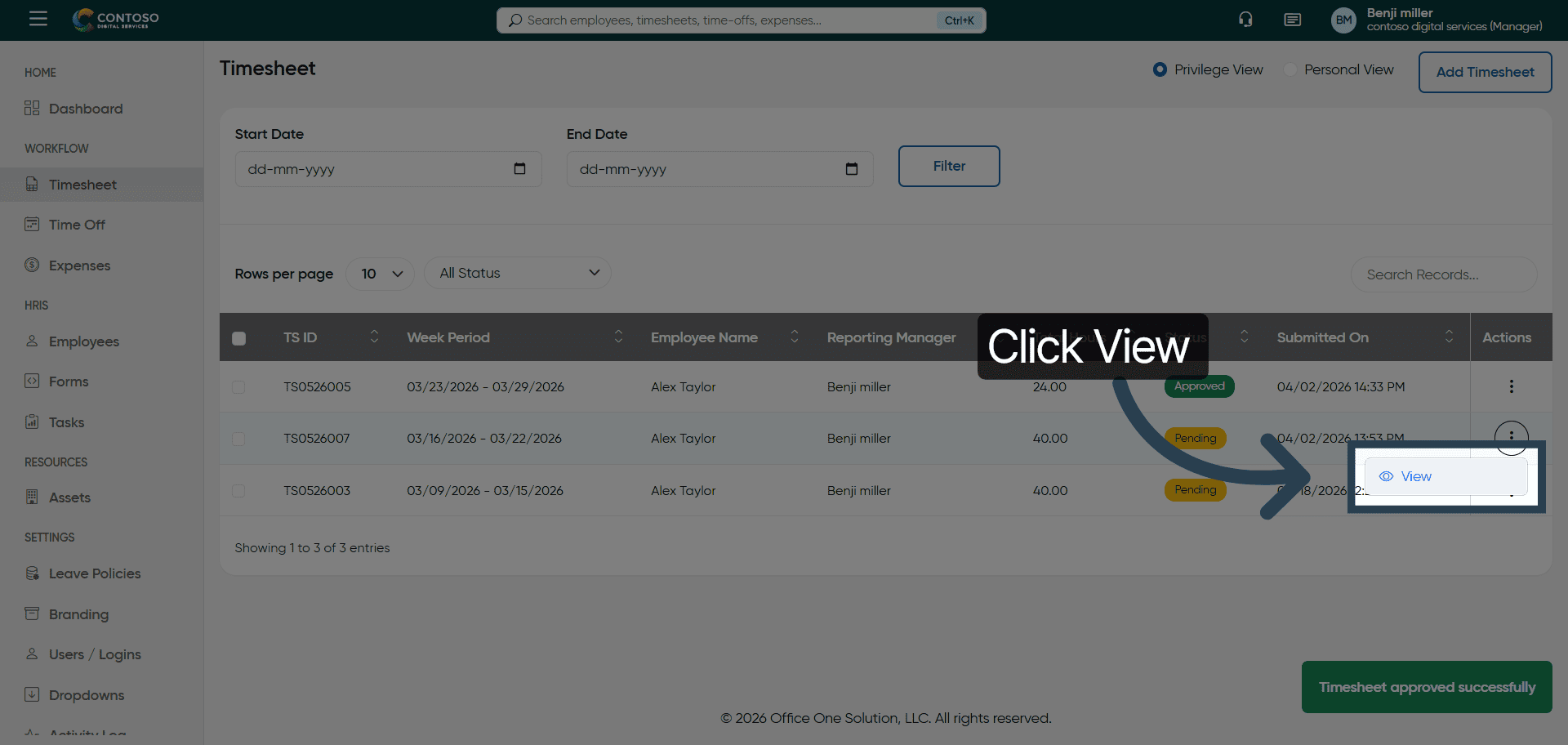
9. View Timesheet For Review
Click the View button to review the timesheet details before rejection.
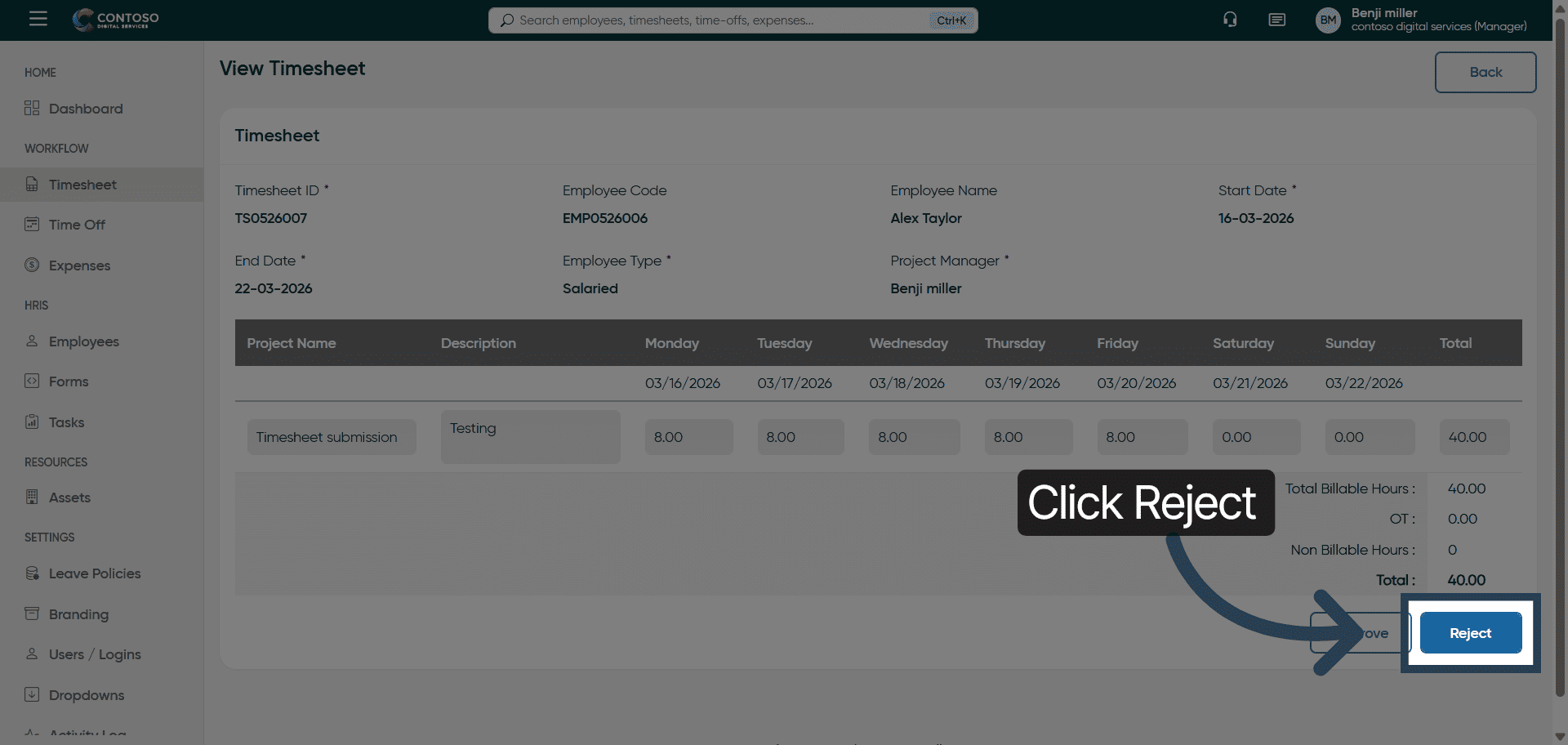
10. Reject The Timesheet
Click the Reject button to decline the timesheet submission.
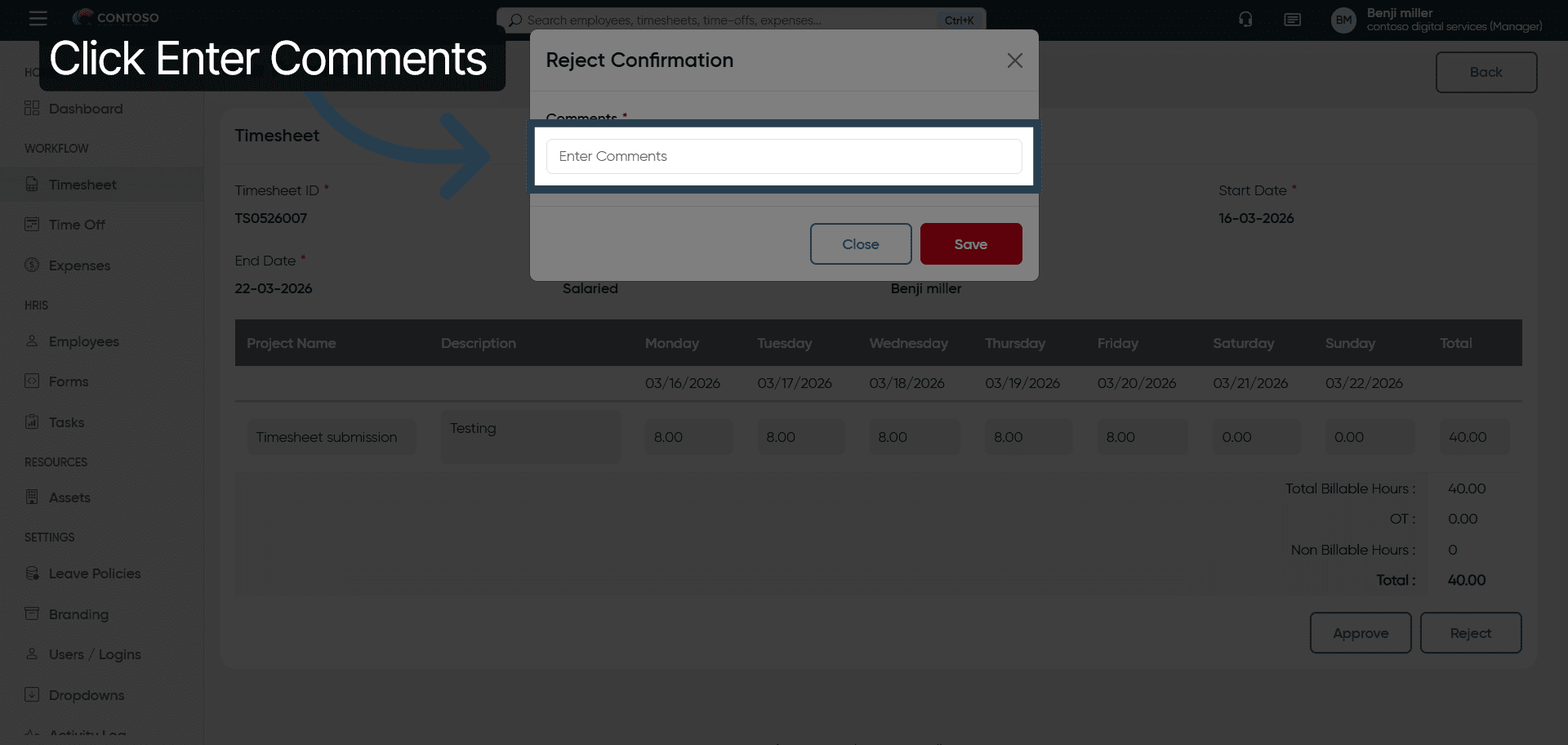
11. Open Comment Entry
Comments are mandatory for Rejecting a timeshee
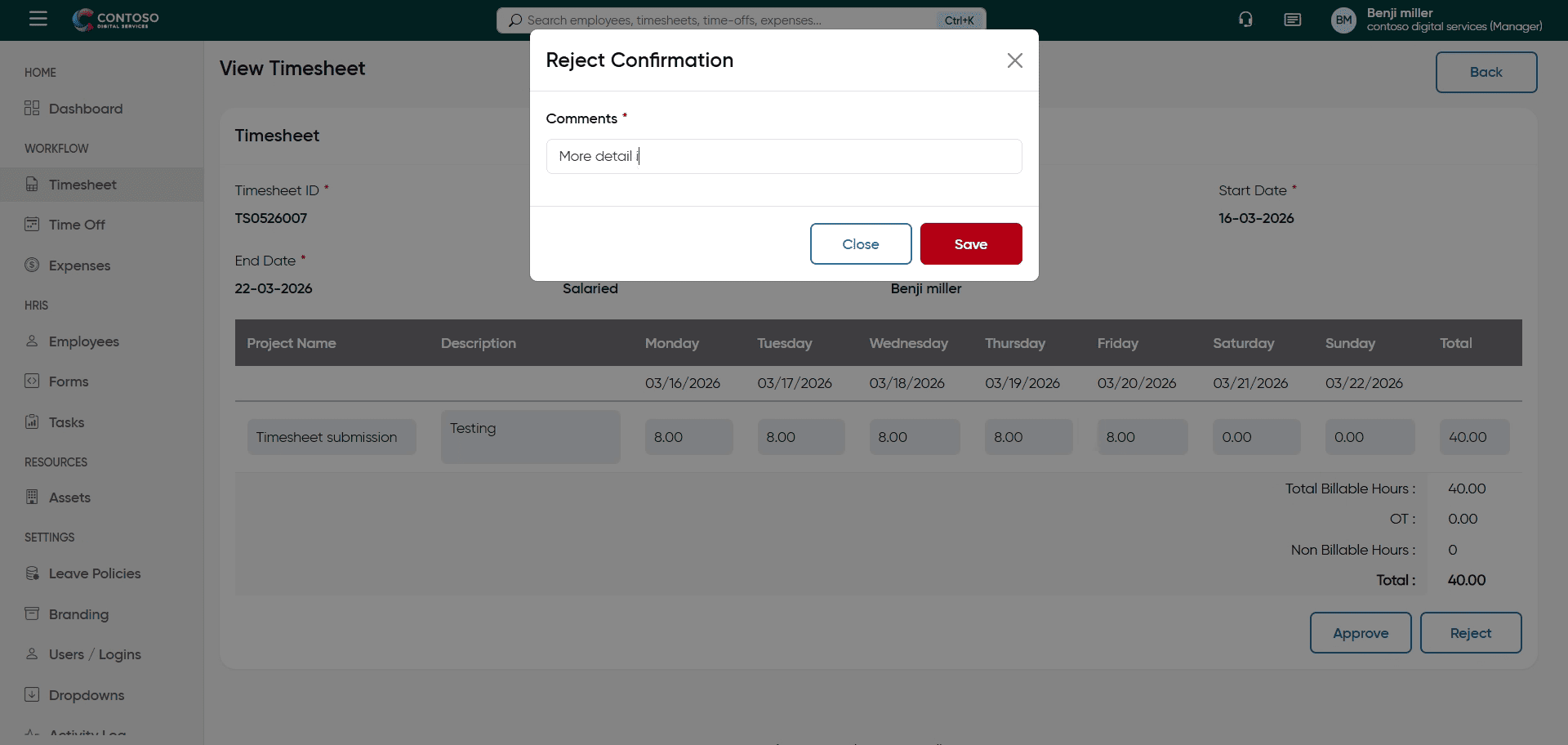
12. Add Rejection Details
Fill in the comment field with ‘More detail information required’ to explain the rejection.
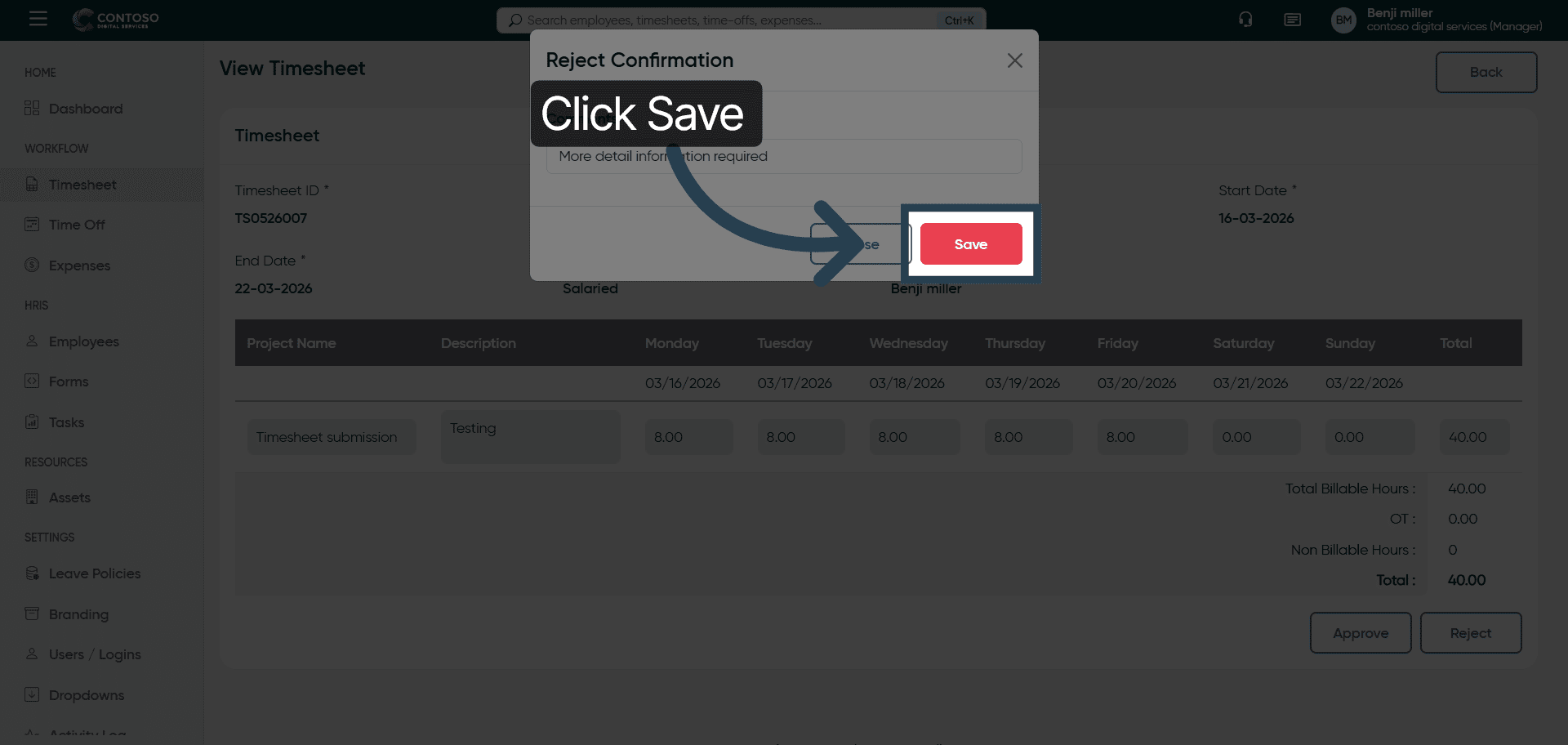
13. Save Rejection Comments
Click the Save button to save your comments and finalize the rejection process.
You have successfully managed timesheet approvals and rejections in Office1solution by reviewing, approving, rejecting, and commenting on timesheets. This ensures accurate tracking and communication within your team.