
Manual Clock-In Setup
This tutorial guides you through manually recording your work hours using the Time Tracker application.
Go to app.office1solution.com
1. Introduction
You will learn how to filter dates, select shifts, and save your manual clock-in entries effectively.
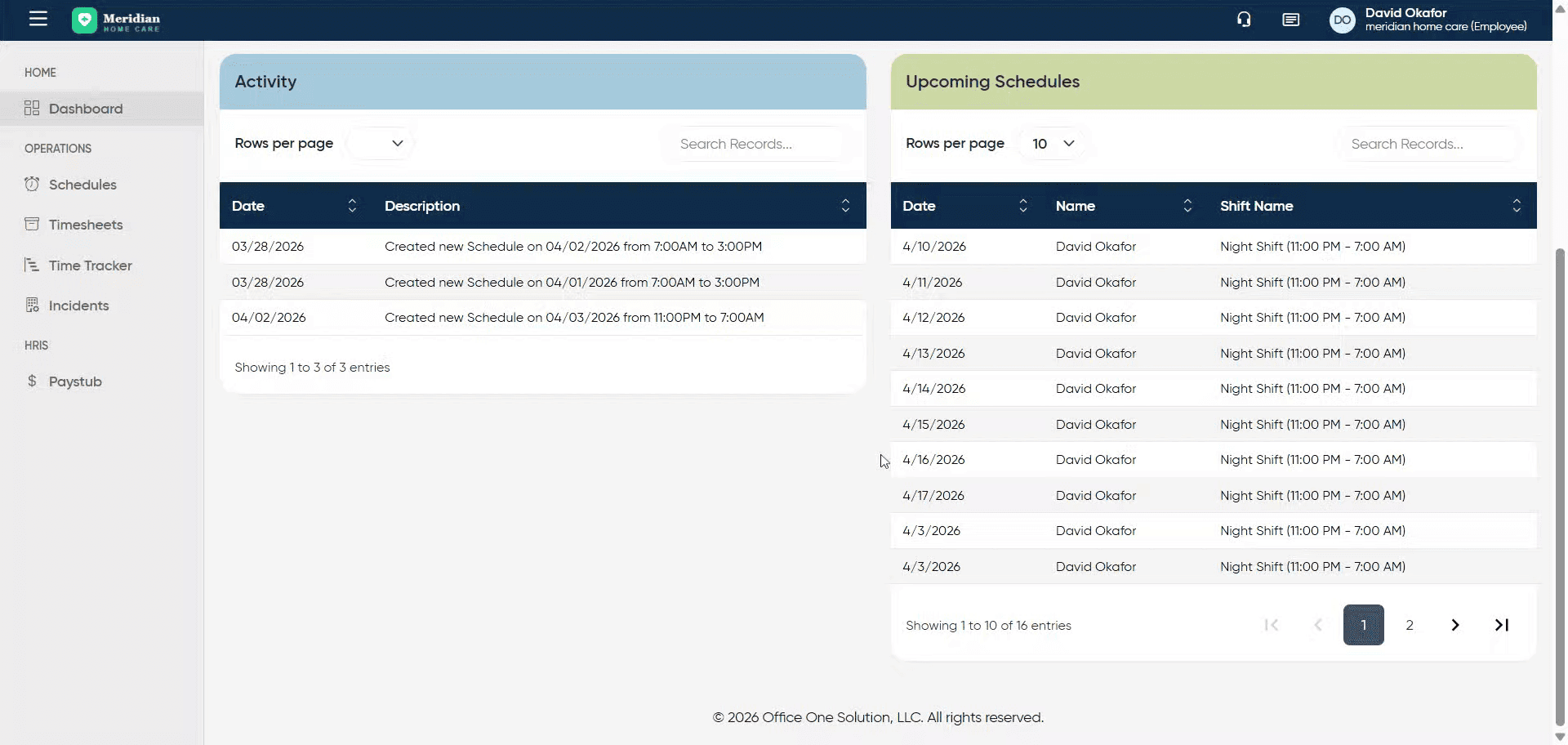
2. Access Time Tracker Module
Click “Time Tracker” to open the time tracking interface within the Office 1 Solution application.
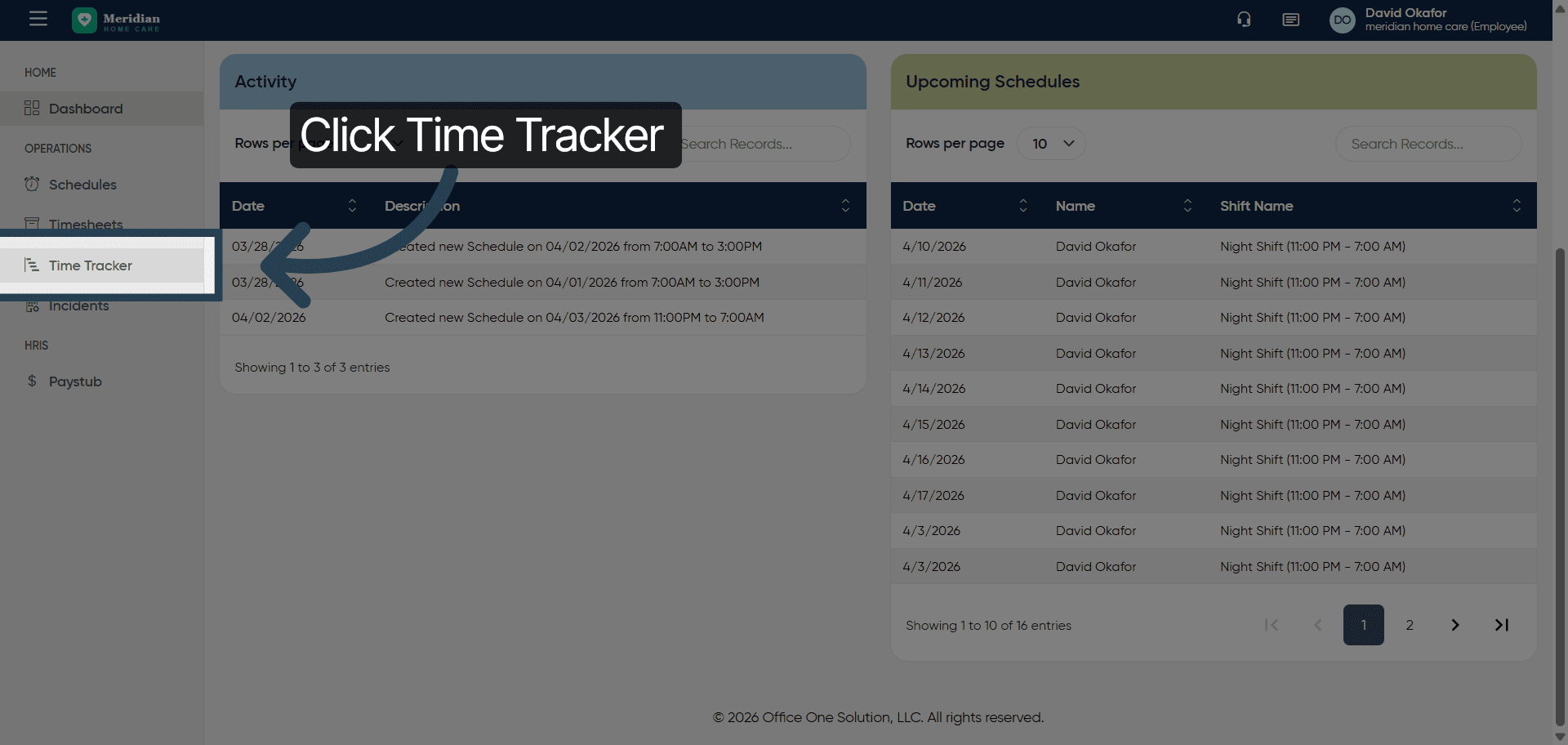
3. Open Start Date Selector
Click “Start Date” to choose the beginning date for filtering your time entries.
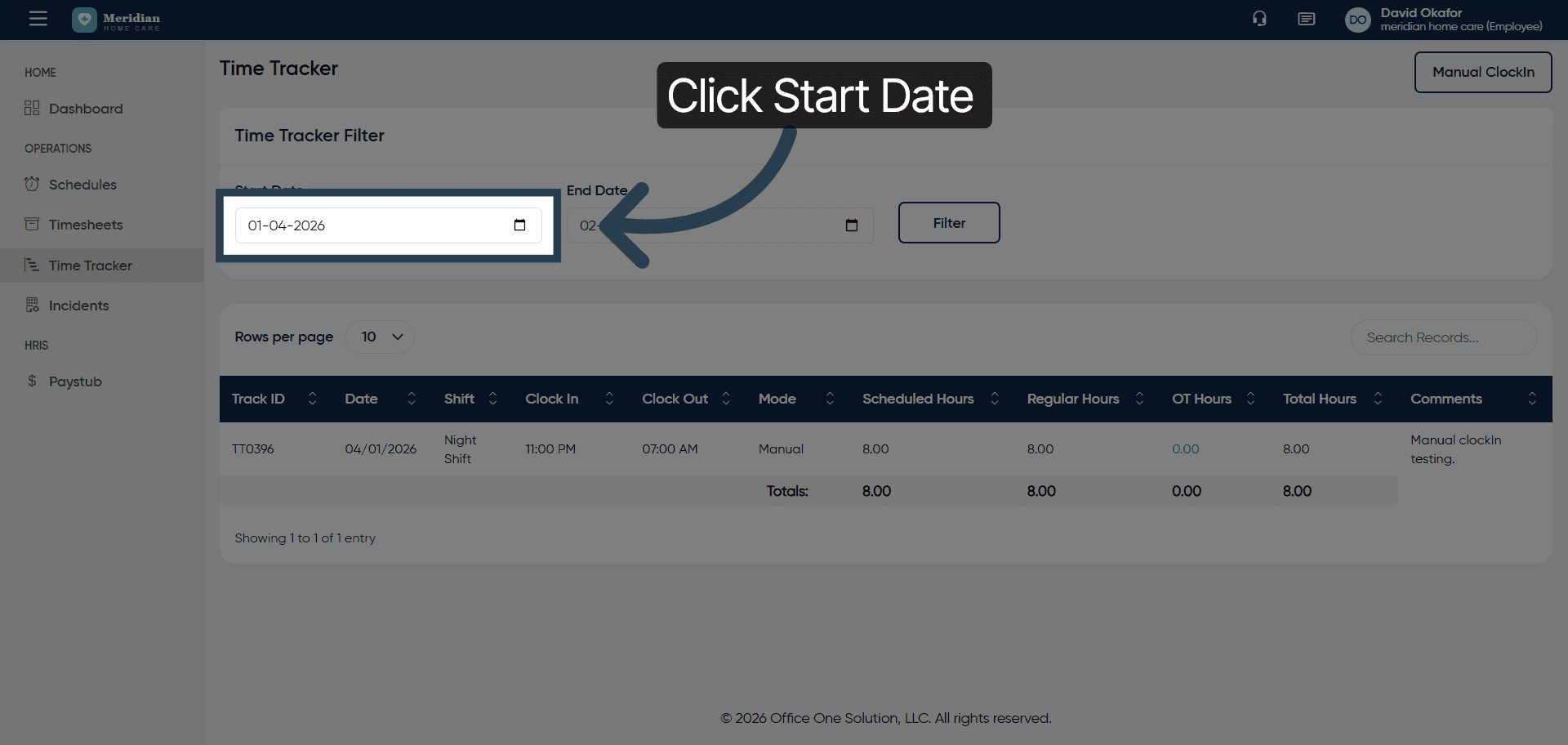
4. Enter Filter Start Date
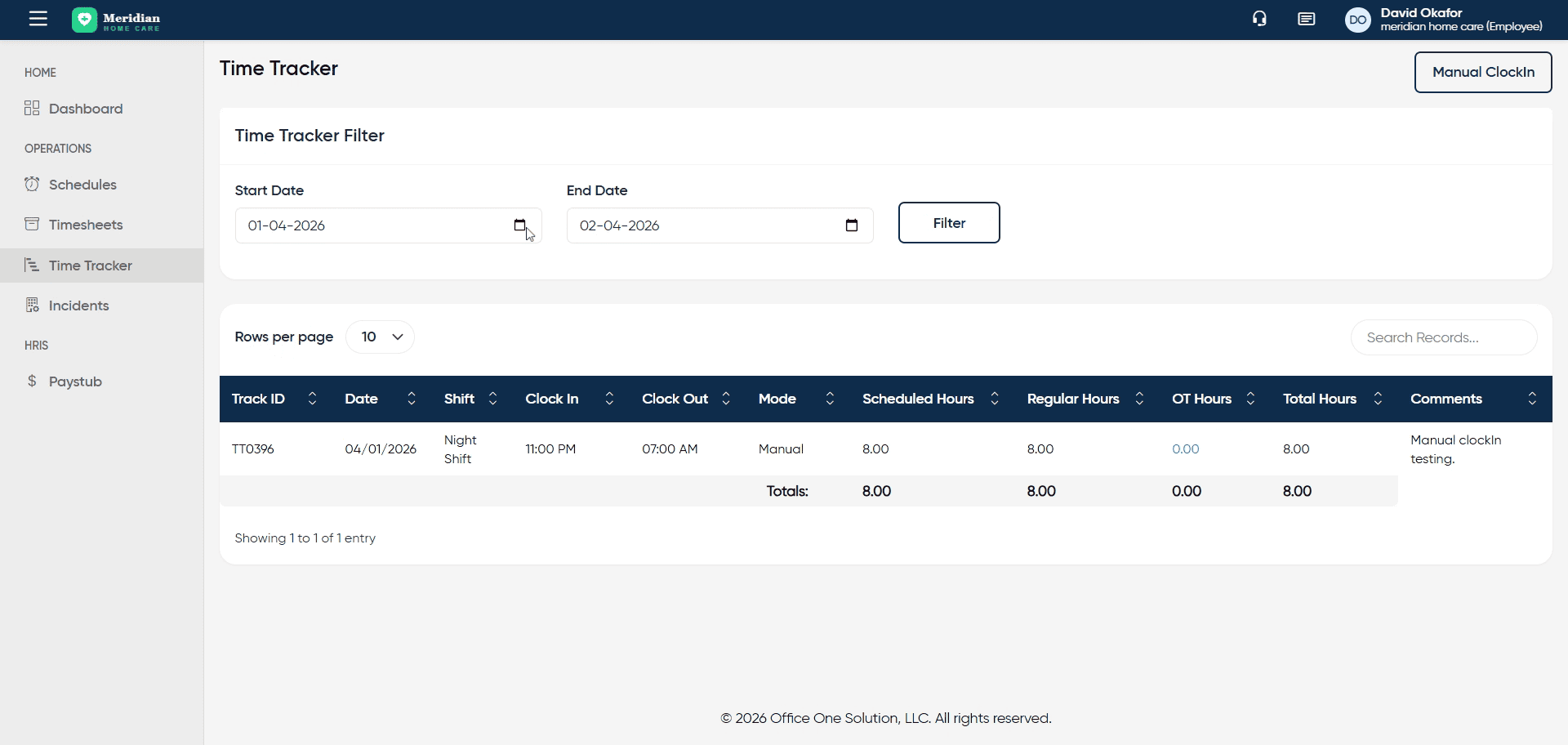
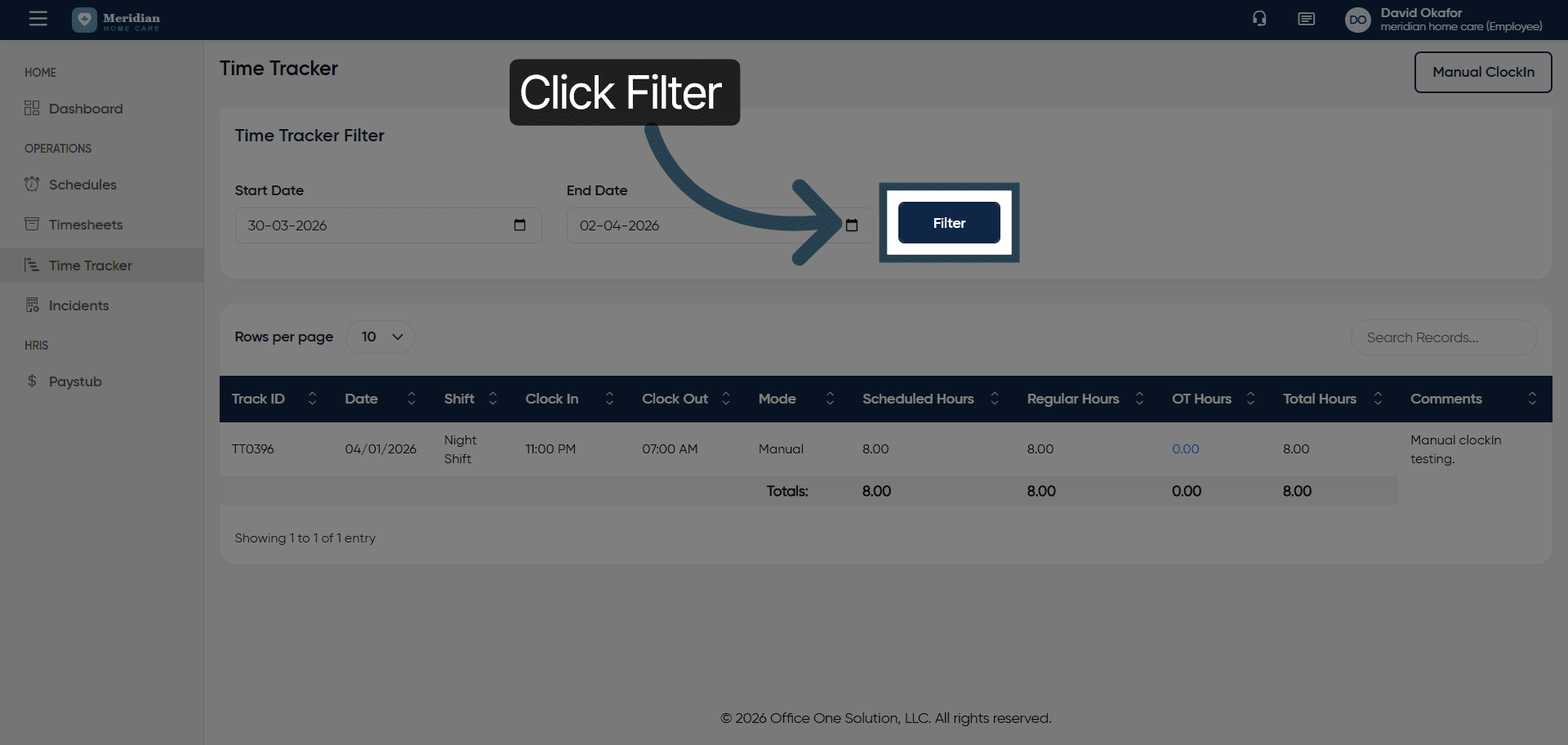
5. Apply Date Filter
Click “Filter” to apply the selected start date and update the displayed time entries accordingly.
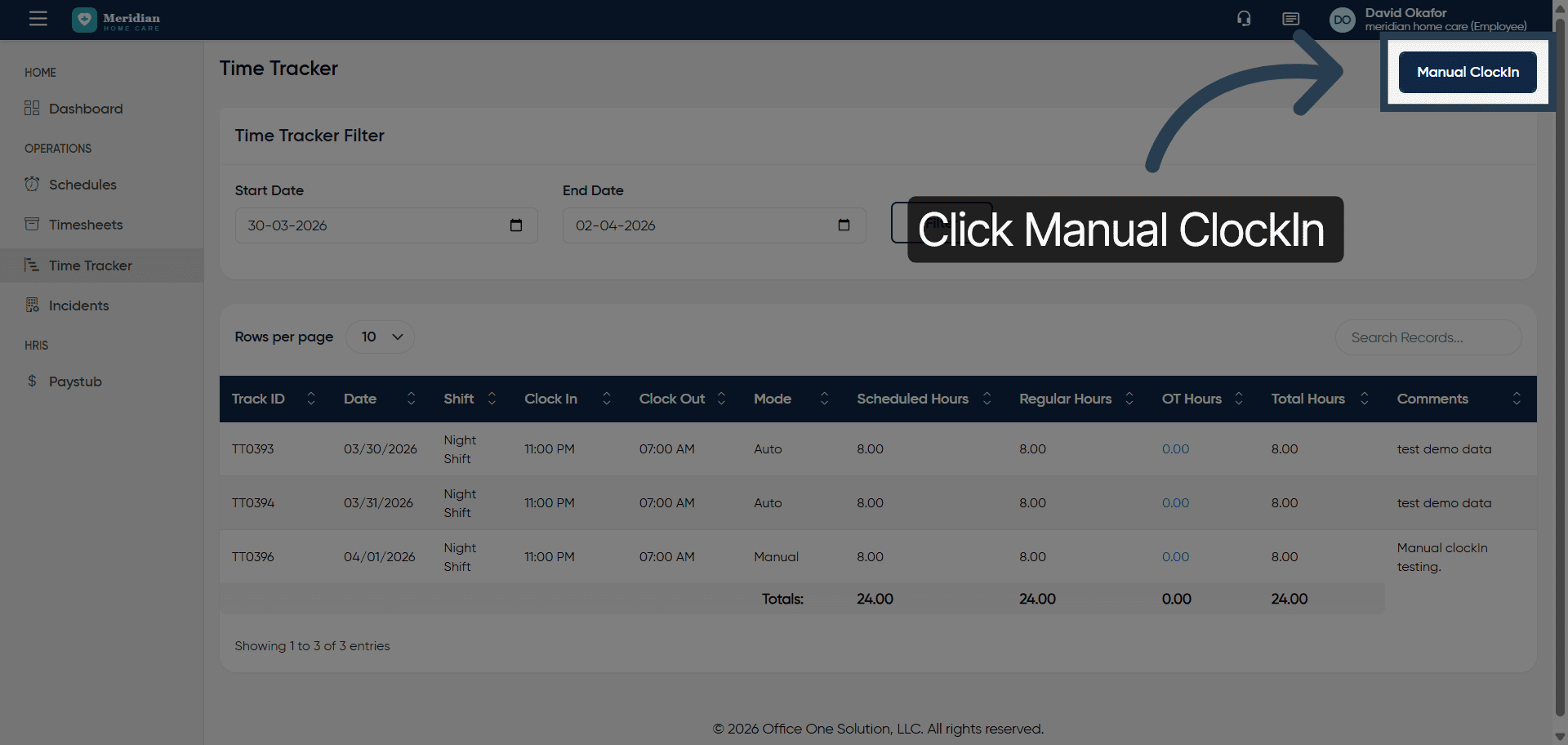
6. Initiate Manual Clock-In
Click “Manual ClockIn” to start the process of manually recording your work hours.
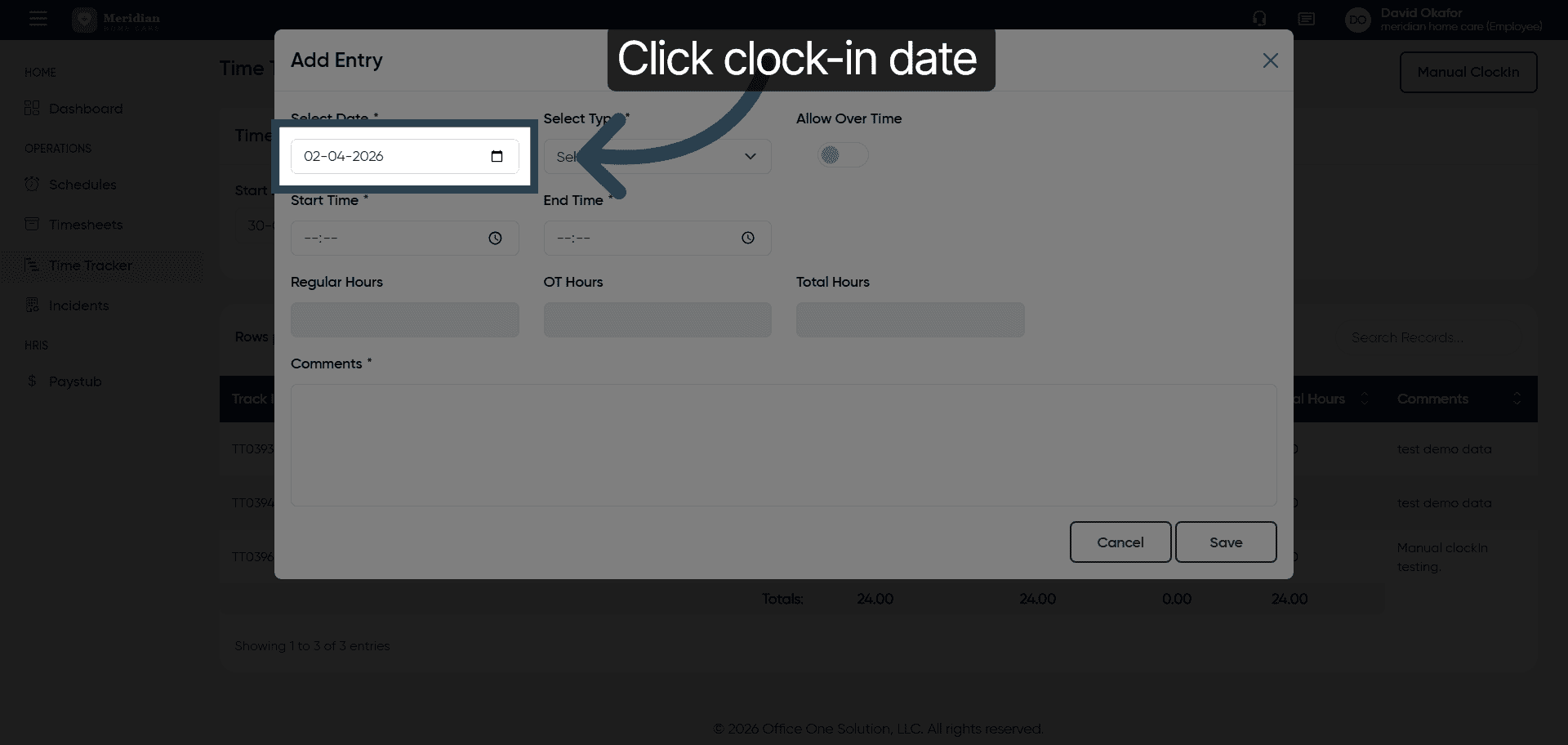
7. Choose Clock-In Date
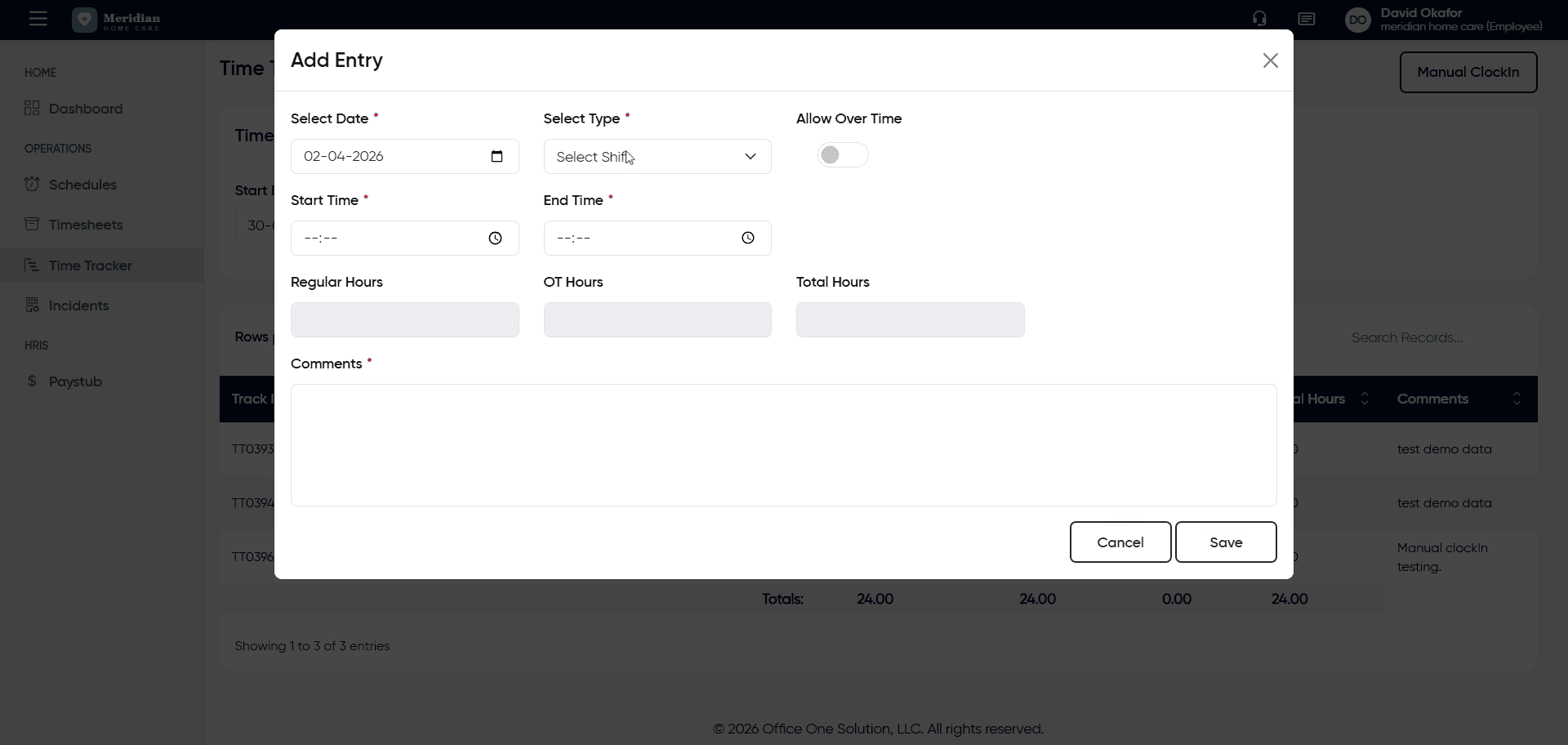
Fill the details for Manual clockIn.
8. Select Night Shift Option
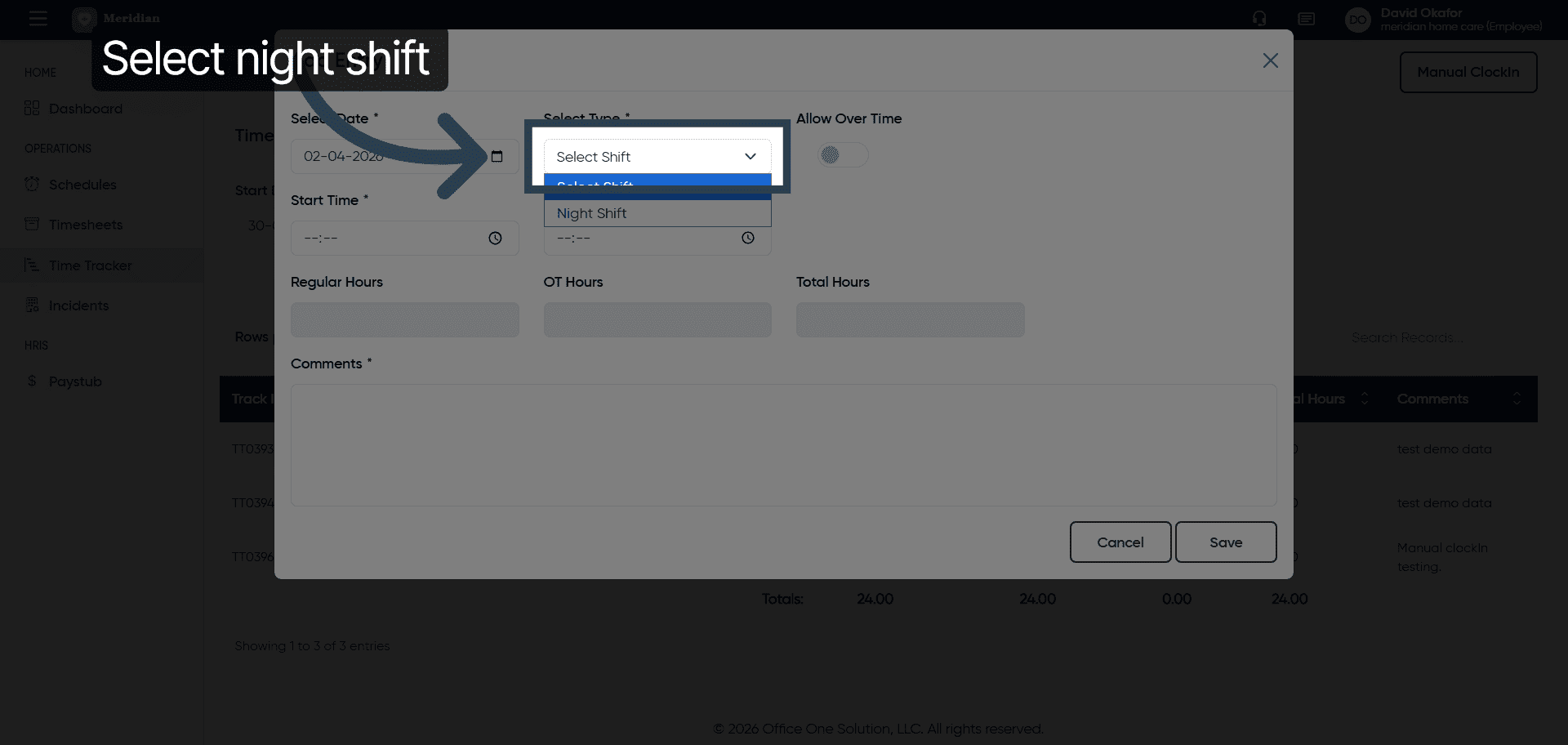
9. Confirm Shift Selection
10. Proceed to Next Step
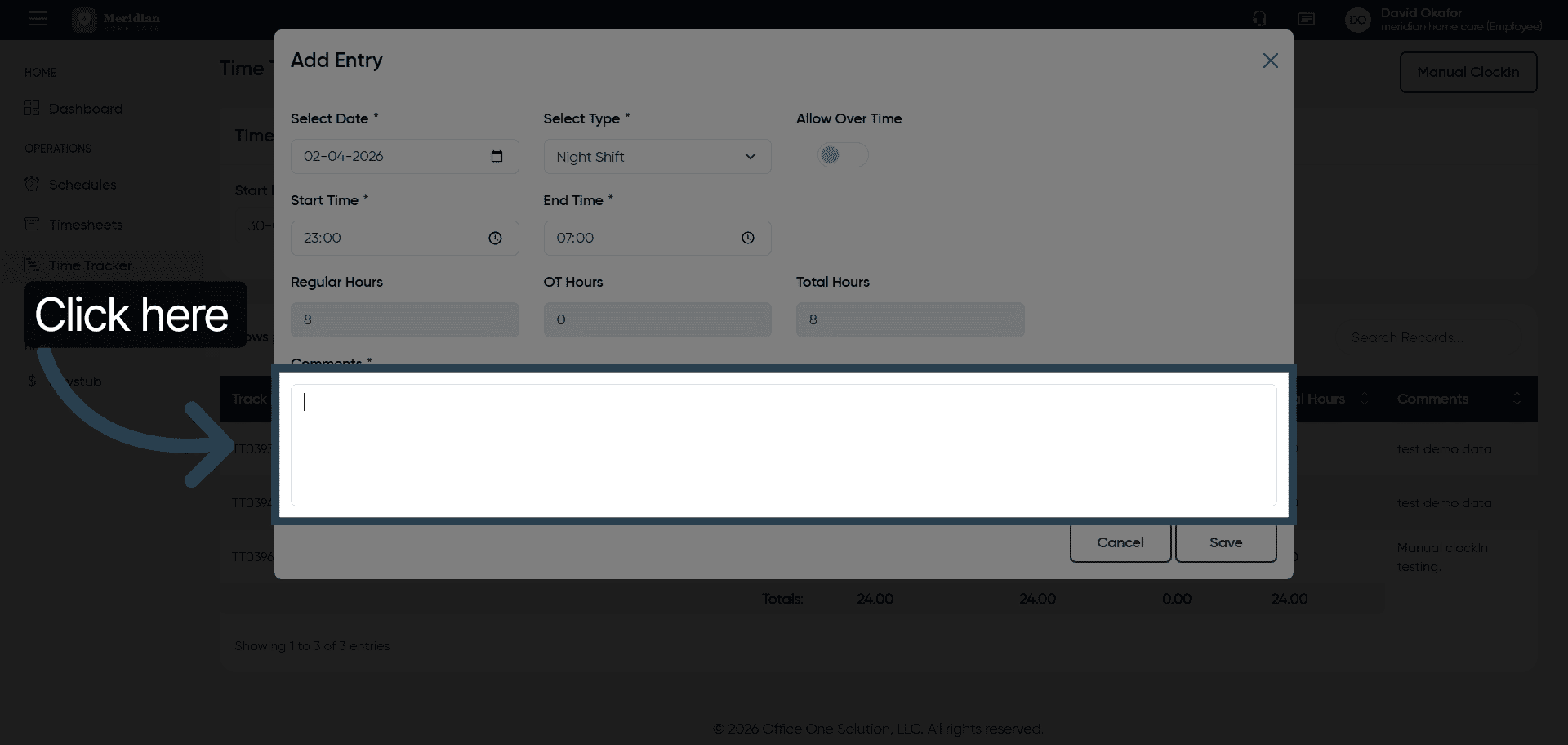
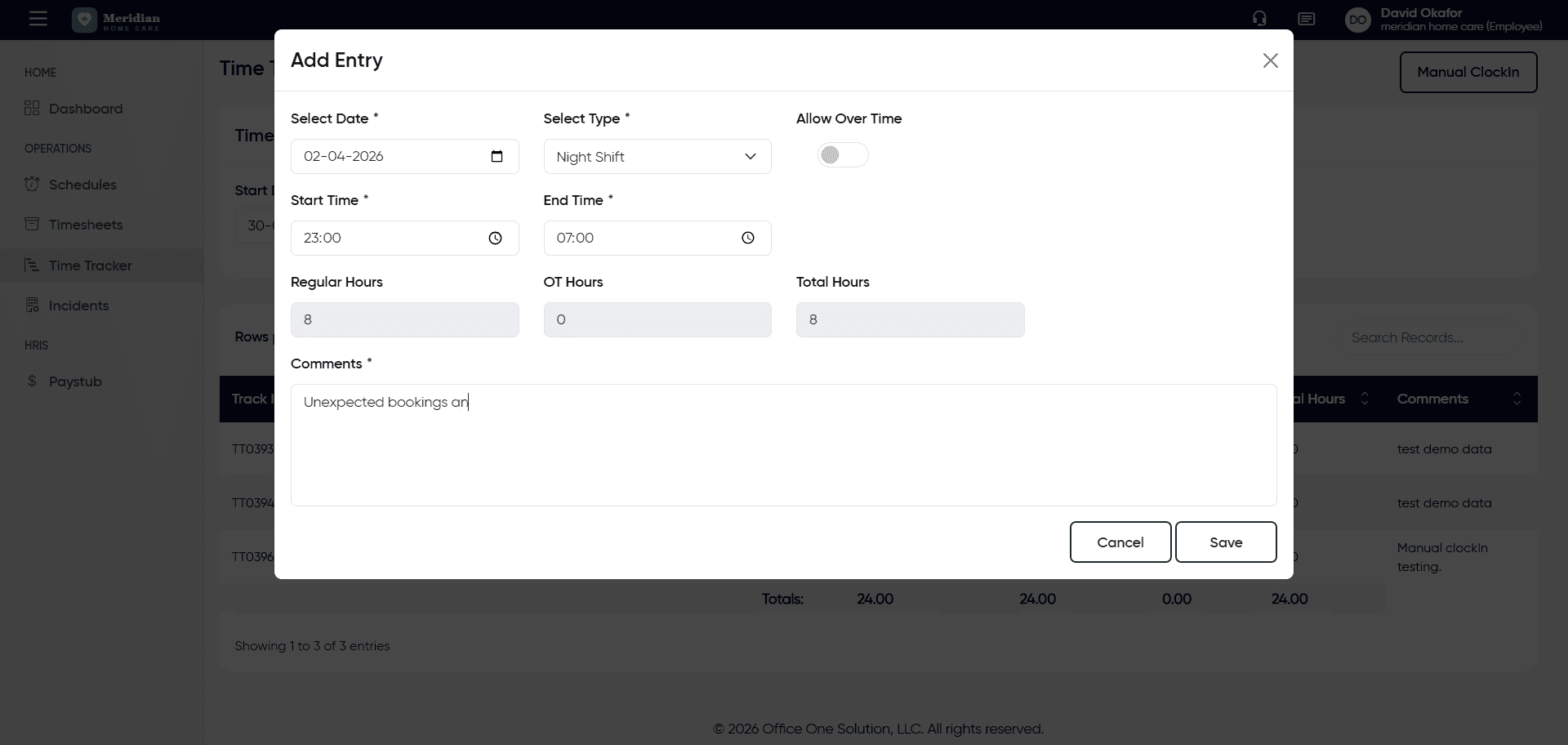
11. Add Booking Notes
12. Save Manual Clock-In
Click “Save” to finalize and store your manual clock-in entry in the system.
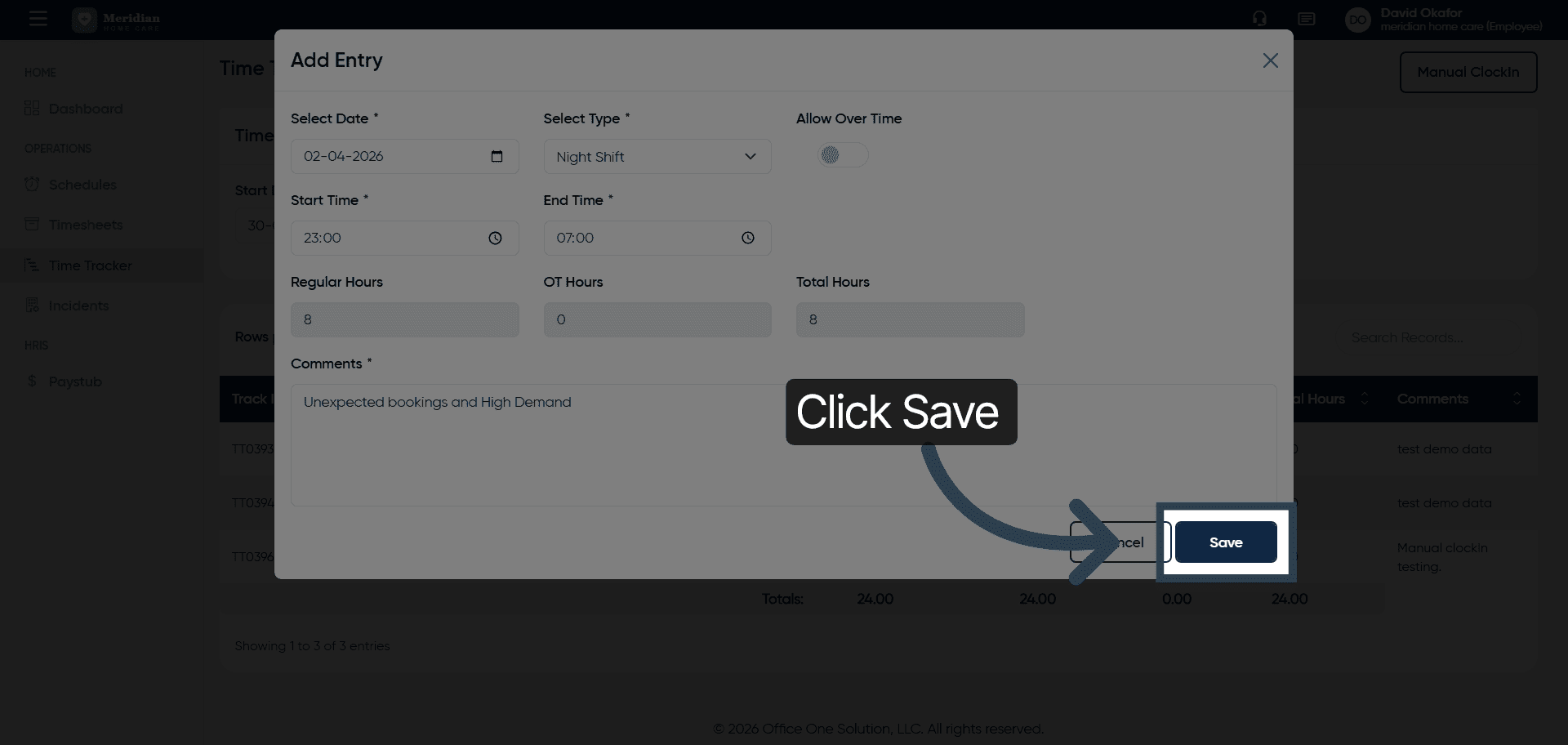
You have successfully recorded a manual clock-in entry by filtering dates, selecting the appropriate shift, adding notes, and saving the information.