
Timesheet Management
This training will teach you how to efficiently manage timesheets and track work hours using Office1solution.
Go to app.office1solution.com
1. Introduction
You will learn to add, edit, and submit timesheets as well as manually clock in for shifts.
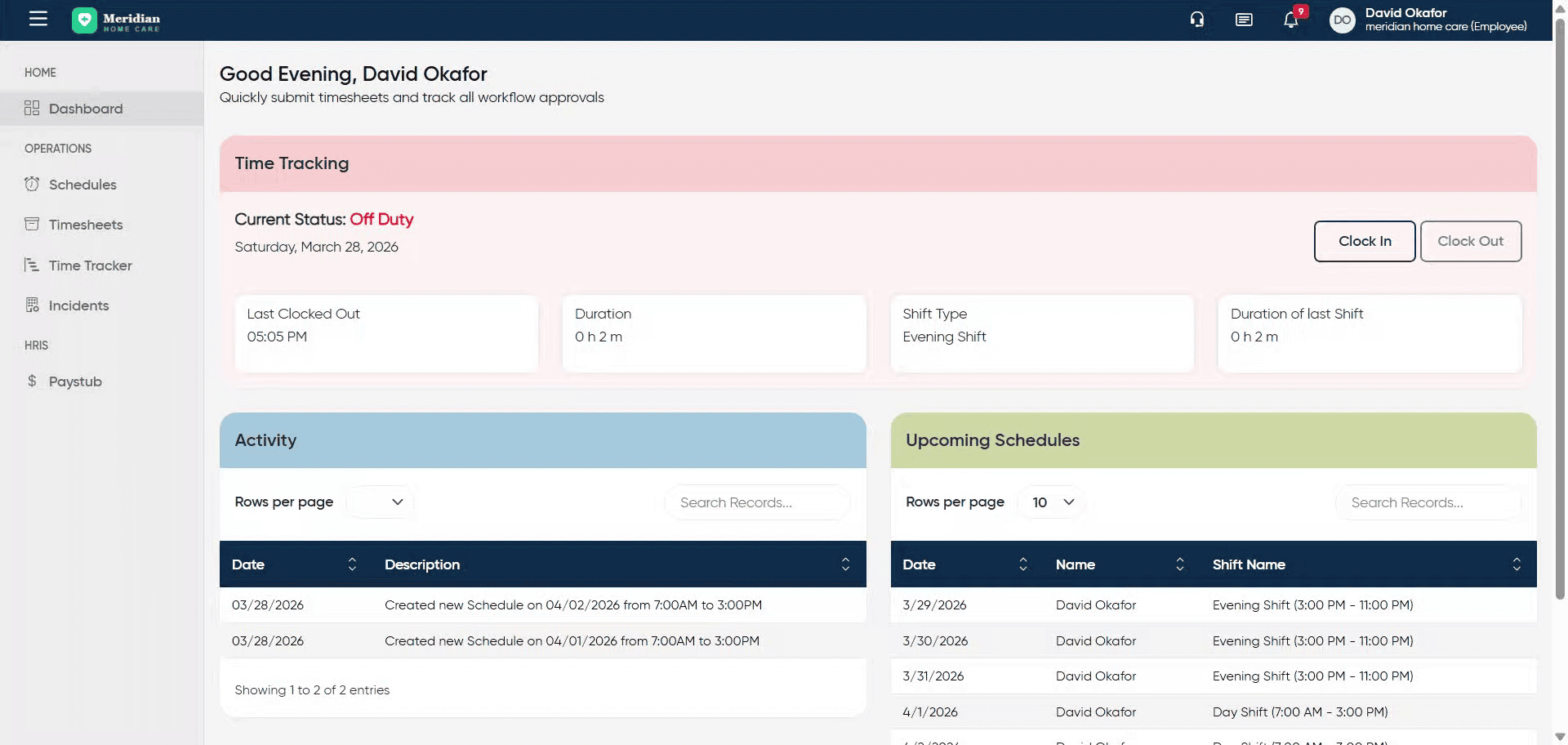
2. Access Timesheets Section
Click the Timesheets section to begin managing your work hours.
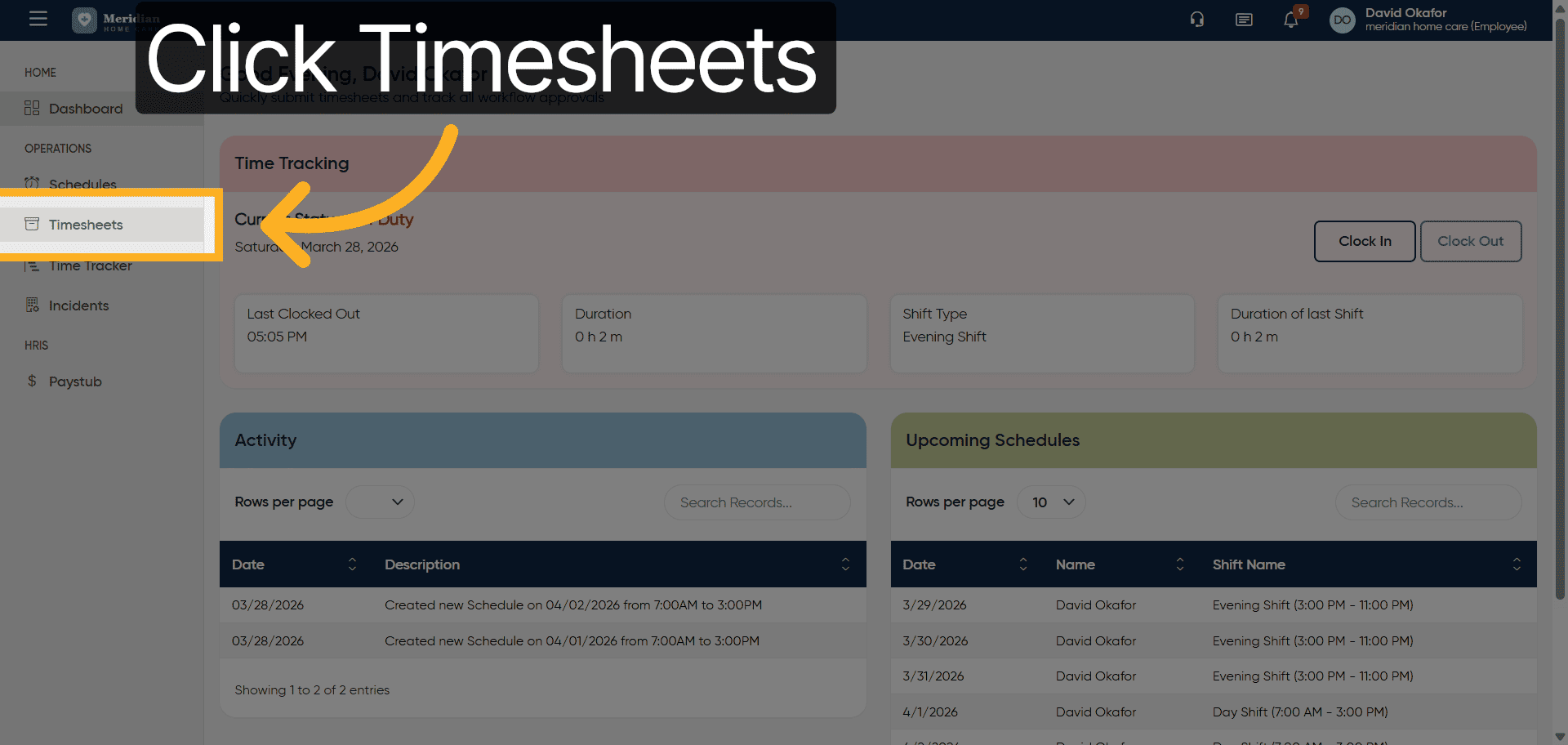
3. Initiate New Timesheet
Click the Add Timesheet button to start entering a new timesheet record.
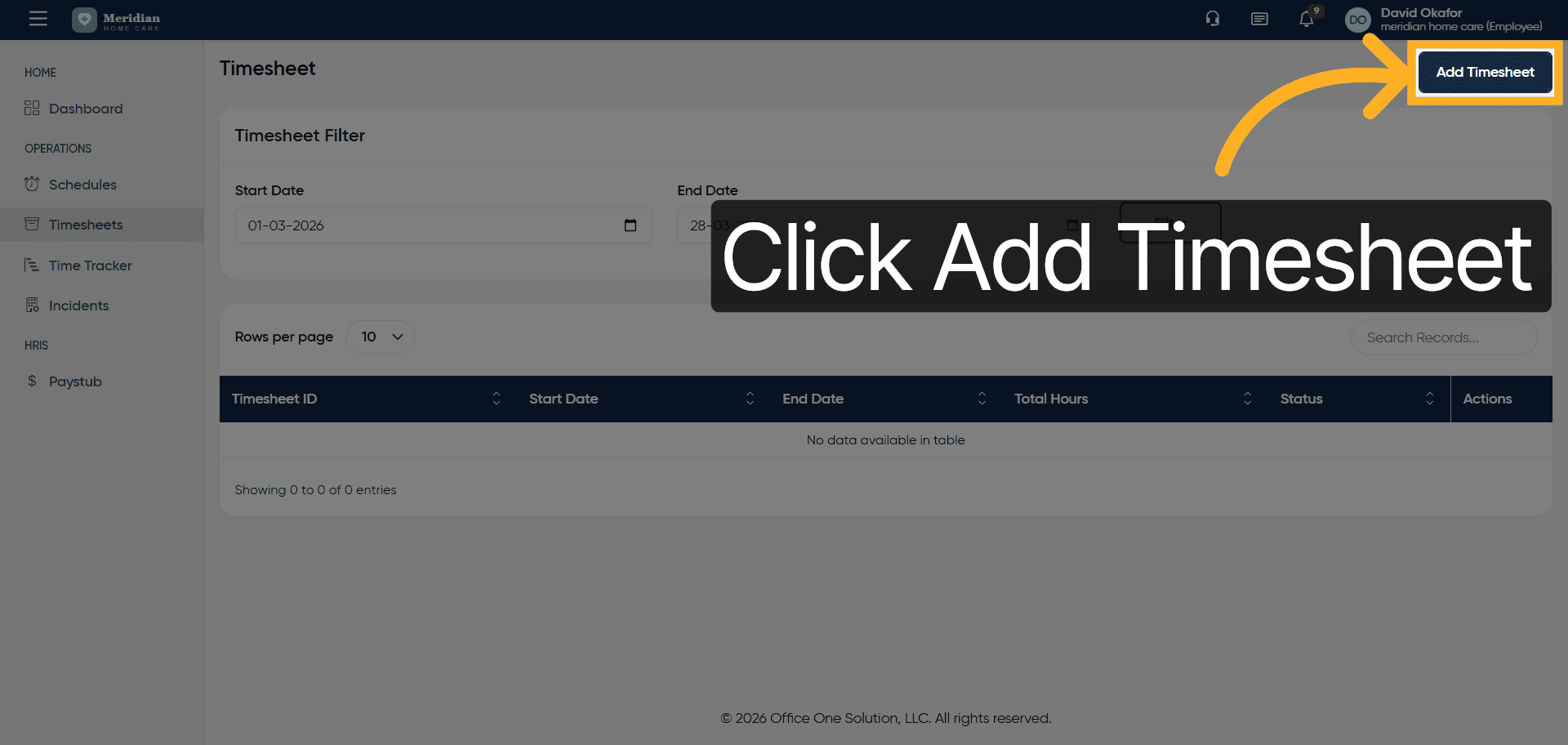
4. Choose Employee for Timesheet
Click to select the employee for whom you want to create the timesheet, such as Kim Robert or James Whitfield.
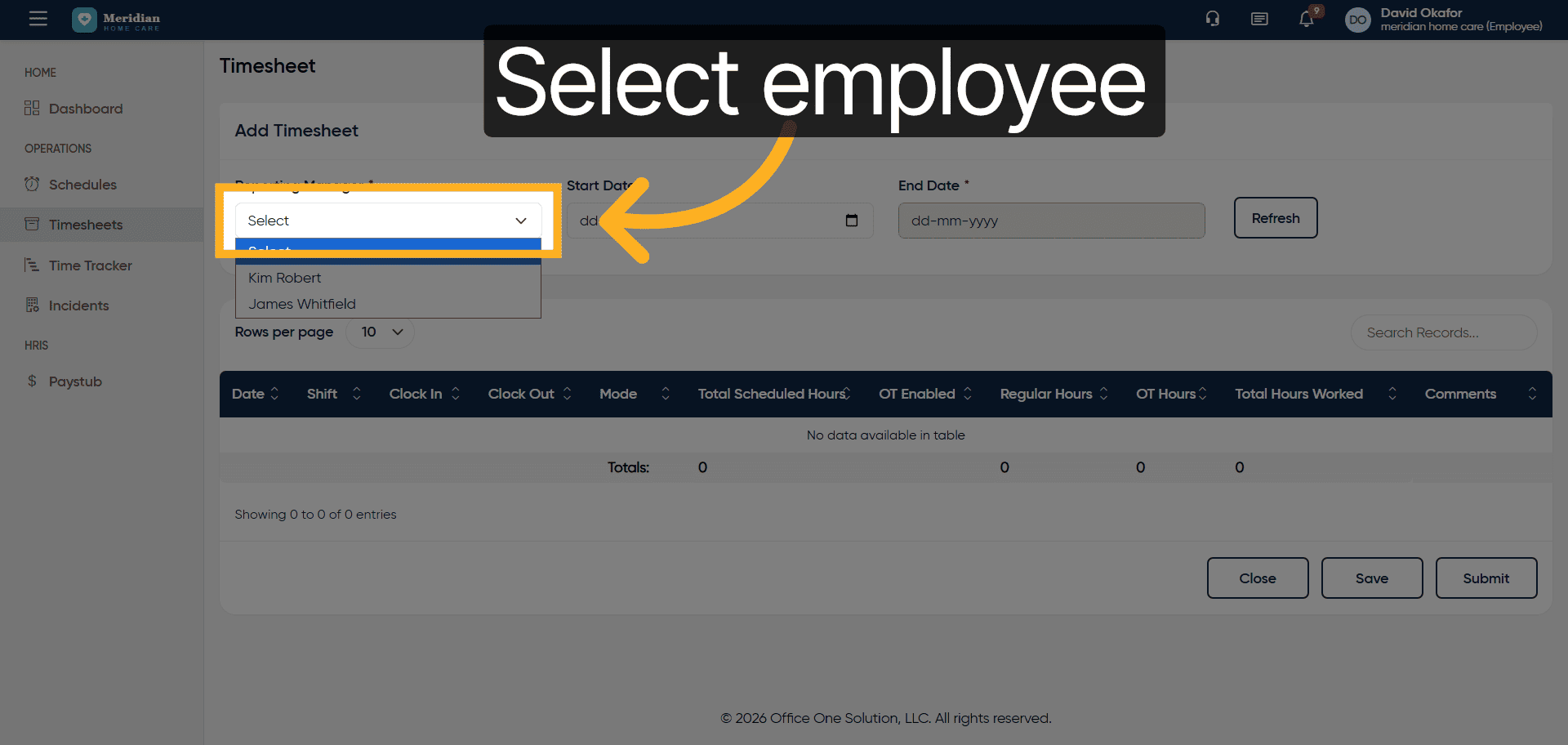
5. Enter Employee Name
Fill in the employee’s name to specify whose timesheet you are creating.
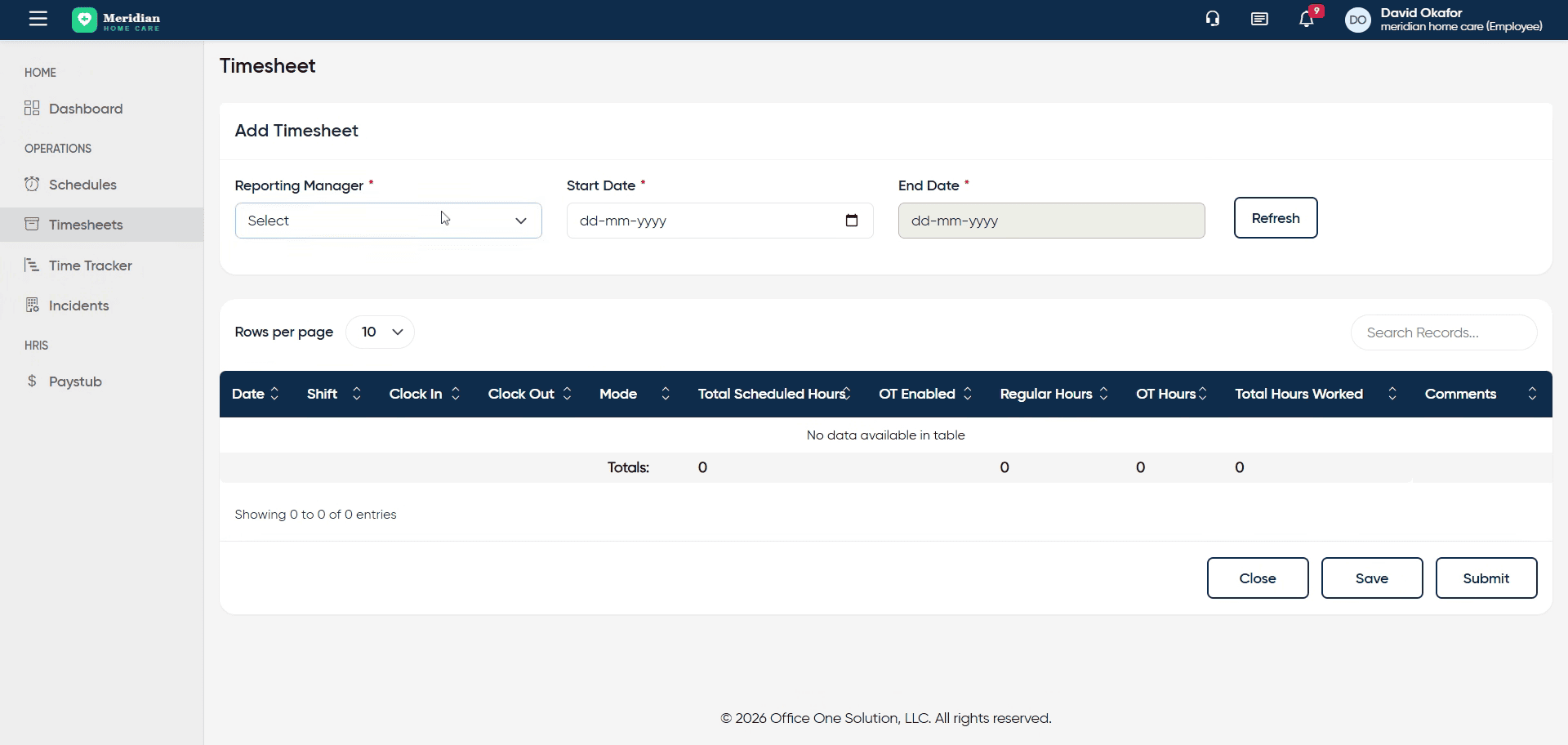
6. Proceed to Next Step
Click here to continue to the next step in the timesheet creation process.
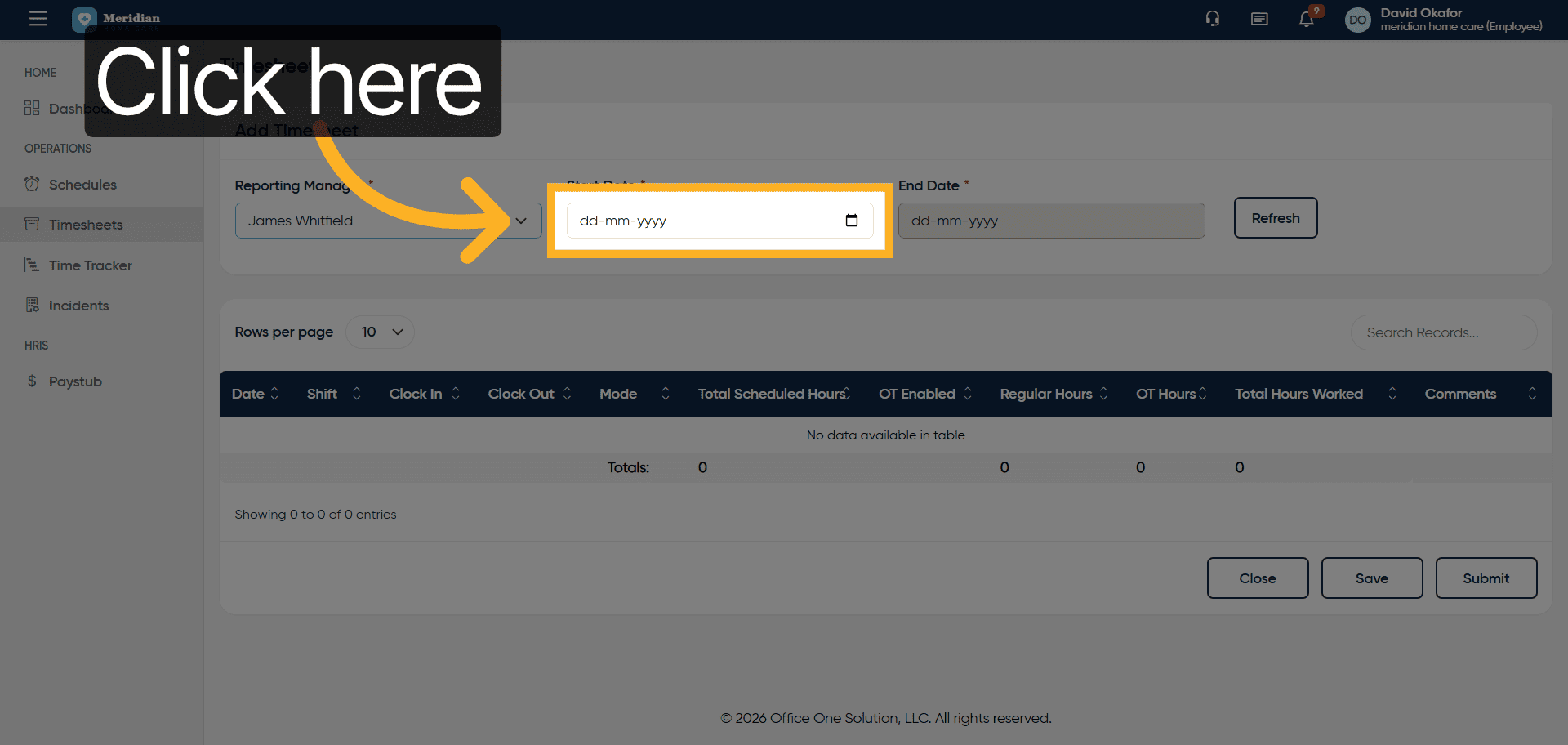
7. Input Timesheet Start Date
Fill in the start date for the timesheet period, for example, 2026-03-01.
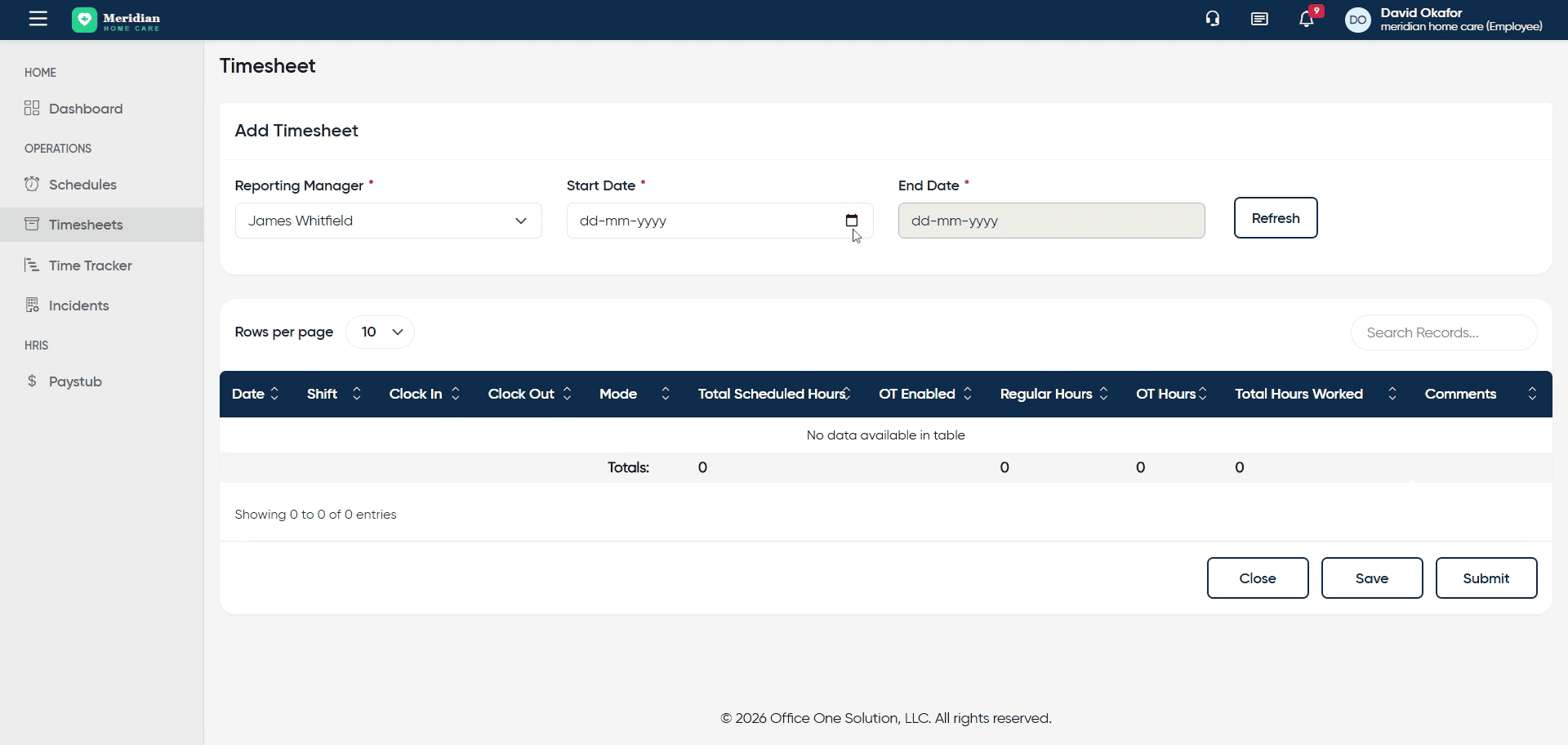
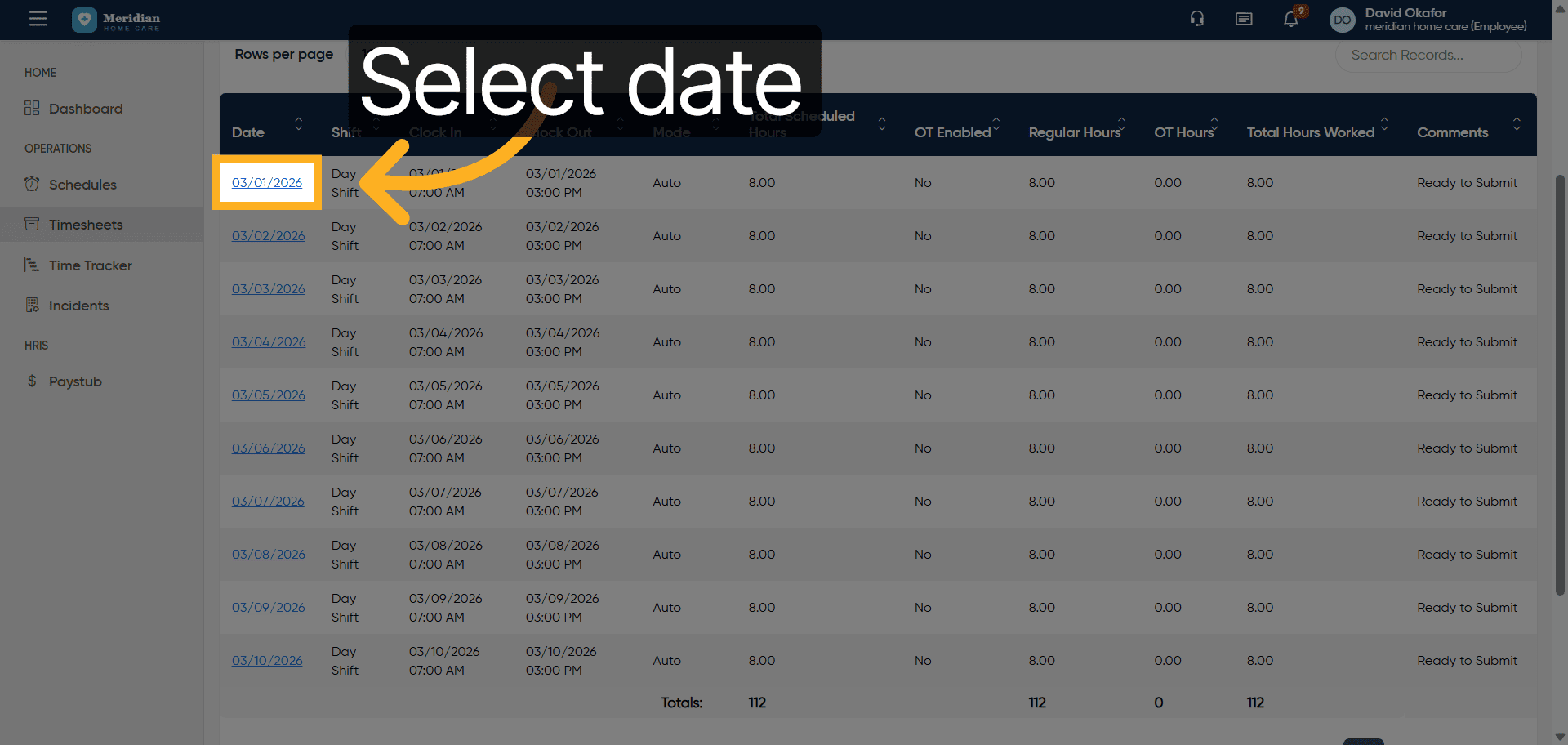
8. Select Start Date
Click the date 03/01/2026 to confirm the timesheet start date.
9. Save Timesheet Entry
Click the Save button to store the timesheet information you have entered.
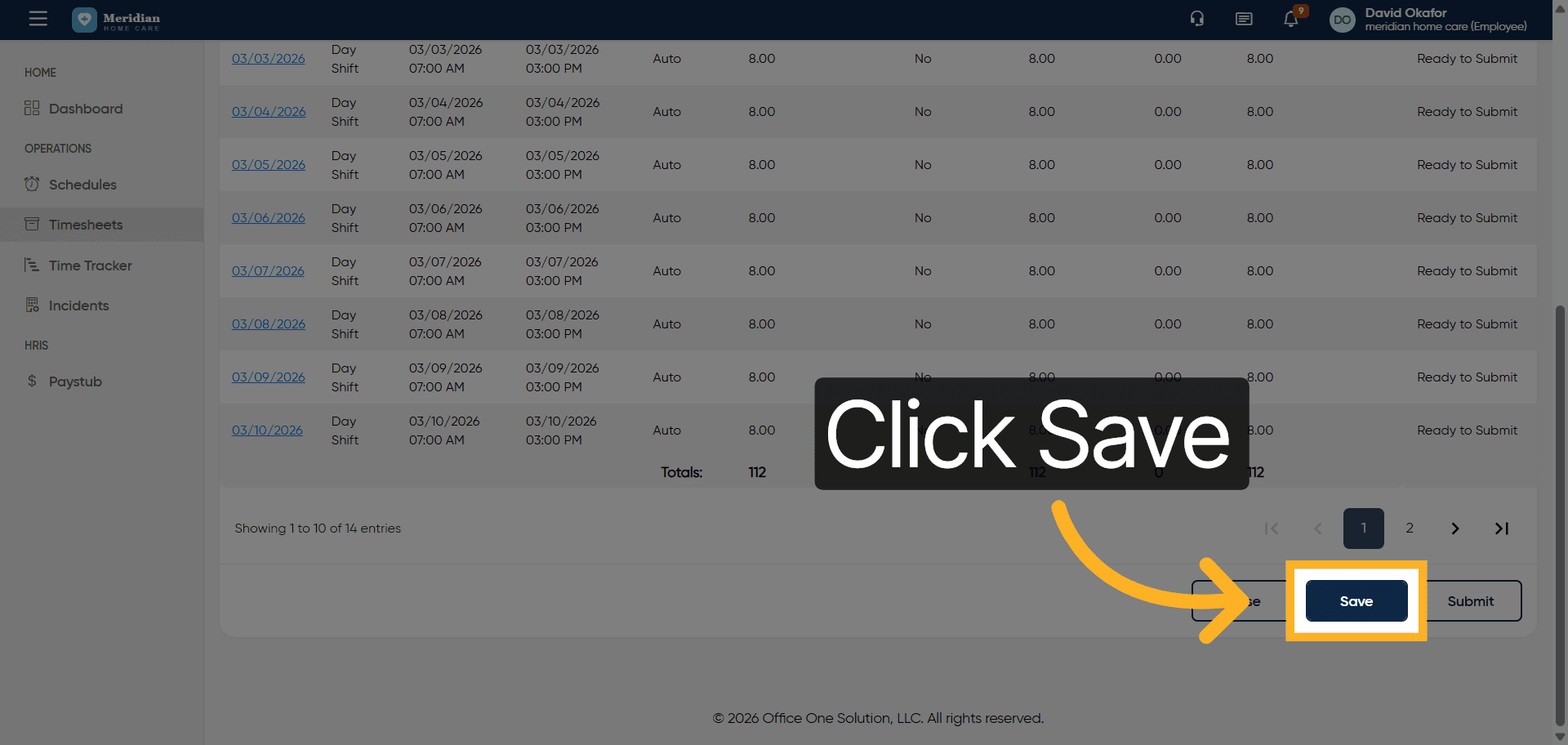
10. Continue Editing Timesheet
Click here to proceed with editing the timesheet details further.
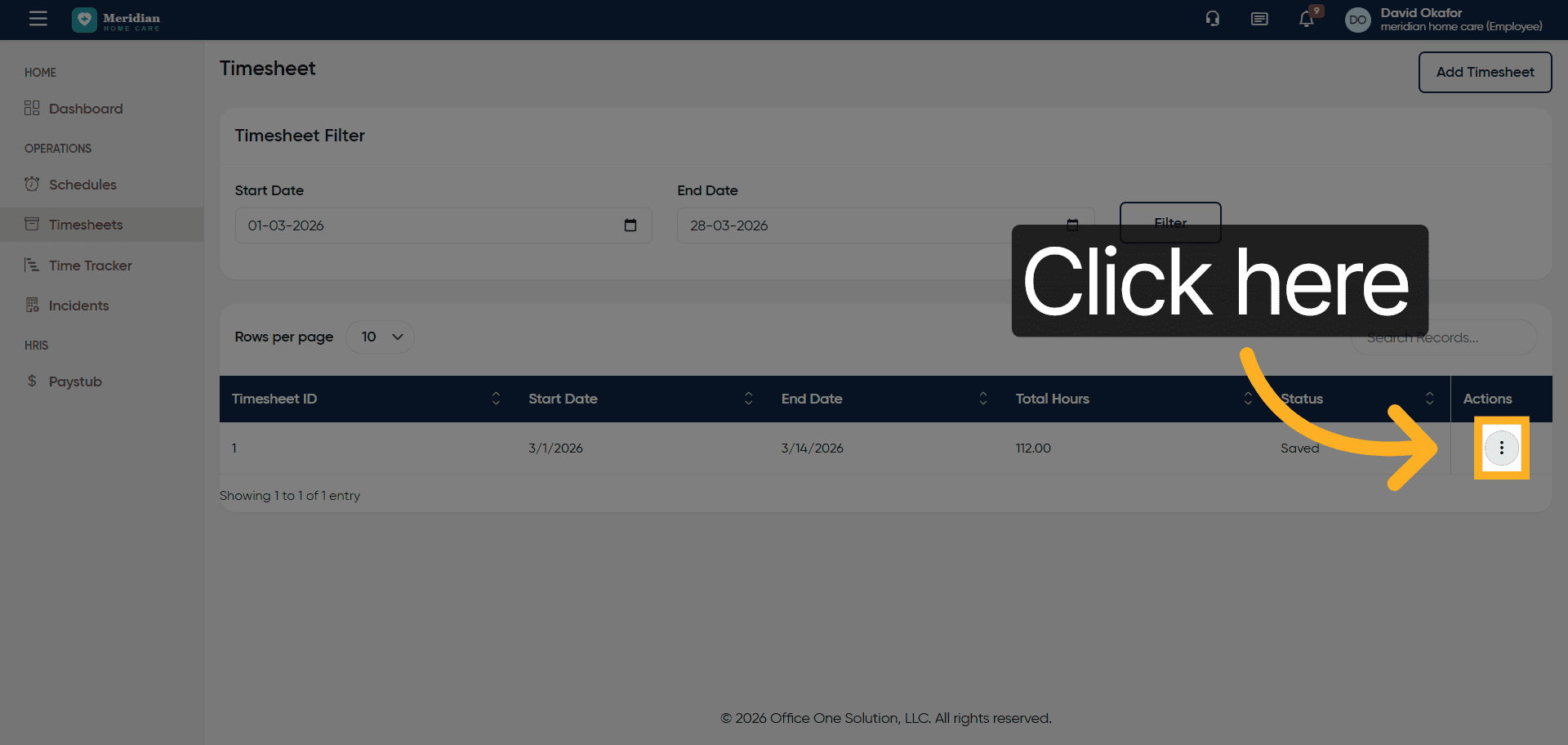
11. Open Timesheet for Editing
Click Edit Timesheet to modify the existing timesheet information.
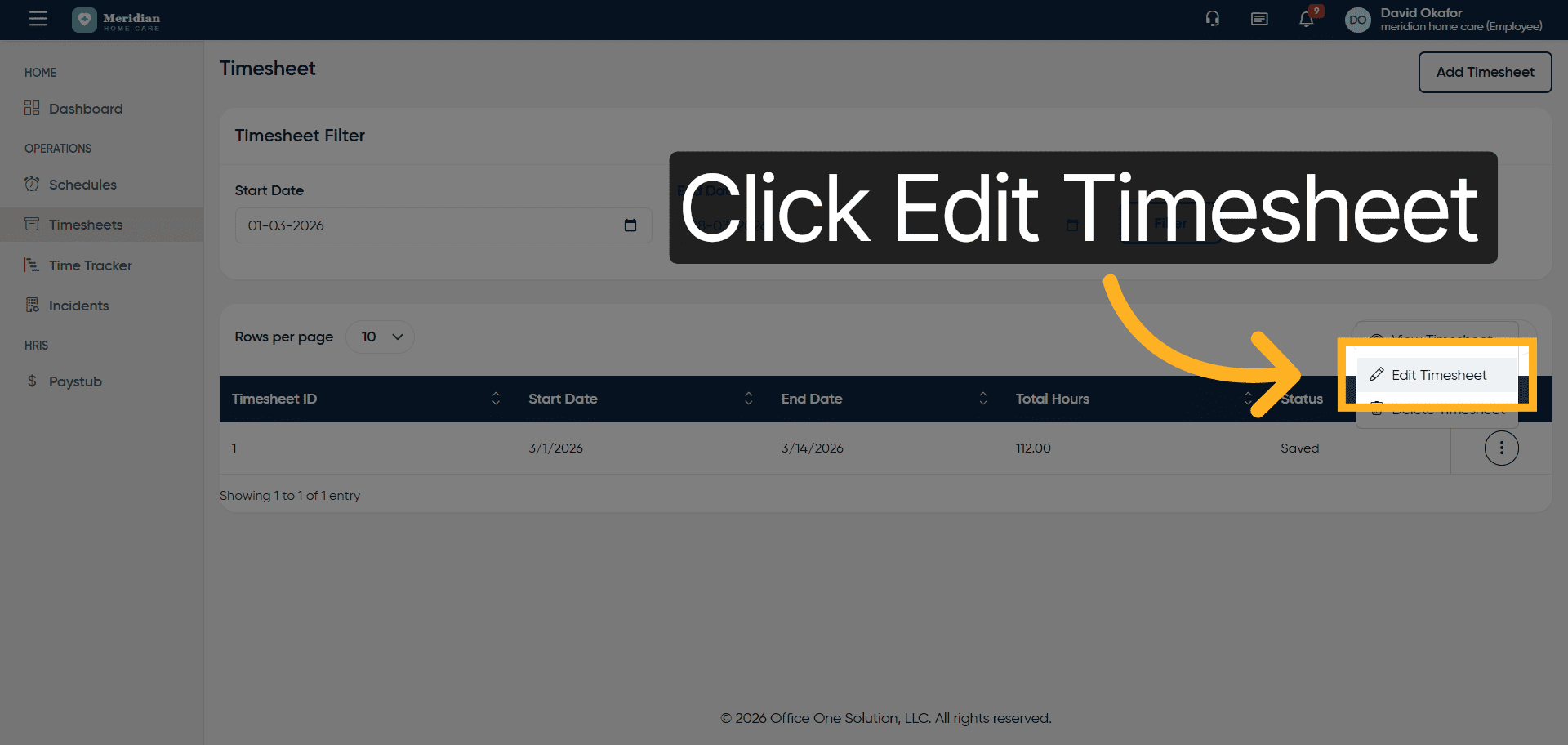
12. Select Date to Edit
Click the date 2026-03-01 to choose the timesheet entry you want to edit.
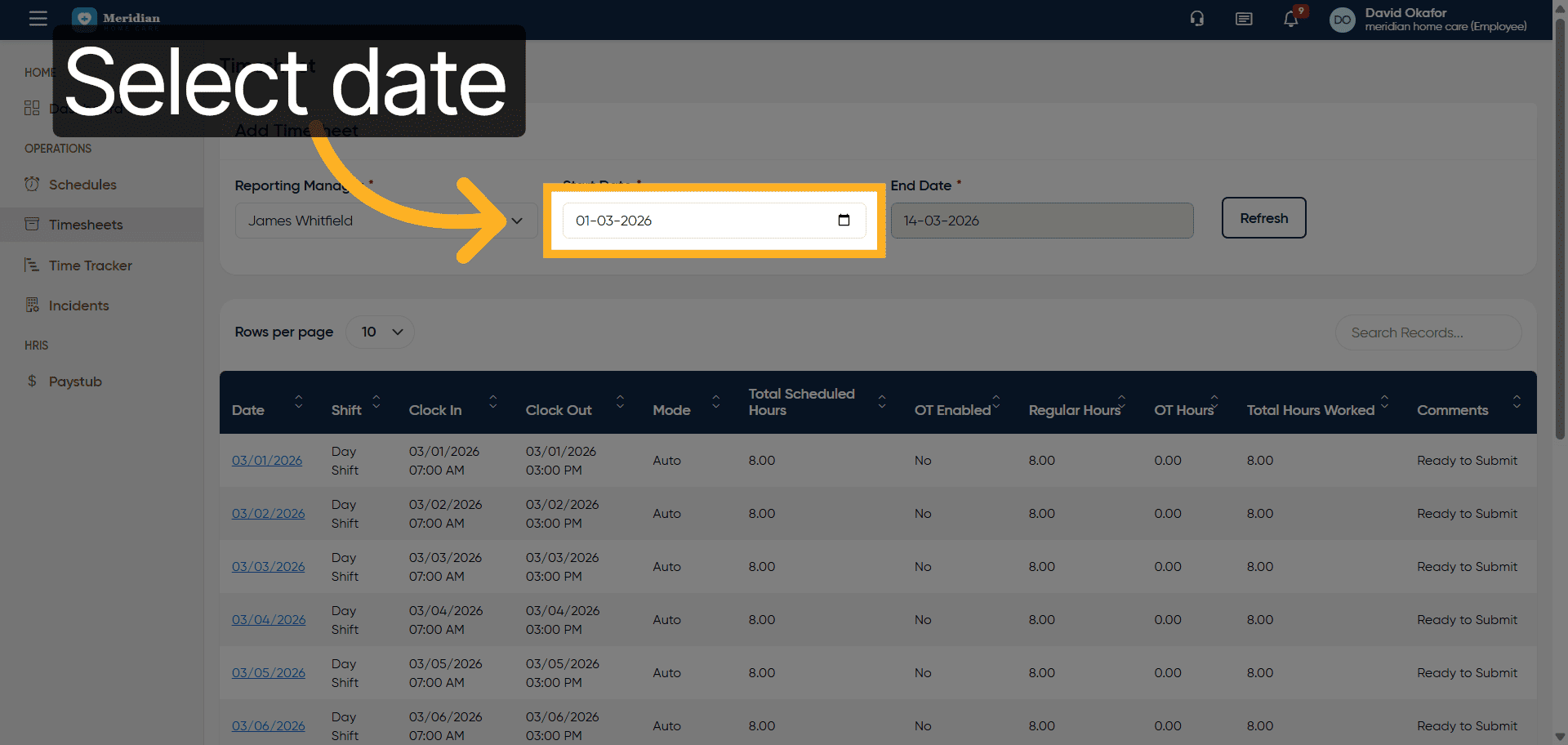
13. Update Timesheet Details
Fill in the necessary fields to update the timesheet information as required.
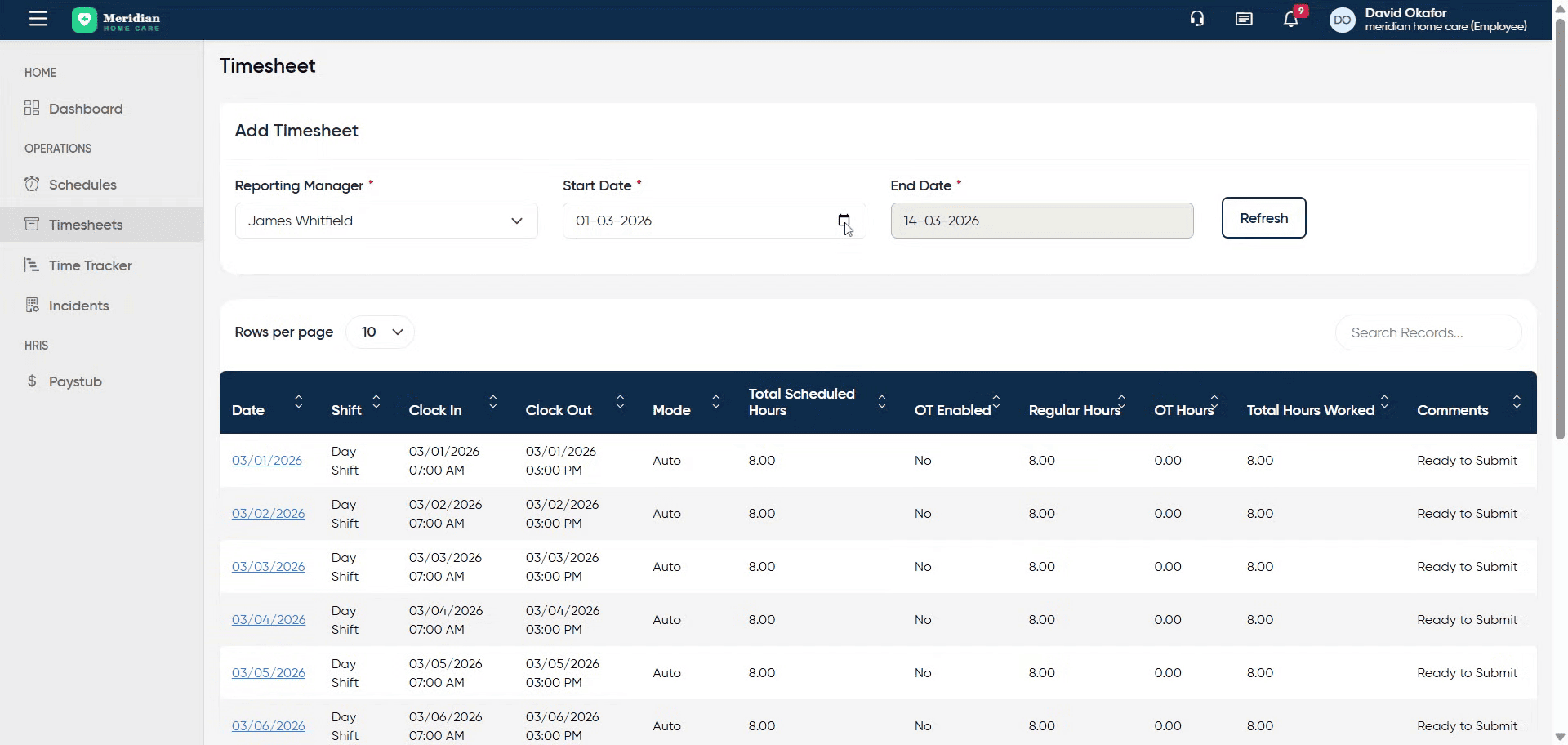
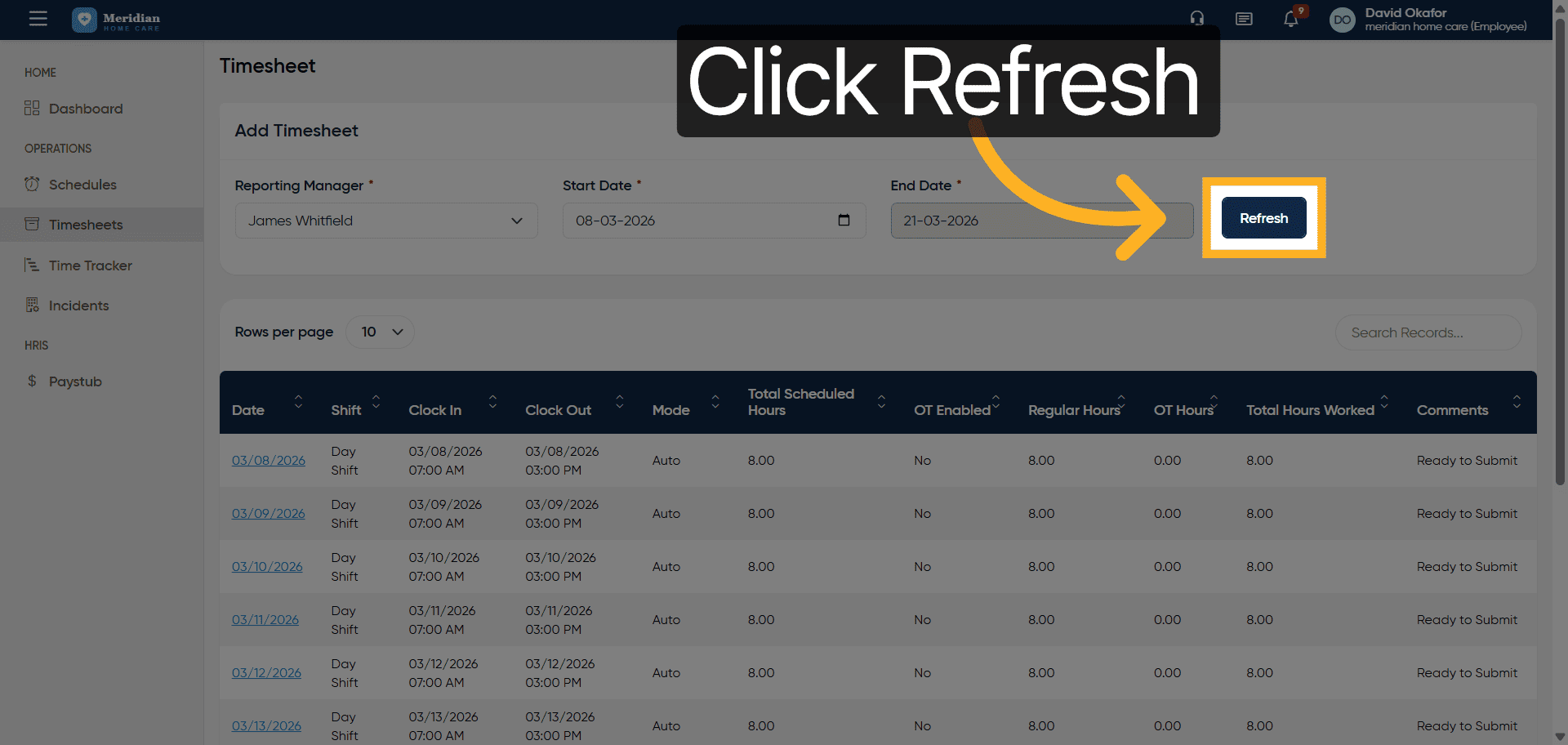
14. Refresh Timesheet Data
Click the Refresh button to reload the timesheet data and view recent changes.
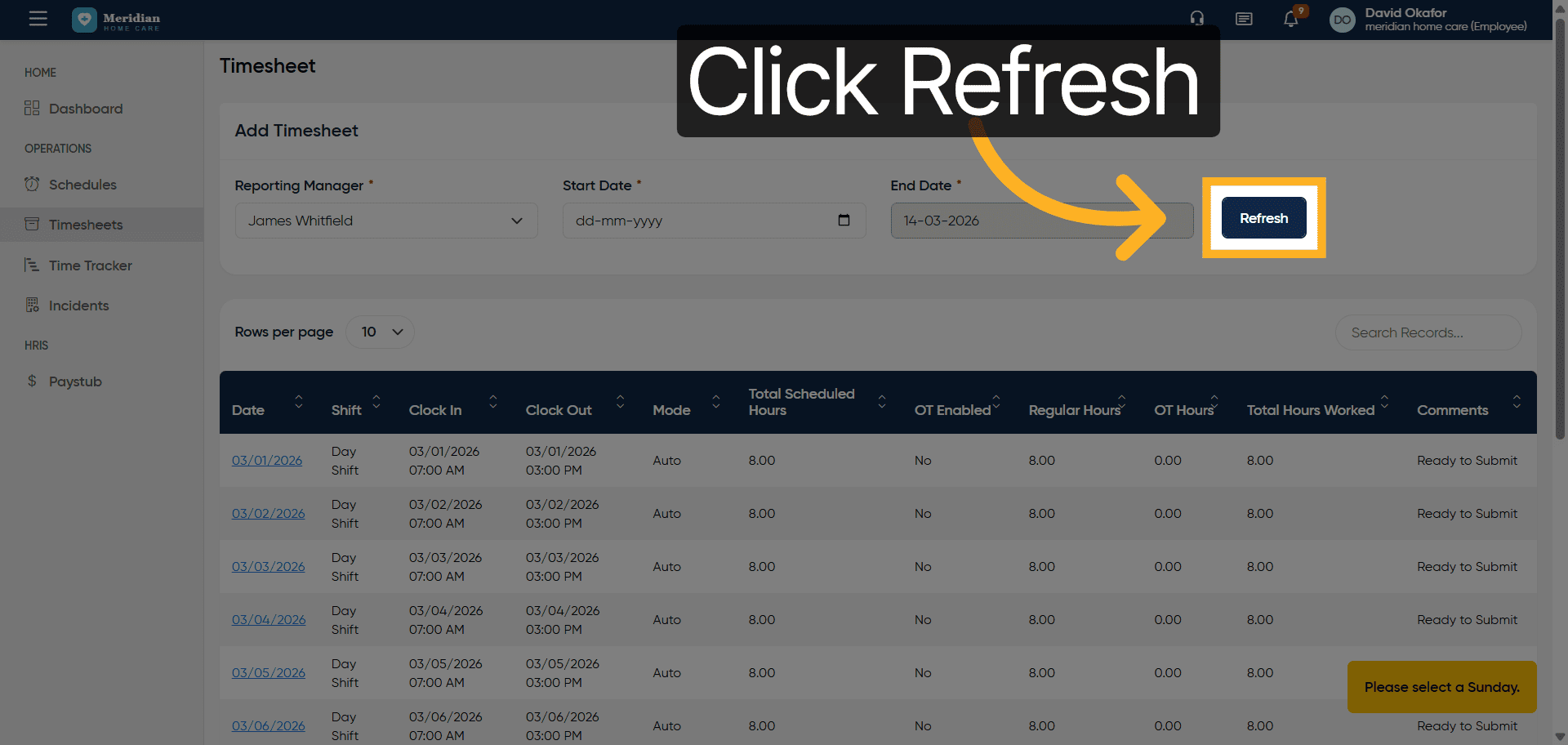
15. Proceed to Next Editing Step
Click here to continue with the next step in editing the timesheet.
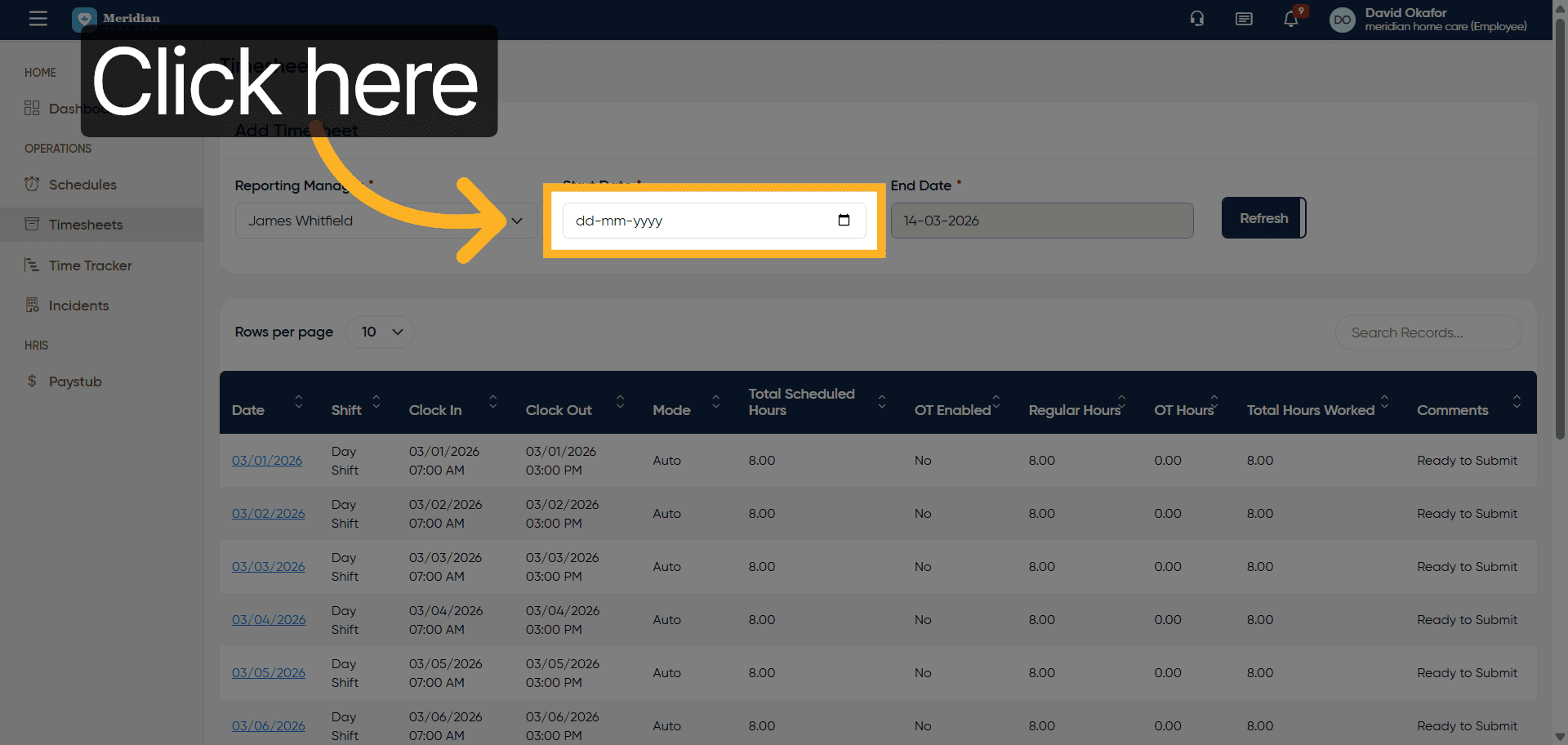
16. Enter Timesheet End Date
Fill in the end date for the timesheet period, such as 2026-03-08.
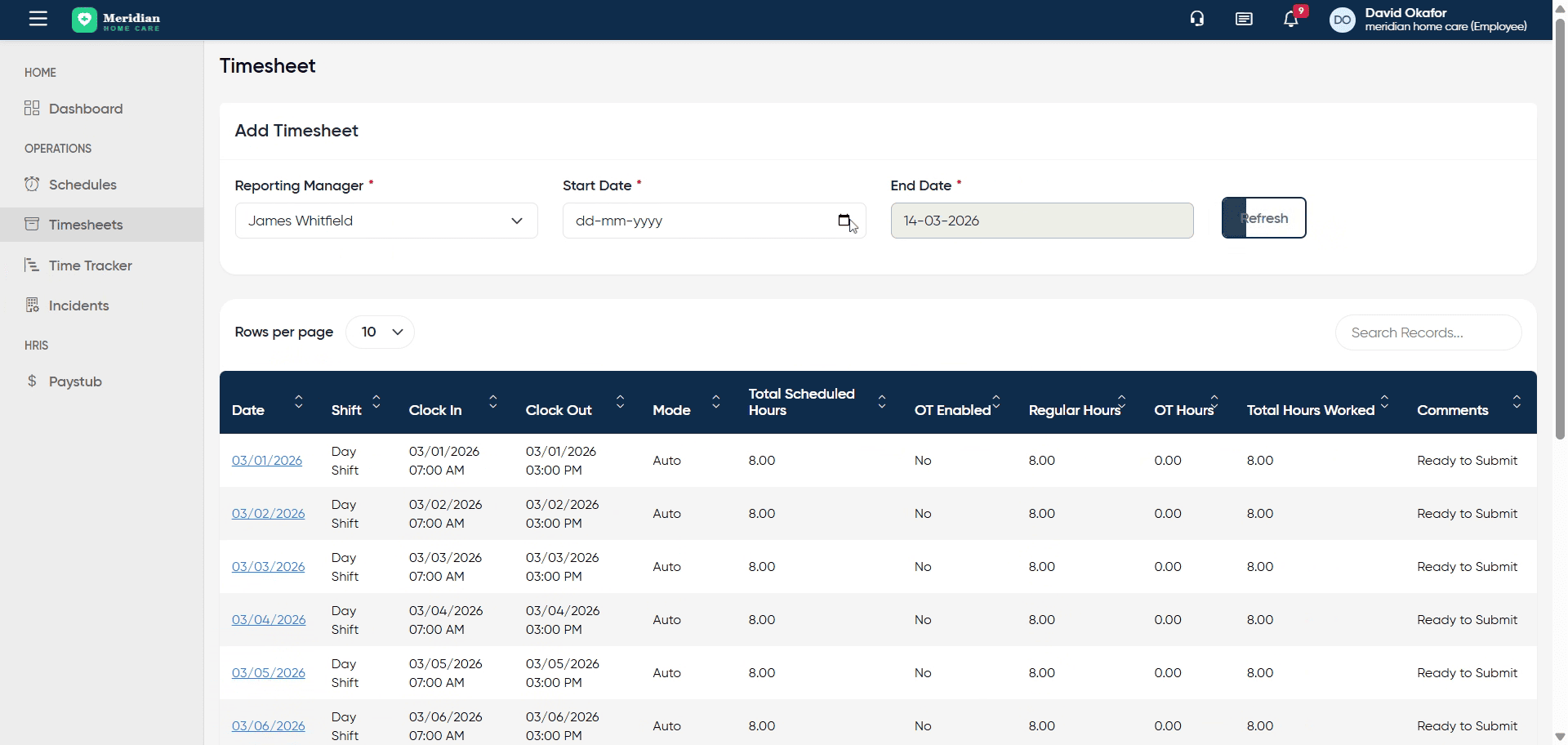
17. Refresh Updated Timesheet
Click Refresh to update the timesheet view with the latest information.
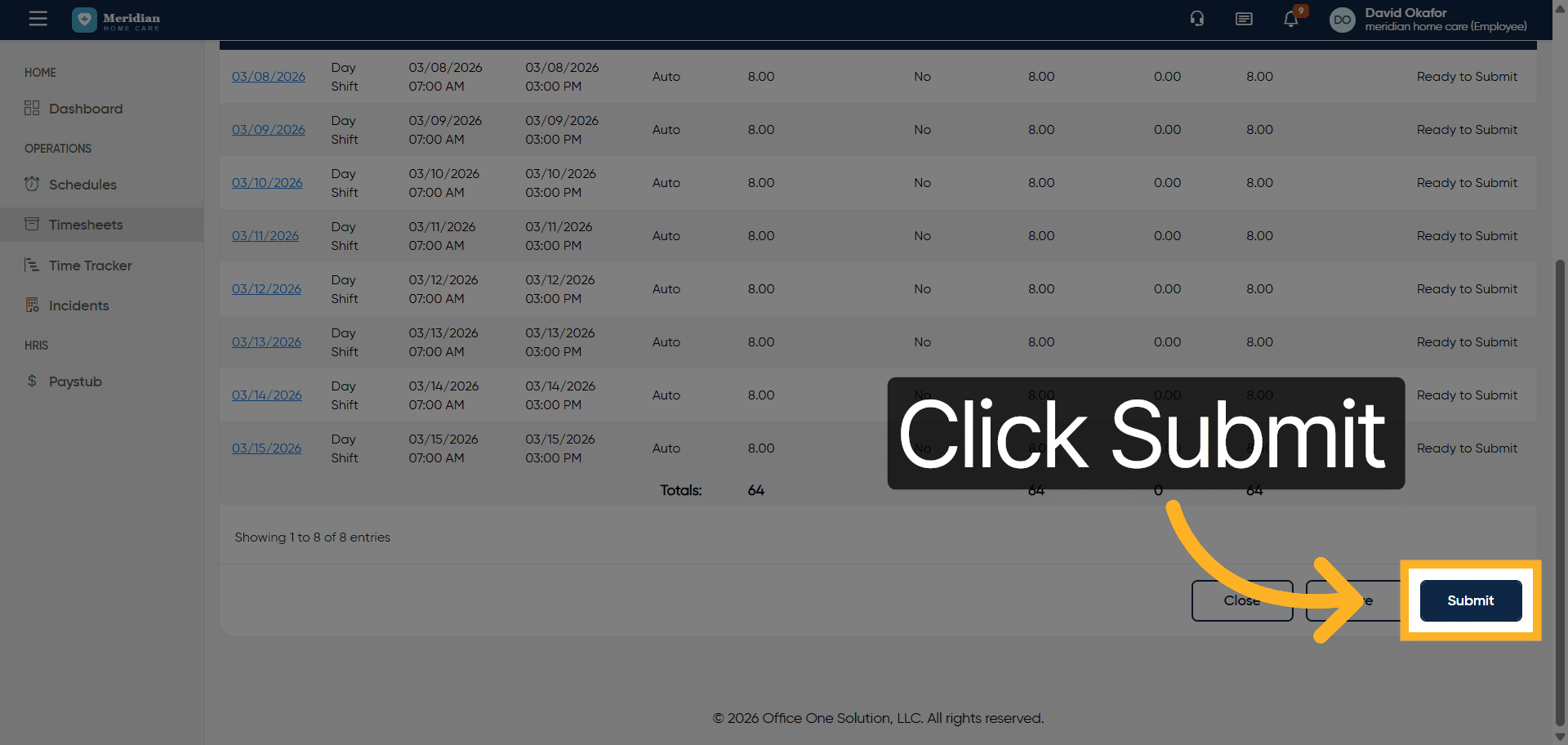
18. Submit Completed Timesheet
Click the Submit button to finalize and send the timesheet for approval.
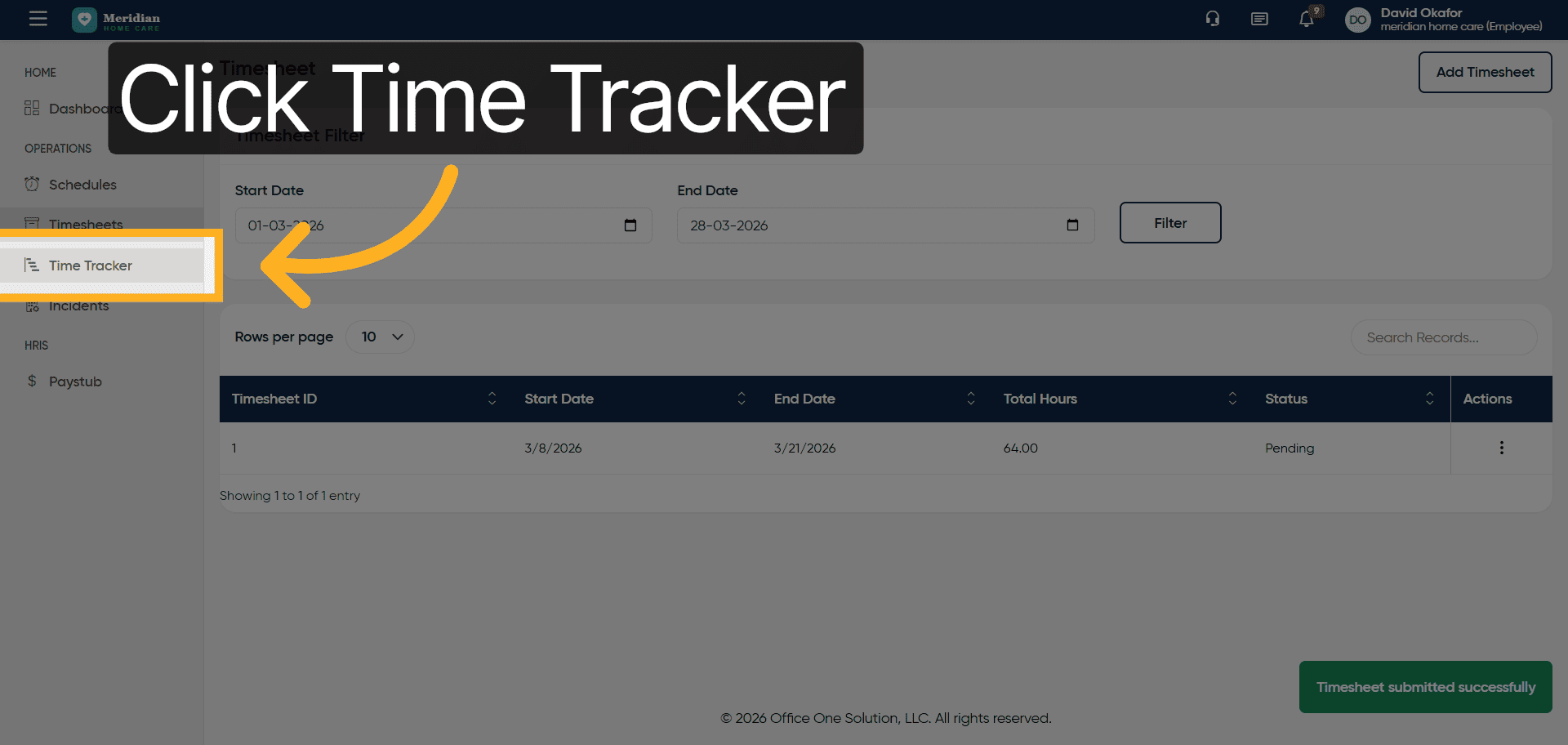
19. Access Time Tracker Module
Click the Time Tracker section to manage your clock-in and clock-out times.
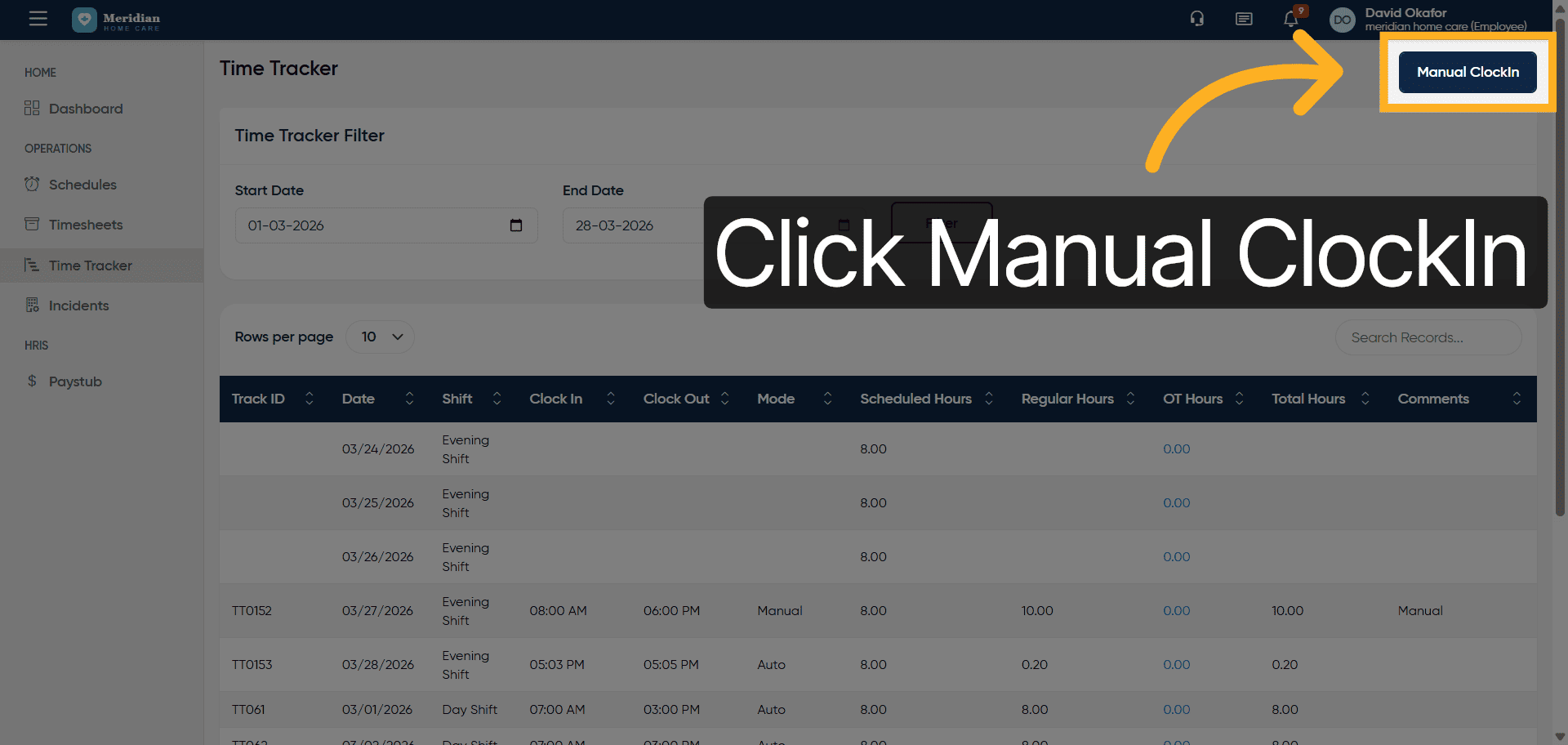
20. Open Manual Clock-In
Click Manual ClockIn to record your work time manually.
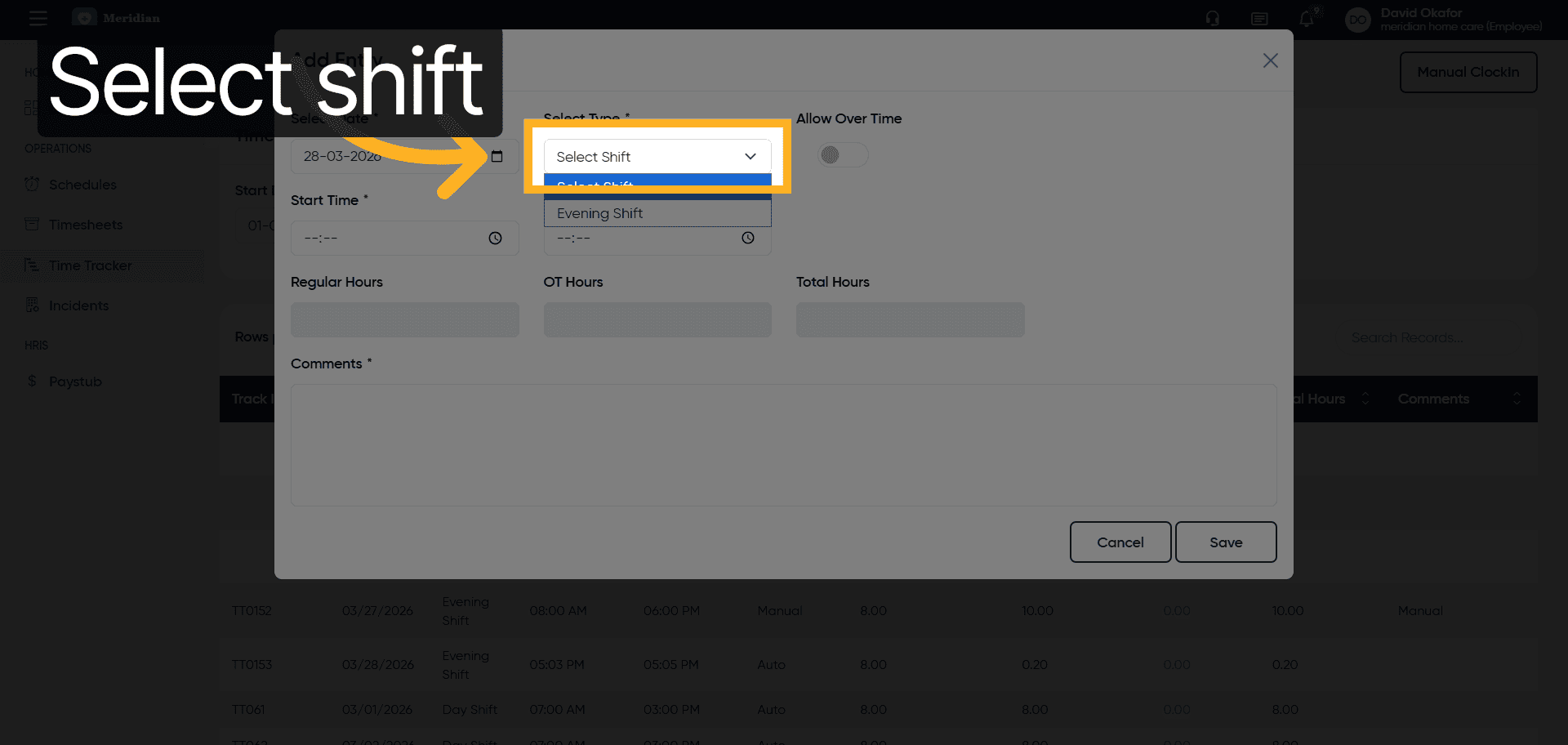
21. Select Work Shift
Click to select the shift you are clocking in for, such as the Evening Shift.
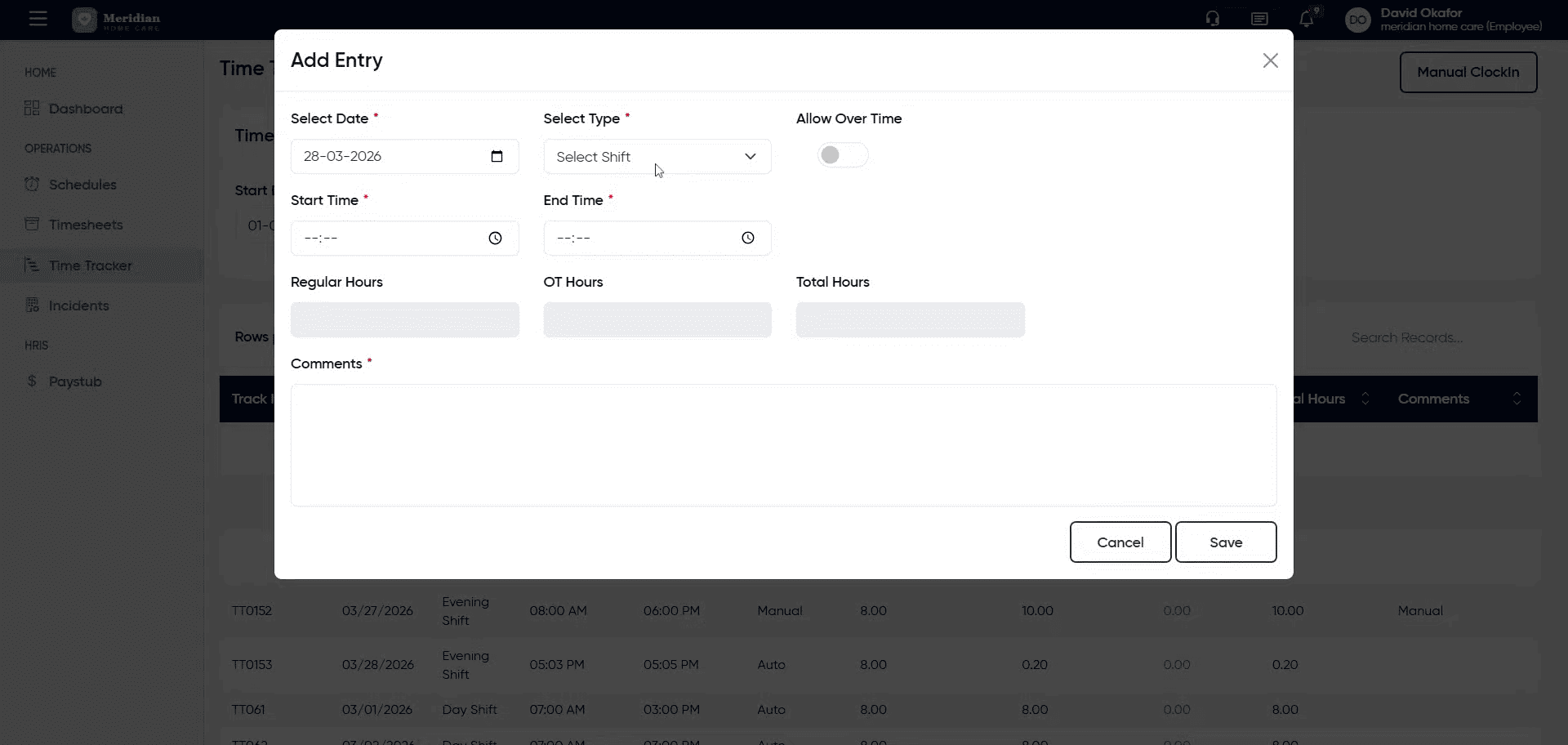
22. Enter Shift Details
Fill in the shift information to specify your work period.
23. Proceed with Clock-In
Click here to continue with the manual clock-in process.
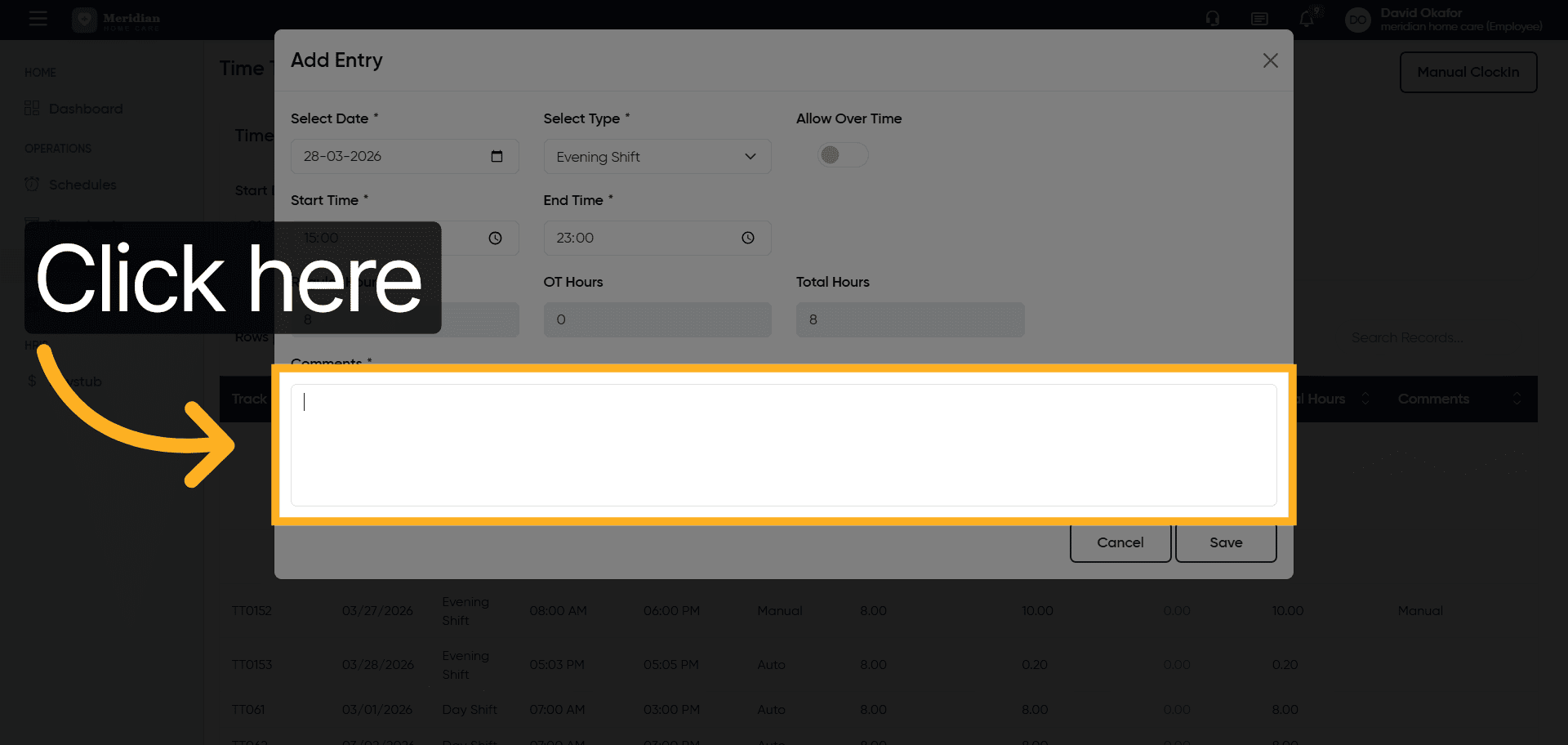
24. Input Clock-In Time
Fill in the manual clock-in time to record your start time accurately.
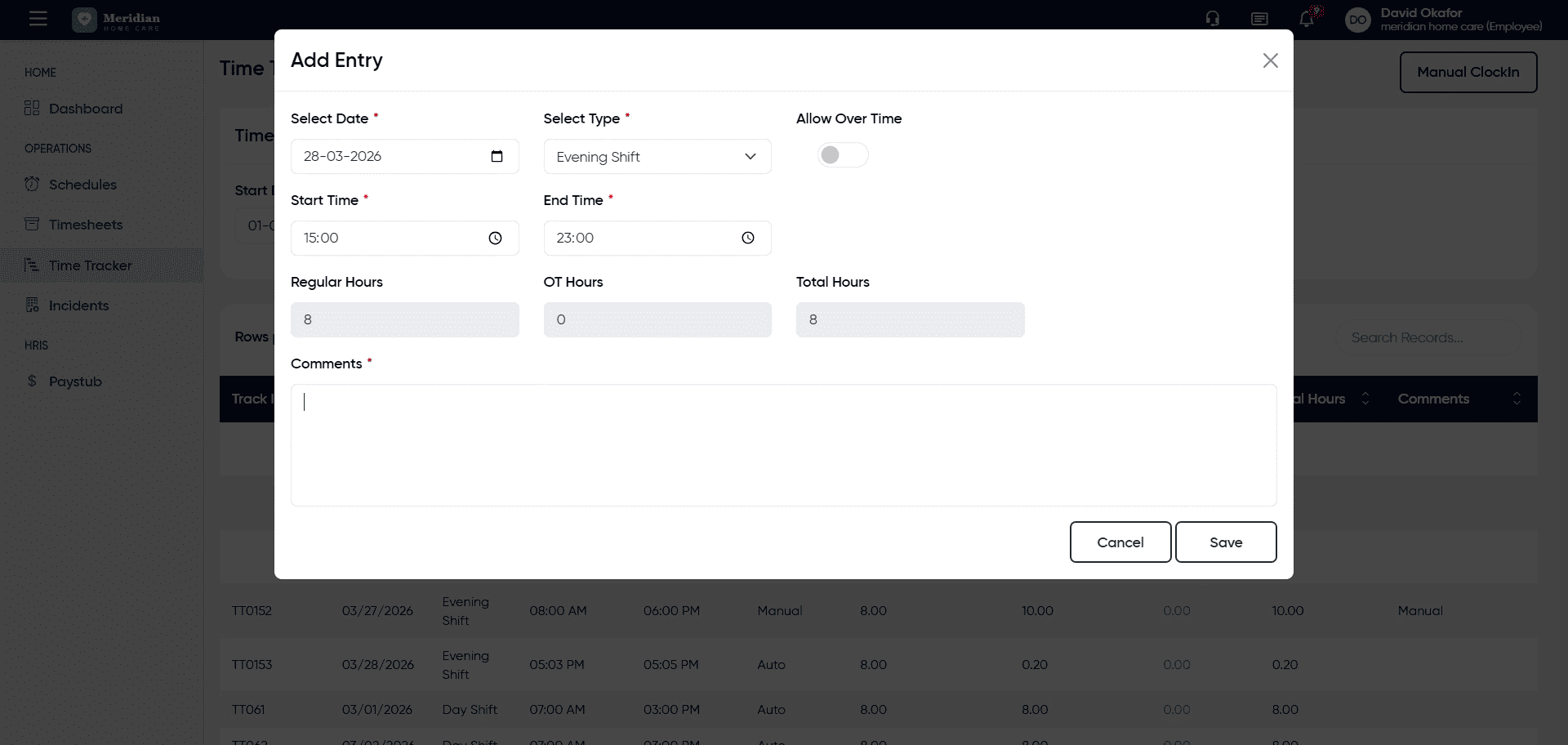
25. Save Clock-In Record
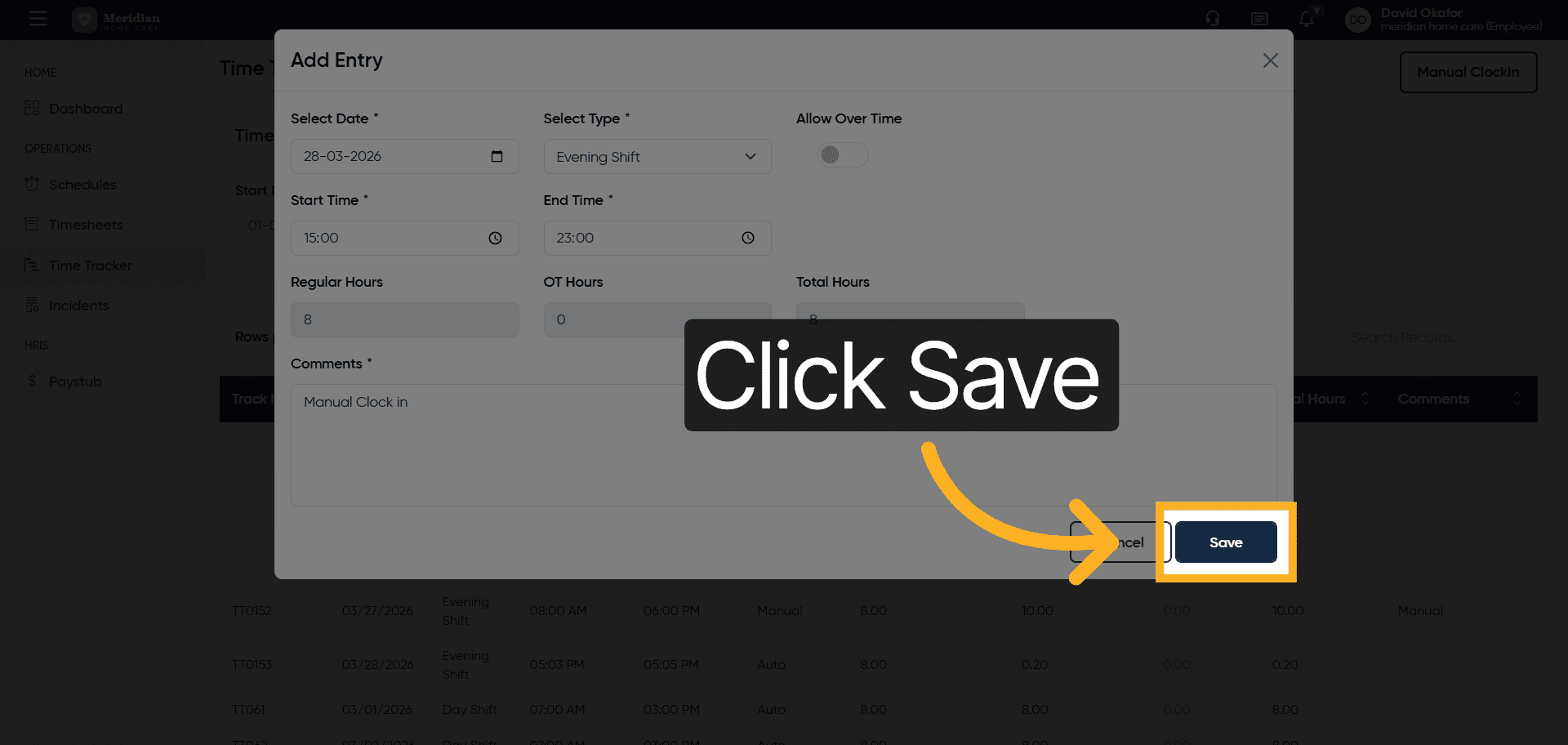
Click the Save button to store your manual clock-in information.
26. Confirm Clock-In Date
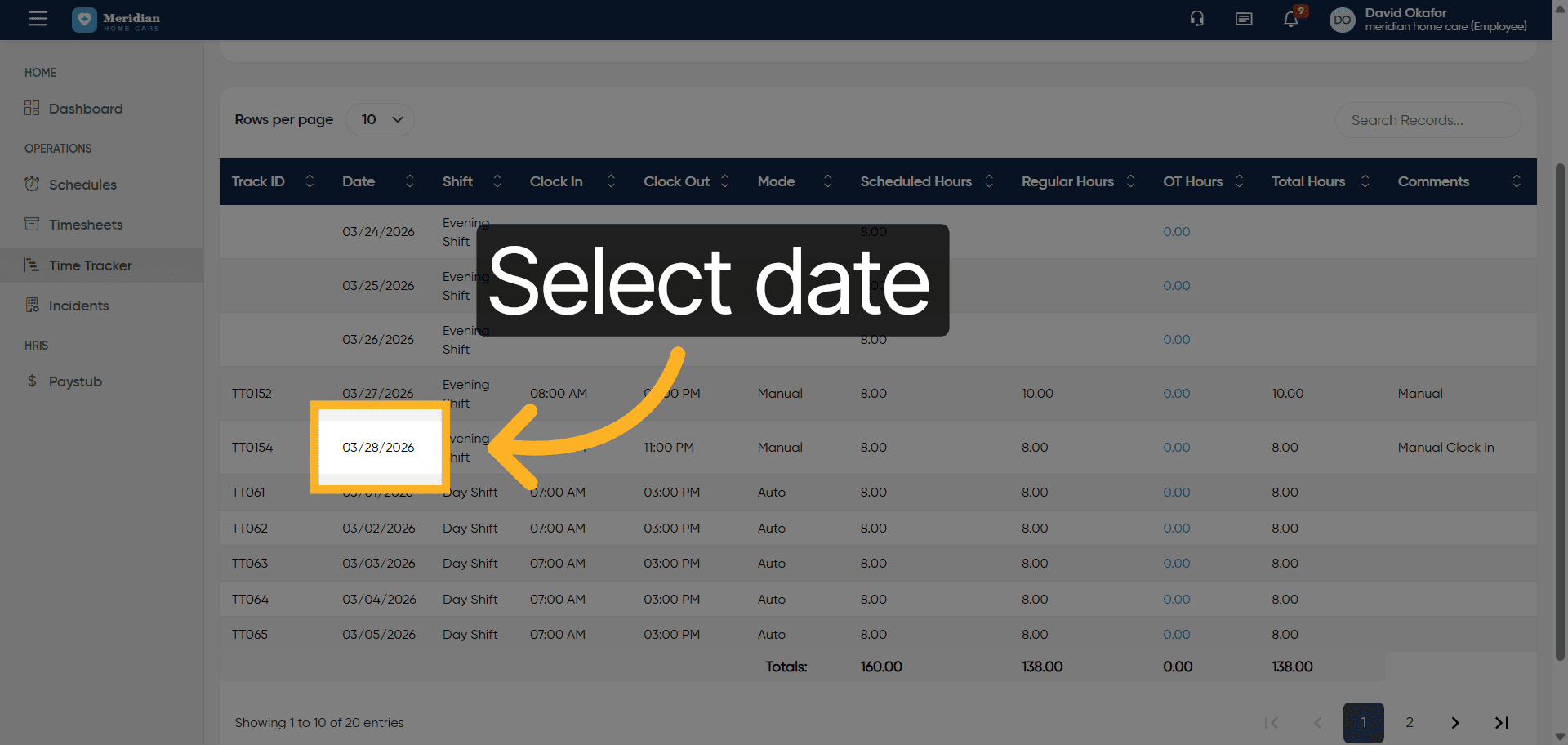
Click the date 03/28/2026 to confirm the manual clock-in entry date.
After completing this training, you will be able to efficiently manage timesheets and manually track work hours using Office1solution. Practice these steps to ensure accurate time recording and submission for payroll processing.